

Setting up mentoring
Mentoring lets people in your organisation find a mentor among their colleagues, message them and log the sessions they hold. Nobody sees it until you switch it on, so you can set it up and invite a few mentors before you tell everyone. An empty list of mentors looks broken, so launch it in that order: switch it on, ask a handful of experienced people to write a mentor profile, then announce it.
You need Manage mentoring for everything here. Mentoring needs Development and tickets on your account. How mentoring works explains the rules people work within.
Where the mentoring settings are
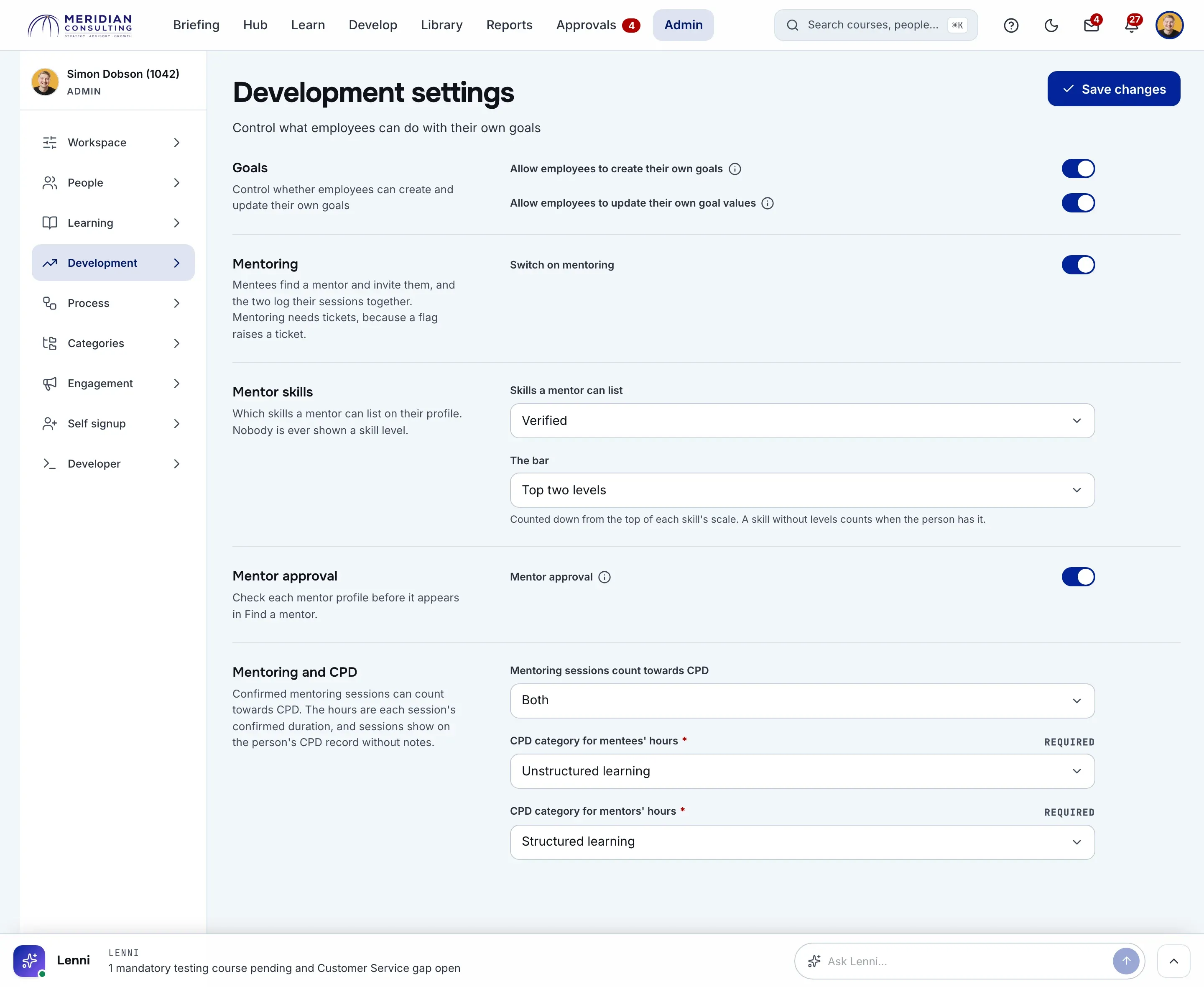
Section titled “Where the mentoring settings are”Choose Admin, then Development in the left-hand menu and Settings. The Mentoring section is on the Development settings page. Nothing you change applies until you choose Save at the top of the page.
Switching mentoring on
Section titled “Switching mentoring on”- In the Mentoring section, turn on Switch on mentoring.
- Set up the rest of the section, below.
- Choose Save.
Mentoring then appears under Develop for everyone whose role includes Find a mentor or Become a mentor, which is every built-in role to begin with, and Mentoring appears under Development in the admin menu.
Switch on mentoring changes the same choice as Mentoring on Features, under Admin and Workspace: switching it on makes mentoring Live, and switching it off makes it Off. If you set mentoring to Setting up there, admins can prepare it while nobody else sees it, and Switch on mentoring shows as off until you make it Live. See Choosing which features your organisation uses.
If you see Switch on tickets first, tickets aren’t Live on your account. Mentoring needs them, because a flag raises a ticket. Choose Ticket settings, switch tickets on, then come back. While mentoring is on, or Setting up, tickets can’t be switched off on Ticket settings. See Setting up tickets.
Mentoring also needs Performance and Tickets on Features. Setting either of them to Off there pauses mentoring with it, and mentoring comes back when they do, without you switching it on again.
Making mentoring Live for the first time also adds the ticket category Mentoring concern, where flags arrive.
Once mentoring is on and saved, Ready-made reports for this module under the switch links to the mentoring reports in Ready-made reports, ready to add to your reports. Nothing is added until you choose. See Starting from a ready-made report.
Choosing which skills mentors can list
Section titled “Choosing which skills mentors can list”Under Mentor skills, Skills a mentor can list has two choices:
- Open: a mentor can list any skill in your catalogue. Start here unless you have a reason not to
- Verified: a mentor can list a skill only when their level meets The bar and someone other than them rated it, such as their manager. A rating someone gave themselves never counts
The bar is counted down from the top of each skill’s scale, so it works whatever scale a skill uses: Top level only, Top two levels or Top three levels. A skill with no levels counts when the person has it.
What switching to Verified does to skills already on mentor profiles
Section titled “What switching to Verified does to skills already on mentor profiles”Switching to Verified, or raising The bar, hides the skills that don’t meet the bar. Nothing is deleted. When you choose Save, Learnient first counts what would be hidden and asks Hide skills that don’t qualify?. Under Hidden it counts the Skills and the Mentor profiles affected, which stay hidden until they qualify, and reminds you that switching back to Open shows them again. Choose Save and hide to go ahead, or Cancel to change nothing. If no skill would be hidden, you aren’t asked.
A hidden skill stays on the mentor’s own profile, marked Hidden until it qualifies, and nobody else sees it: it’s left out of search, suggestions, the mentor’s card, invites, session topics, your Mentoring list and the Mentoring skills field of the Mentors report data source. Each mentor affected is told which of their skills are no longer shown. Nobody else is told, and no level is ever shown.
A hidden skill shows again on its own once it qualifies, for example when the mentor’s manager rates them higher. Lowering the bar, or switching back to Open, shows the hidden skills again straight away. Learnient also checks every night, so a skill whose level drops or expires is hidden, and one that qualifies again is shown.
No skill level is ever shown in mentoring, whichever you choose.
Checking mentor profiles with Mentor approval
Section titled “Checking mentor profiles with Mentor approval”Turn on Mentor approval to check each new mentor profile before it appears in Find a mentor. Profiles then wait in Approvals as Mentor approval rows. Later changes to a live profile’s headline, bio or skills wait too, and the live version stays what everyone sees until you approve the change.
To decide one, choose Review on the row. It opens a page showing the profile as mentees will see it, with the whole bio, the mentor’s Skills and Ways to meet, and Accepting new mentees and Maximum mentees. For a change, Live now sits beside Proposed, with each changed part marked Changed and skills marked Added or Removed. Approve and Decline are at the top of the page; Decline needs a reason. See Reviewing a mentor profile on its own page.
Mentor approval runs as a workflow of the type Mentor approval in Workflows, called Default mentor approval to begin with. Its one step asks your Admin role. If someone else looks after mentoring, edit the step to name their role. A profile the workflow approves goes live, shown as Mentor profile approved at the end of the workflow; a decline leaves nothing new live, shown as Mentor profile declined, and a live profile stays as it was. While Mentor approval is off, profiles go live as soon as they are saved and the workflow isn’t used.
Counting mentoring sessions towards CPD
Section titled “Counting mentoring sessions towards CPD”Mentoring and CPD shows only when CPD is switched on. Under Mentoring sessions count towards CPD, choose who gets the hours: Off, Mentees, Mentors or Both. It starts at Off.
For each side that counts, choose the category the hours go into, from your own CPD categories: CPD category for mentees’ hours and CPD category for mentors’ hours. If you see Add a CPD category first, you haven’t any yet: choose Open CPD categories and add one.
The hours are each confirmed session’s duration, with no cap, counted in the period of the session’s date. Sessions show on the person’s CPD record and statement as their own lines, without notes, and are corrected through the session rather than on the CPD record. See How CPD tracking works.
Looking after mentor profiles in Development, Mentoring
Section titled “Looking after mentor profiles in Development, Mentoring”Choose Admin, then Development in the left-hand menu and Mentoring. It lists every mentor profile with its Mentor, Status, Skills, Mentees (how many against their maximum) and Confirmed hours. Search by name or headline, filter by status, and use Mentoring settings at the top to go to the settings.
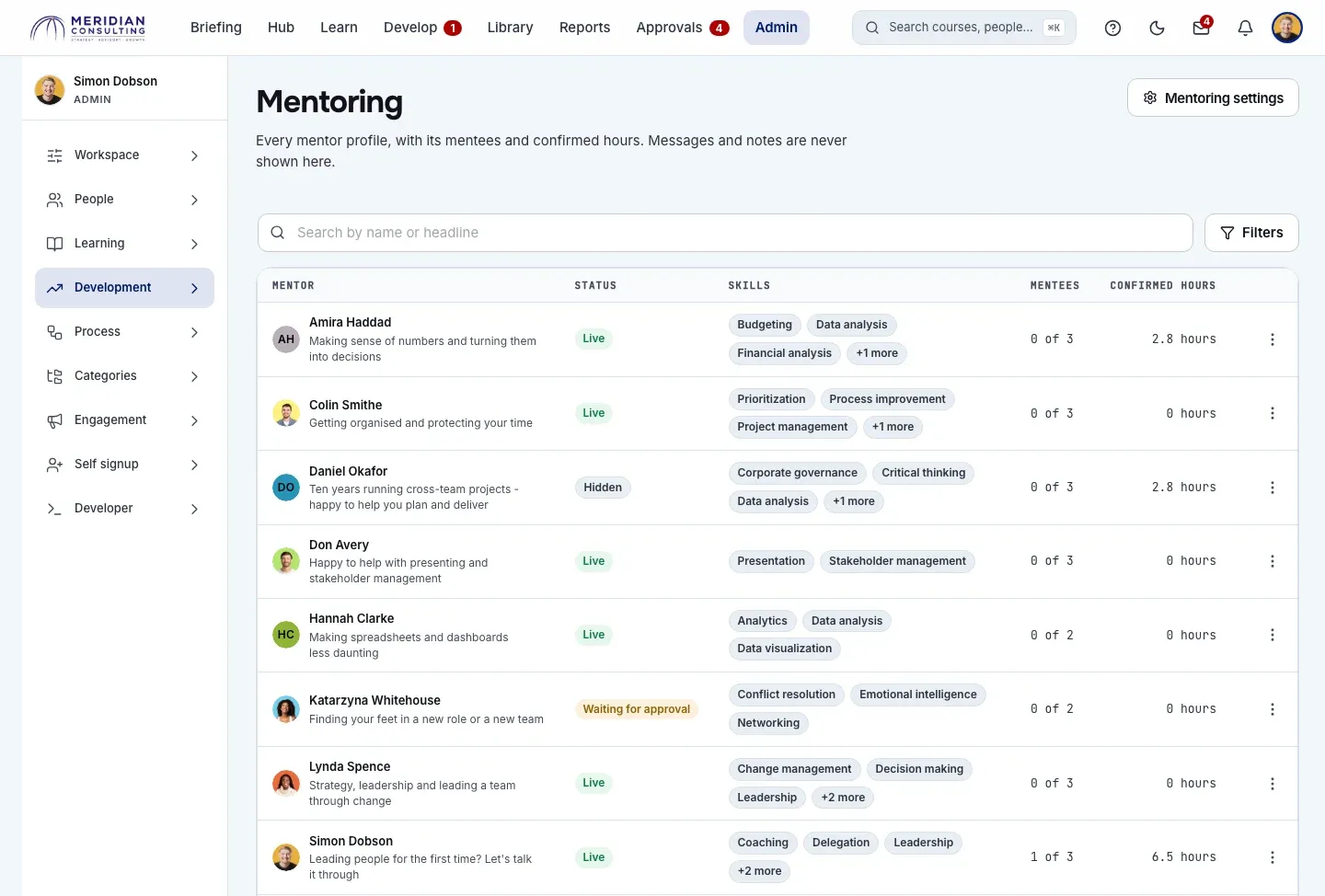
Choose View to open a mentor’s details: their profile with its Ways to meet, whether they’re Accepting new mentees or Not taking new mentees, any reason an administrator gave, such as under Suspended from mentoring, their mentees and hours, and Mentoring relationships. That table lists every relationship they are in, either side: With whom, whether that person is Their mentee or Their mentor, when it Started, whether it is Active or Ended and how, and its Confirmed sessions and hours. Messages, notes and invite text are never shown here, and there is no way to see them.
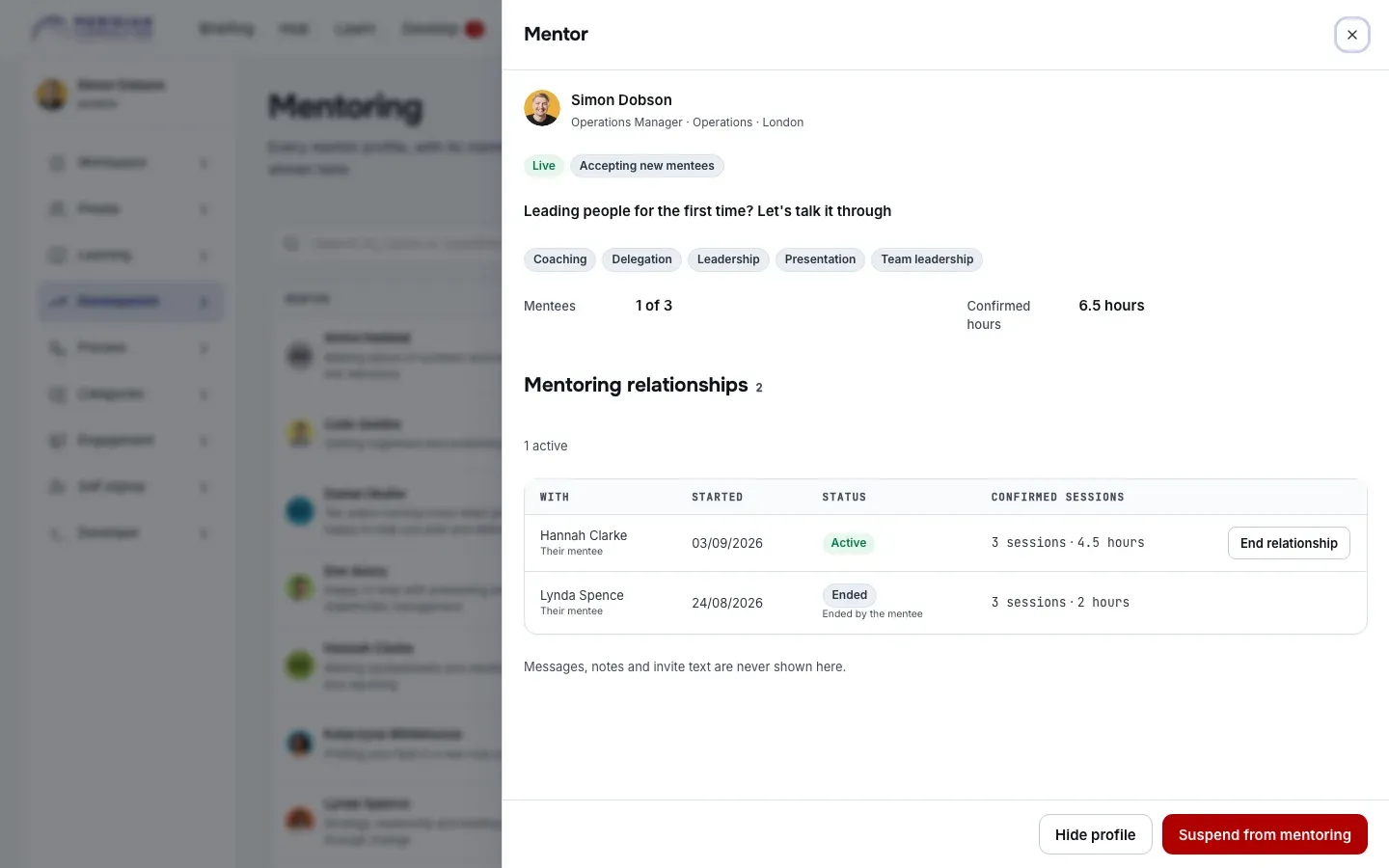
From the list’s menu or the details:
- Hide profile takes the profile out of Find a mentor. Hide this mentor profile? shows the mentor and says their current mentoring relationships carry on. Give a reason under Reason: it is recorded in the audit log and shown to other administrators. Unhide asks Unhide this mentor profile? and lists it again
- Suspend from mentoring asks Suspend from mentoring?, shows the person and lists what happens: Current mentoring relationships, as mentor or mentee, end as ended by an administrator, with how many, Their pending invites are withdrawn, and They can’t mentor or send invites until you lift the suspension. A reason is required. Lift suspension asks Lift the suspension?. Under What changes, they can mentor and send invites again, and their profile comes back hidden until they publish it again. Under Not restored are the Mentoring relationships the suspension ended and the Invites the suspension withdrew
- End relationship, beside an active relationship in the details, asks End this mentoring relationship?, showing the mentor and the mentee, and lists what’s kept: Their conversation stays, read-only and Confirmed sessions keep counting. Your reason is recorded in the audit log. The two people see that it was ended by an administrator, never your reason
The mentor is told when their profile is hidden or they’re suspended. You can’t choose a mentor for someone, start a relationship for anyone or Answer an invite on someone’s behalf: only a mentee can send an invite, and only the mentor can answer it.
Handling mentoring flags
Section titled “Handling mentoring flags”When someone flags a mentoring message, invite or profile, a ticket arrives in the ticket inbox in the Mentoring concern category. It holds a copy of the flagged item as it was when flagged, and whatever the person flagging wrote. That is all you see: the rest of the conversation stays private. Work it like any other ticket, replying to the person who flagged it. If the flag shows a real problem, use Hide profile, Suspend from mentoring or End relationship.
Only holders of Manage mentoring see Mentoring concern tickets, and only they can be assigned one. The person a flag is about never sees it, even if they hold Manage mentoring, and is never told about it. See Working the ticket inbox.
Making sure someone can always handle a mentoring flag
Section titled “Making sure someone can always handle a mentoring flag”Keep Manage mentoring on a role with at least two active people in it. If nobody active holds it while mentoring is on, or a Mentoring concern ticket is waiting and the only holders are the people it is about or the person who flagged it, admins who manage ticket settings see the warning Nobody can handle a mentoring concern on Ticket settings and on the setup progress badge. Choose Roles & permissions and give Manage mentoring to a role with someone else in it. The person a flag is about is never shown the warning because of it. See Ticket health warnings.
Switching mentoring off
Section titled “Switching mentoring off”Turn off Switch on mentoring and choose Save. You’re asked Switch off mentoring?. Under Active now it counts the Mentoring relationships in progress. Under While it’s off it lists Invites stop expiring, Sessions stop confirming automatically and Mentoring hours stop counting towards CPD. Under Nothing is deleted it says Switching back on restores everything where it was. Choose Switch off to go ahead.
Switching off hides mentoring from everyone and freezes it. Nothing is deleted. Invites stop expiring, sessions stop confirming themselves, reminders and the overnight checks stop, mentoring hours stop counting towards CPD, and the mentoring reports are hidden. The settings stay as you left them. Switching back on restores everything where it was, with the time it was off added to every deadline.
Once mentoring is Off, not just Setting up, tickets can be switched off, and the Mentoring concern category can be edited or archived like any other.
Reports built on mentoring are hidden while it’s off, and come back as they were when mentoring is back on. A scheduled pack leaves them out, and a schedule of nothing but mentoring reports pauses with Module switched off until then. See Scheduling report deliveries.