Finding a mentor
A mentor is a colleague who has offered to help others with something they know well. You find one in Learnient, send them an invite saying what you’d like help with, and if they accept you can message each other and log the times you meet. Only you can start this: mentors never approach anyone.
Mentoring is under Develop, in the Mentoring tab. If you can’t see the tab, your organisation hasn’t switched mentoring on, or your role doesn’t include it. How mentoring works explains who can see what.
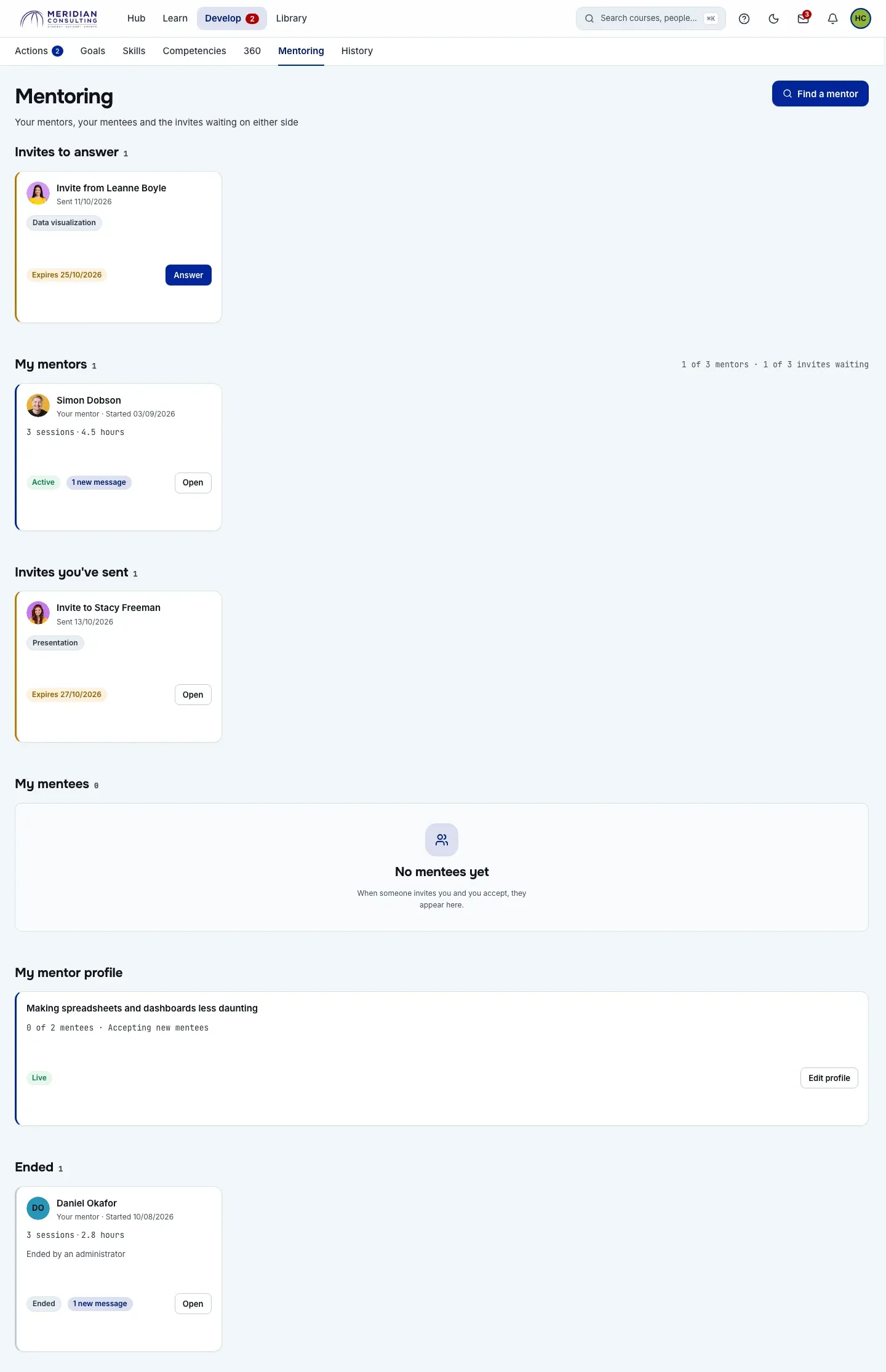
Your Mentoring tab in Develop
Section titled “Your Mentoring tab in Develop”The Mentoring tab lists everything in one place:
- Invites to answer: invites waiting for you, if you are a mentor too, each with Answer
- My mentors: the people mentoring you, with how many mentors and invites you have against the limits
- Invites you’ve sent: invites still waiting for an answer
- My mentees: the people you mentor, if you are a mentor
- My mentor profile: your own profile with Edit profile, showing whether you’re Accepting new mentees or Not taking new mentees, or Become a mentor if you haven’t written one. Changes waiting for approval shows when your organisation is still checking a change
- Ended: mentoring relationships that have finished
- People you’ve blocked, with Unblock beside each
Each relationship card shows the other person’s photo and name, with their job title and department, Your mentor or Your mentee, when it started, Active or Ended, the confirmed sessions and hours, and how many new messages are waiting. Choose Open to go to it. Show more lists further relationships.
If you manage people, Yours and your team’s view switch between your own mentoring and your people’s, each with a count of the mentoring relationships in it, ended ones included. Your team’s view shows only who mentors whom, when it started, the confirmed sessions, hours and topics, never their messages, notes or invites.
To find one of your people’s mentoring relationships, type the mentor’s or the mentee’s name in the search box above your team’s view. Sort by orders the list by Started, Mentee name or Mentor name, and Filters → Status shows only Active or Ended relationships. The count beside your team’s view stays the whole number, whatever you search for. See Searching, sorting and filtering Goals, 360, Mentoring and History.
Searching for a mentor in Learnient
Section titled “Searching for a mentor in Learnient”- In Develop, Mentoring, choose Find a mentor.
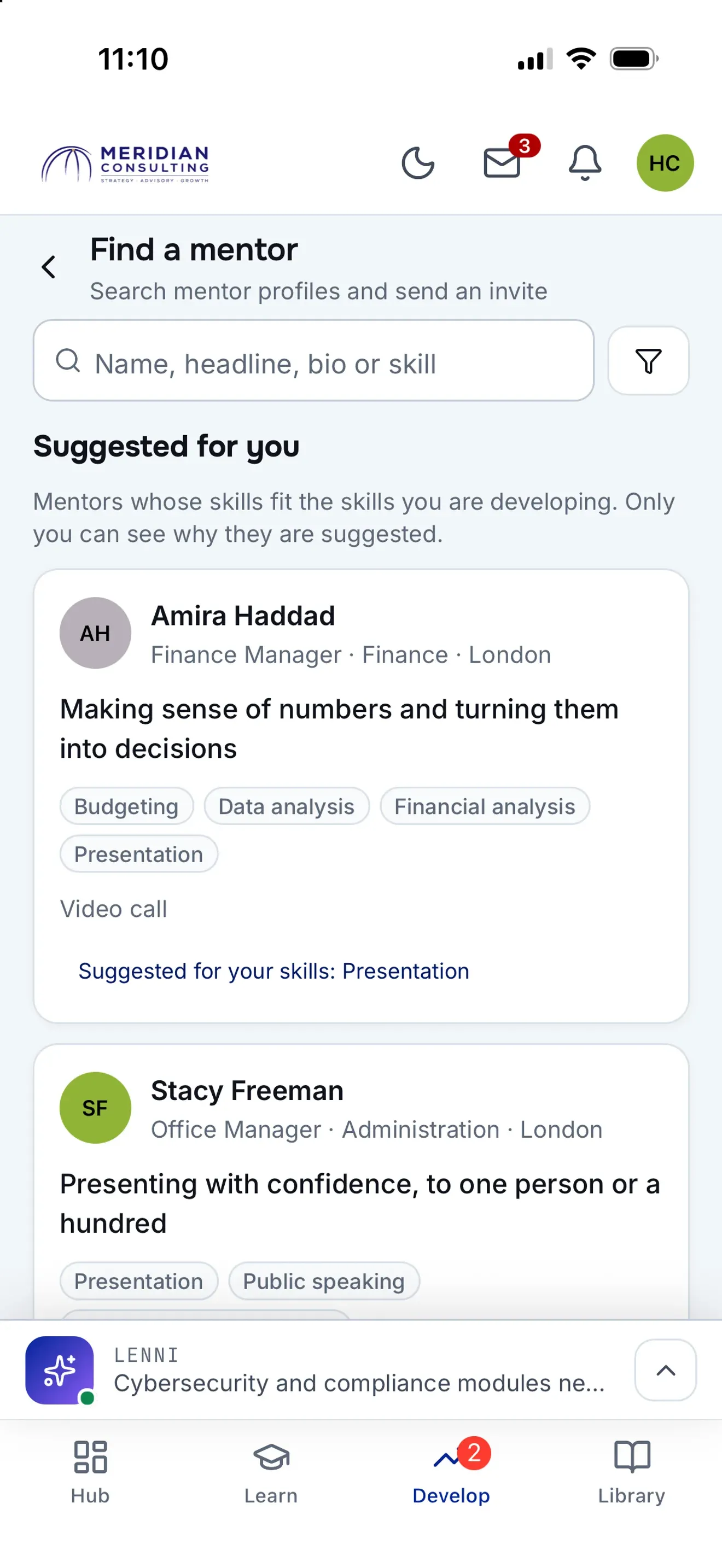
- Look at Suggested for you first. These are mentors in skills you’re developing, and each names the skills of yours it’s suggested for. Only you see why someone is suggested.
- Or type in the search box, Search by name, skill or what they write, to search every mentor by name, skill or anything in their profile.
- To narrow the list, choose Filters, then Skills, Department, Location or Ways to meet, and tick as many values as you like. The number on Filters counts what you’ve ticked, and Reset clears them all.
- Choose View profile on a mentor to see their full profile.
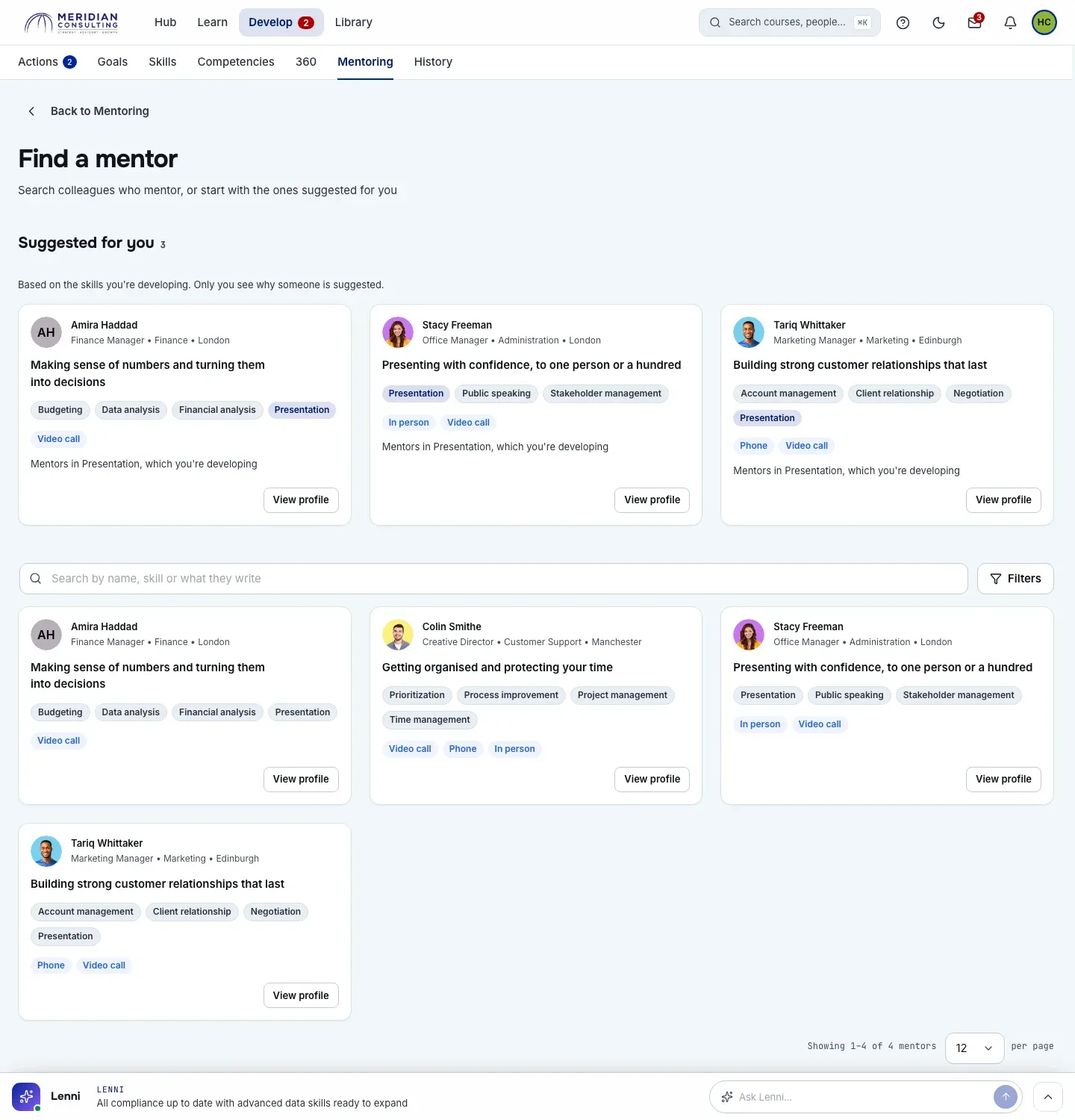
Suggested for you shows only while you’re not searching or filtering. The list shows a page of mentors at a time: use the page numbers at the foot, or per page to show more on each page. If nothing matches, Clear filters empties the search and the filters.
A mentor profile shows their name, photo, job title, department and location from their record, their headline, a short bio in their own words, the skills they mentor in and how they like to meet. It never shows a skill level, an email address, a phone number, their manager or their other mentees.
Search never shows you your own manager, anyone above them, or anyone who reports to you. Mentors who are full or not taking new mentees don’t appear either.
Sending an invite to a mentor
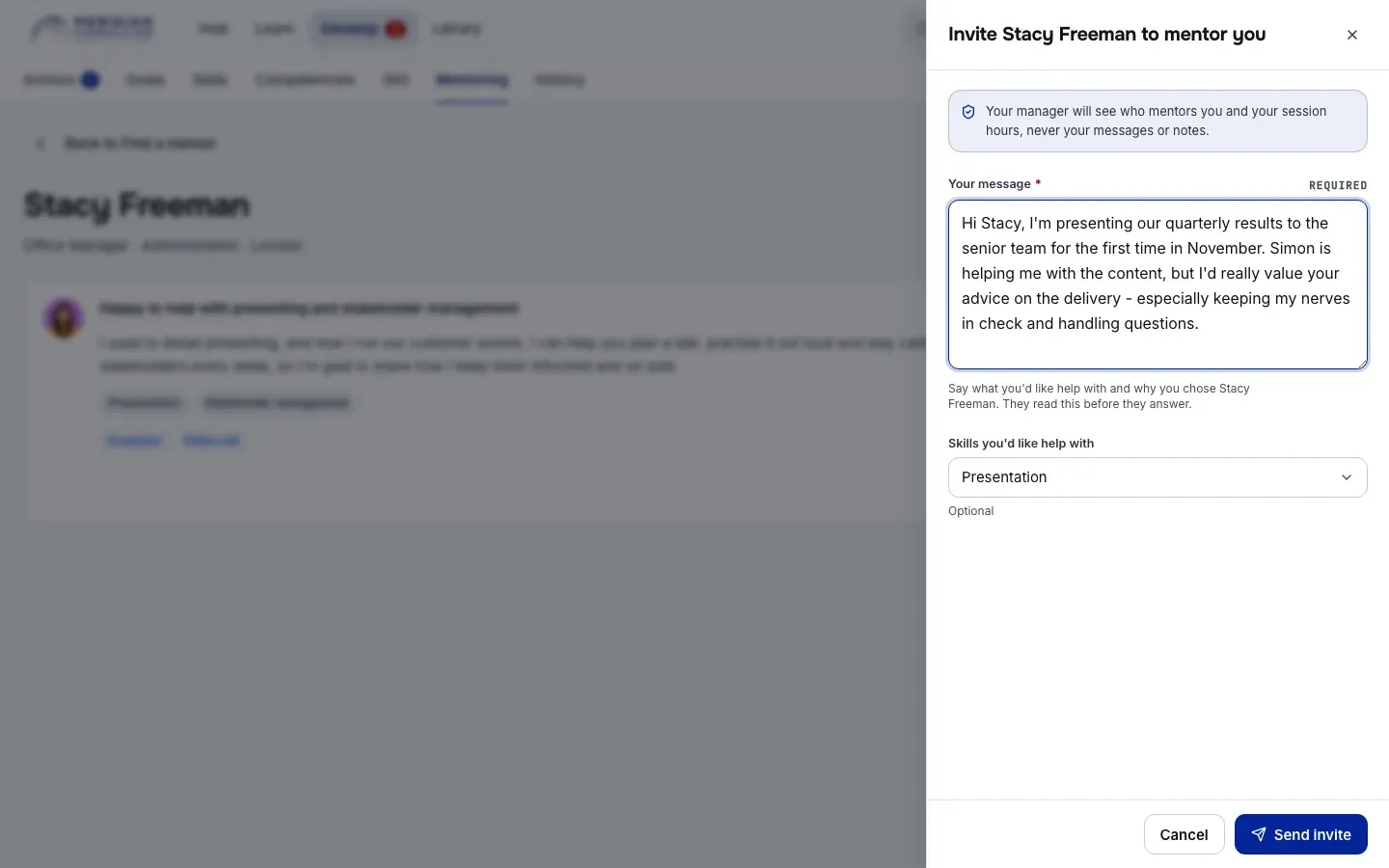
Section titled “Sending an invite to a mentor”- On the mentor’s profile, choose Send invite.
- Write Your message: what you’d like help with and why you chose them, up to 1,000 characters. They read it before they answer.
- If you like, choose Skills you’d like help with from the skills they mentor in.
- Read the line above the button: “Your manager will see who mentors you and your session hours, never your messages or notes.”
- Choose Send invite.
Your invite opens so you can follow it, showing when it was Sent and when it Expires, and it is listed under Invites you’ve sent. The mentor has 14 days to answer, after which it expires. You’re told either way. To cancel it, open it, choose Withdraw invite and confirm Withdraw this invite?.
Why you can’t send an invite
Section titled “Why you can’t send an invite”When you can’t invite someone, their profile has no Send invite and says why under You can’t send an invite, with a button to put it right where there is one:
- You already have 3 invites waiting for an answer, or 3 active mentors. Withdraw an invite, wait for an answer, or end a mentoring relationship
- You already have an invite waiting with them, or they already mentor you
- They declined you, or your invite to them expired, in the last 90 days. The profile says from which date you can invite them again
- They’re in your reporting line, so they can’t be your mentor
- They aren’t taking new mentees at the moment
When your mentor accepts or declines
Section titled “When your mentor accepts or declines”If the mentor accepts, you’re in a mentoring relationship and your invite message becomes the first message of your conversation; Open mentoring relationship on the invite takes you there. If they Decline, after Decline this invite?, you’re told, with their note if they wrote one under Note from the mentor, and no conversation is started.
Messaging your mentor in Learnient
Section titled “Messaging your mentor in Learnient”Open the relationship from Develop, Mentoring, or from the envelope in the top bar. Its Summary at the top shows the mentor and mentee, when it Started, its status, the Confirmed sessions, and under Asked for help with the skills the mentee chose when they sent the invite. A manager or administrator who opens it sees the summary only, with Topics covered below it: the skills the confirmed sessions covered, which often match what was asked for. The Conversation looks and works like a ticket’s: the box to write in at the top, then the messages newest first, each with the writer’s photo, name (You for yours) and when it was sent. Write your message and choose Send. Only the two of you can read it.
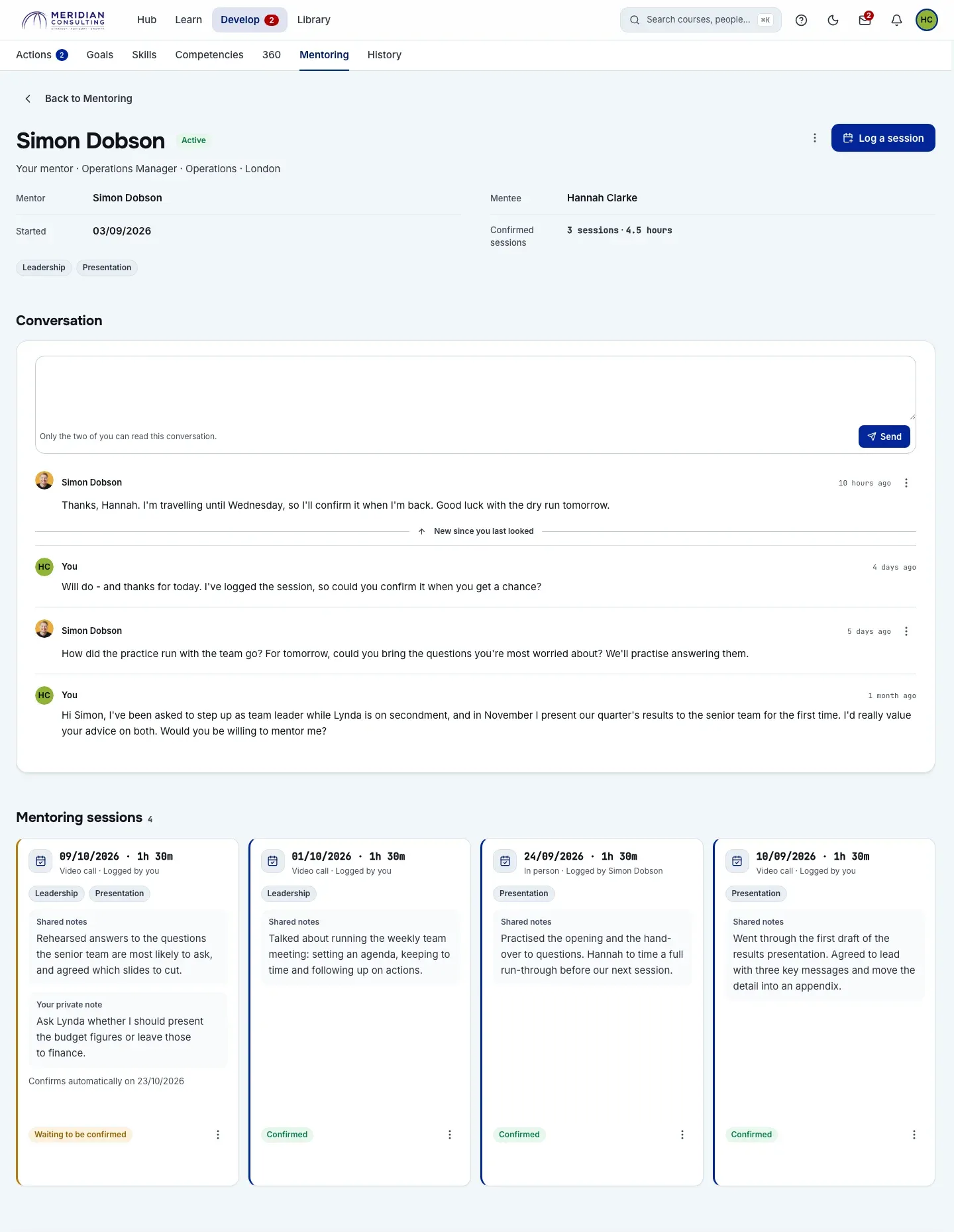
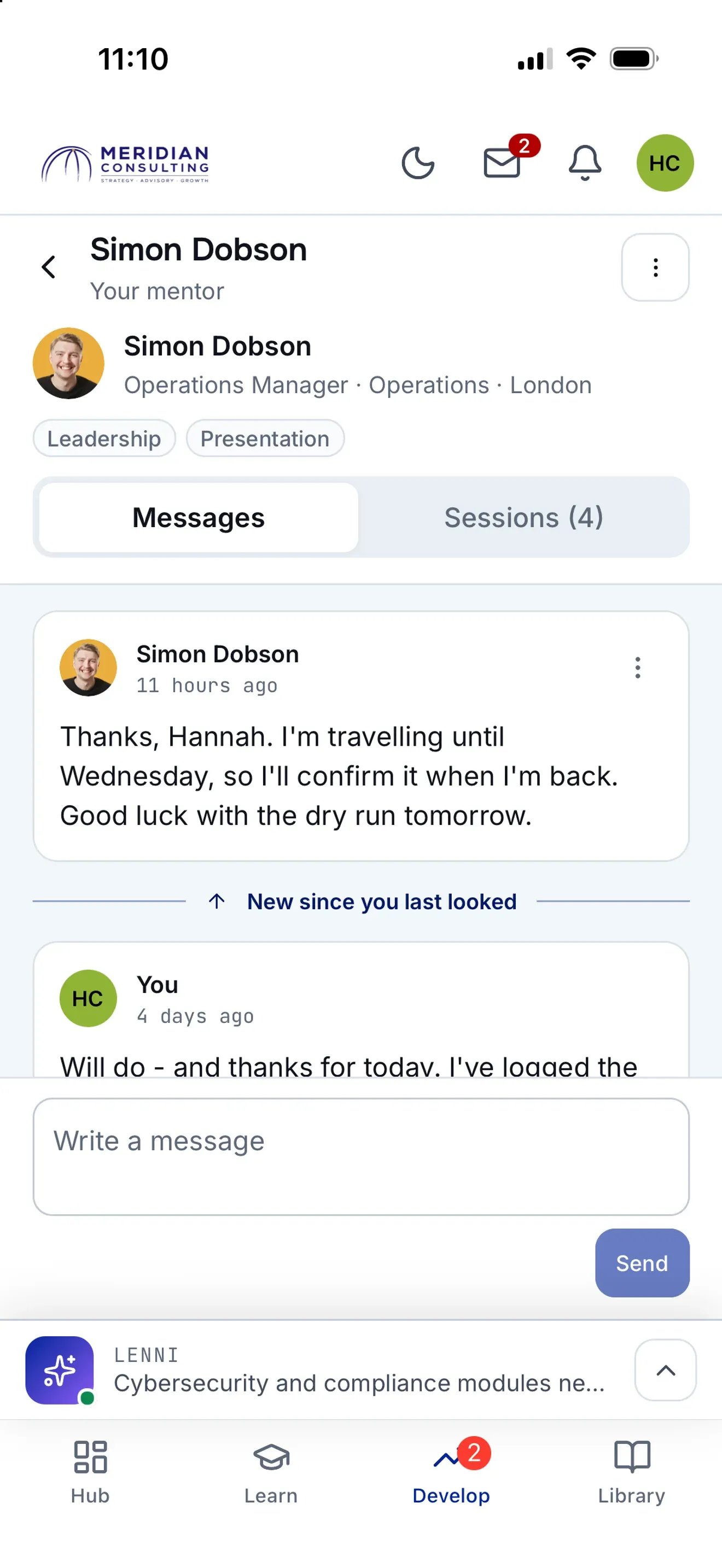
When you open a conversation with messages you haven’t read, they are the run at the top, and a line marked New since you last looked, with an arrow pointing up, sits below the oldest of them. Everything above the line is new; everything below it you had already seen.
Messages are plain text, up to 5,000 characters, with no attachments. An open conversation checks for new messages every 15 seconds, so there is no need to refresh. Messages can’t be edited. You can Delete a message for 15 minutes after sending it, from the message’s ⋯ menu, after Delete this message?, and it then reads Message deleted for both of you. Show earlier messages loads older ones.
New messages add to the number on the envelope in the top bar. Choose the envelope to see your latest mentoring conversations, unread first, with View all to open Develop, Mentoring. If you use tickets as well, the envelope has a Tickets tab and a Mentoring tab, each with its own number, and it opens on Mentoring when only mentoring has something new. The envelope shows who wrote, never what they wrote. Emails and push notifications say only that someone sent you a mentoring message, with a link.
Logging a mentoring session
Section titled “Logging a mentoring session”Log each time you meet, so it counts towards your development record. Either of you can log it.
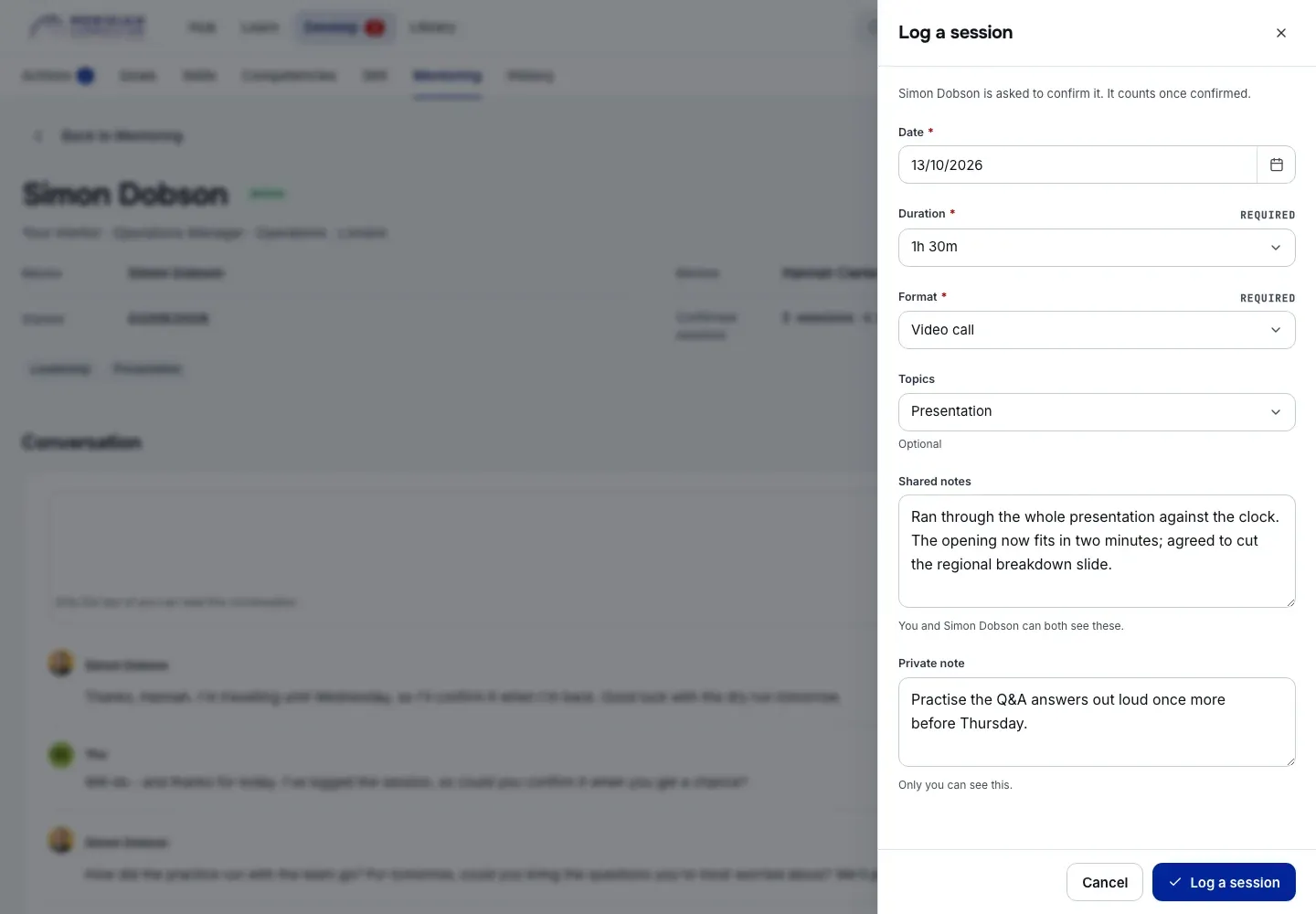
- Open the relationship and choose Log a session.
- Choose the Date you met. It can’t be in the future.
- Choose the Duration, from 15 minutes to 8 hours in quarter hours, and the Format: In person, Video call, Phone, Email or messages or Other.
- If you like, choose the Topics you covered, from the mentor’s skills.
- Write any Shared notes, which you both see, and your own Private note, which only you ever see.
- Choose Log a session.
The other person is asked to confirm it. If one of you has already logged a session on the same day, Learnient asks Is this the same session? so it isn’t counted twice: choose Go back, or Log it anyway if it was a different meeting.
Sessions can be logged for any date during the relationship, and for up to 30 days after it ends.
Confirming a session your mentor logged
Section titled “Confirming a session your mentor logged”When your mentor logs a session, you’re asked to confirm it, on the session and in Develop, Actions:
- Confirm if it’s right. It then counts
- That’s not right if it isn’t, with an optional note saying what’s wrong under Why it’s not right. Choose Send. The session doesn’t count until it’s corrected or deleted
A session nobody answers confirms itself after 14 days, and says Confirmed automatically. Edit, Private note and Delete are in the session’s ⋯ menu. If the date or duration of a confirmed session is changed with Edit, in Edit session, the other person confirms it again. Whoever logged a session can Delete it, and either of you can delete one marked as not right, after Delete this session?. Add or change your own note at any time with Private note, then Save note; it shows on the session as Your private note.
Ending a mentoring relationship
Section titled “Ending a mentoring relationship”When you’ve got what you needed, or it isn’t working, either of you can end it. Open the relationship, open its menu at the top right and choose End relationship. End this mentoring relationship? says the other person is told it has ended, and lists what’s kept: The conversation stays readable and Confirmed sessions keep counting. Add a Note to them if you like, and choose End relationship again.
Any note you left shows on the relationship as Note left when it ended. The conversation stays readable but closed, so neither of you can add to it, and you can start again later with a new invite.
Blocking someone in mentoring
Section titled “Blocking someone in mentoring”If you don’t want any further contact, open the relationship’s menu and choose Block. The confirmation, titled with their name, lists what happens: Your mentoring relationship ends, Invites between you stop and You’re hidden from each other’s search. Choose Block to confirm. They aren’t told you blocked them: they see only that it ended. A mentor can also block someone from an invite before answering it, and then the list reads The invite is cancelled instead. To undo it, choose Unblock under People you’ve blocked in Develop, Mentoring.
Flagging a message, invite or profile
Section titled “Flagging a message, invite or profile”If something someone wrote in mentoring worries you, choose Flag on the invite or their mentor profile, or in the message’s ⋯ menu. Say what’s wrong under What’s wrong? if you like, then choose Flag.
L&D sees a copy of what you flagged and what you wrote, never the rest of your conversation. The person you flagged isn’t told. A ticket is raised for you, so you can follow it under the envelope like any other ticket.
Mentoring in the Learnient app
Section titled “Mentoring in the Learnient app”Everything here works in the app too, under Develop, Mentoring:
- Find a mentor: search, Suggested for you and a filter sheet with Skill, Department, Location and How they meet
- Inviting: Send invite on a profile, with the same message and notice. See your invites and Withdraw invite look after the ones waiting
- Conversation: the same cards as a ticket’s conversation, newest first, with New since you last looked under what’s new, the message box at the bottom of the screen and Show older messages below the messages. A message’s ⋯ button has Delete and Flag. A push notification about a message opens the conversation
- Sessions: Log a session, Confirm, That’s not right, and Add a private note on your sessions. Sessions to confirm also appear in Develop, Actions
- Ending and blocking: the relationship’s menu has End mentoring relationship and Block. People you’ve blocked with Unblock is on the Mentoring screen
- Flag is on messages, invites and profiles
- The envelope in the app header has Tickets and Mentoring tabs when you use both, each with its own number and View all, and opens on the one with something new. Unread mentoring messages add to the number on the Learnient app icon