Setting up tickets
Tickets let anyone in your organisation raise a ticket to L&D and get an answer in a thread. They are switched on for every account from the start, with a General category and working hours of Monday to Friday, 09:00 to 17:00, so people can raise tickets before you change anything. The Admin role holds Work tickets, so until you give it to other roles, your Admins are the inbox and are emailed when a new ticket arrives in it.
For how tickets behave once they arrive, read How tickets work.
Where the ticket settings are
Section titled “Where the ticket settings are”- Ticket settings: choose Admin, then Workspace in the left-hand menu and Tickets. Every ticket setting is on this one page: switching tickets on and off, the health warnings, Course questions, who can work the inbox, working hours, timings, High priority targets and emails. Save changes at the top saves the whole page.
- Ticket categories: choose Admin, then Categories and Tickets, beside the course, report and CPD categories. The page is titled Ticket categories, and it is in the menu only while tickets are switched on.
Both pages need Manage ticket settings, and no other settings permission. Tickets under Workspace stays in the menu while tickets are switched off, so whoever holds it can always switch them back on.
Ticket health warnings and how to fix them
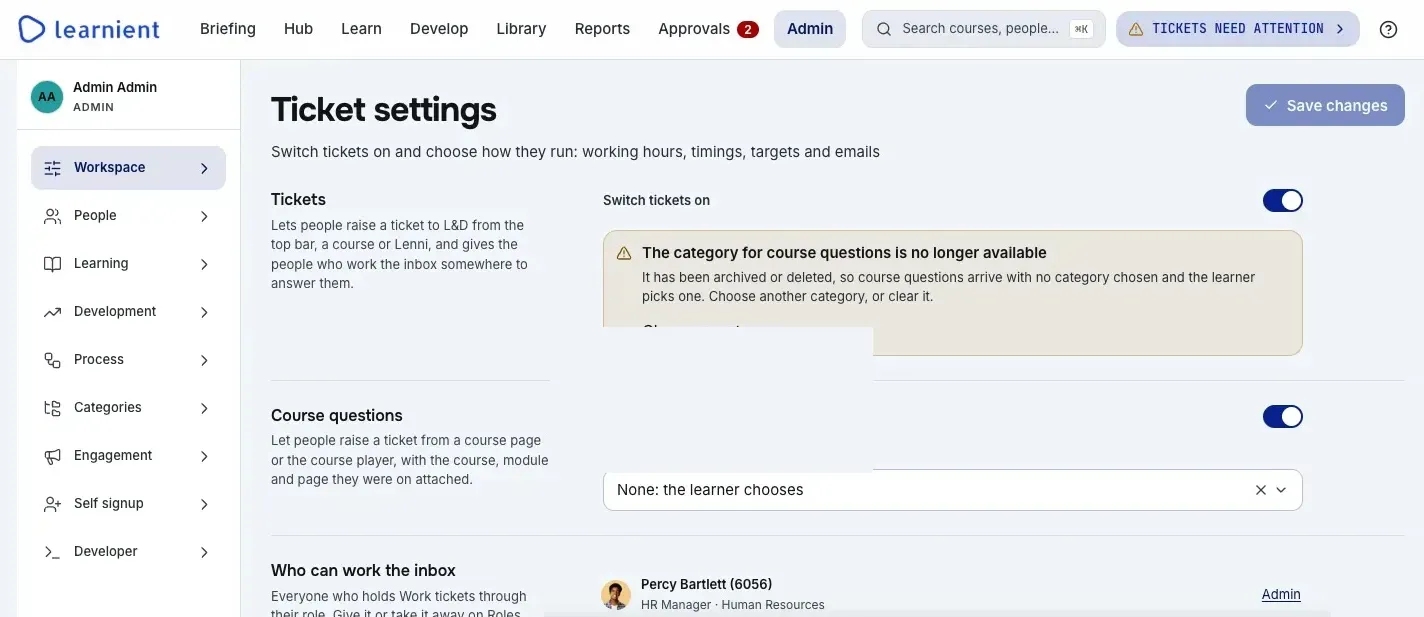
Section titled “Ticket health warnings and how to fix them”While tickets are switched on, Ticket settings warns you, under Switch tickets on, about anything that would leave a ticket with nobody to answer it. A warning never stops tickets working, and each one links to its fix.
| Warning | What it means | Fix |
|---|---|---|
| No category is active | Nobody can raise a ticket | Open ticket categories and activate or add one |
| Nobody can work the inbox | Tickets arrive, but nobody can see or answer them | Roles & permissions and give Work tickets to a role |
| A default assignee has been archived | New tickets in that category arrive unassigned | Fix and the category’s name opens that category so you can choose someone else |
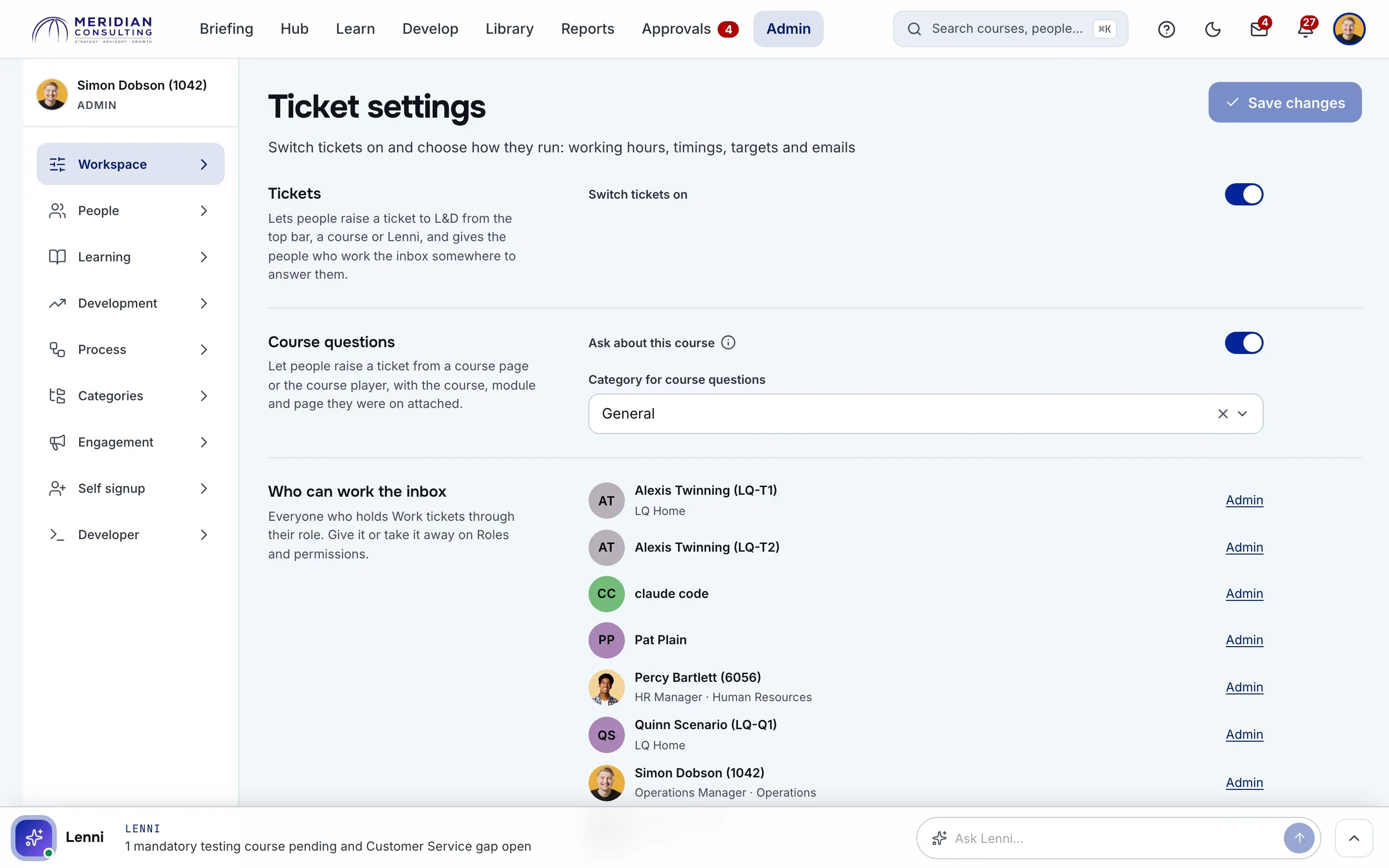
| The category for course questions is no longer available | It was archived or deleted, so tickets raised with Ask about this course arrive with no category chosen | Choose a category takes you to Category for course questions: choose another, or clear it |
| Nobody can handle a mentoring concern | Mentoring is switched on and nobody active holds Manage mentoring, or a waiting Mentoring concern ticket has nobody to take it apart from the people it is about and the person who flagged it | Roles & permissions and give Manage mentoring to a role with someone else in it |
The mentoring concern warning is never shown to someone because of a flag about them. Telling the person a flag is about that nobody else can handle it would tell them the flag exists, so a ticket about you never raises the warning for you.
Ticket health warnings on the setup progress badge
Section titled “Ticket health warnings on the setup progress badge”The same warnings show on the setup progress badge in the top bar, beside the search box, so you see them wherever you are in Learnient. Admins whose role holds Manage ticket settings see them there while tickets are switched on.
- While setup steps are left, the badge keeps its Setup count and percentage, with a warning sign after them.
- Once every setup step is done, the badge stays in the top bar and reads Tickets need attention until every warning is fixed.
Choose the badge to see each warning under Tickets need attention, with the same buttons as Ticket settings, such as Open ticket categories. A ticket warning is never one of the setup steps, so it doesn’t change how many steps are complete or the percentage.
Letting people ask about a course with Ask about this course
Section titled “Letting people ask about a course with Ask about this course”Ask about this course puts a button on course and learning path pages and in the course player. It raises a ticket with the course, the module and the page the person had open already attached, so whoever answers can see exactly where they were. It is off until you switch it on.
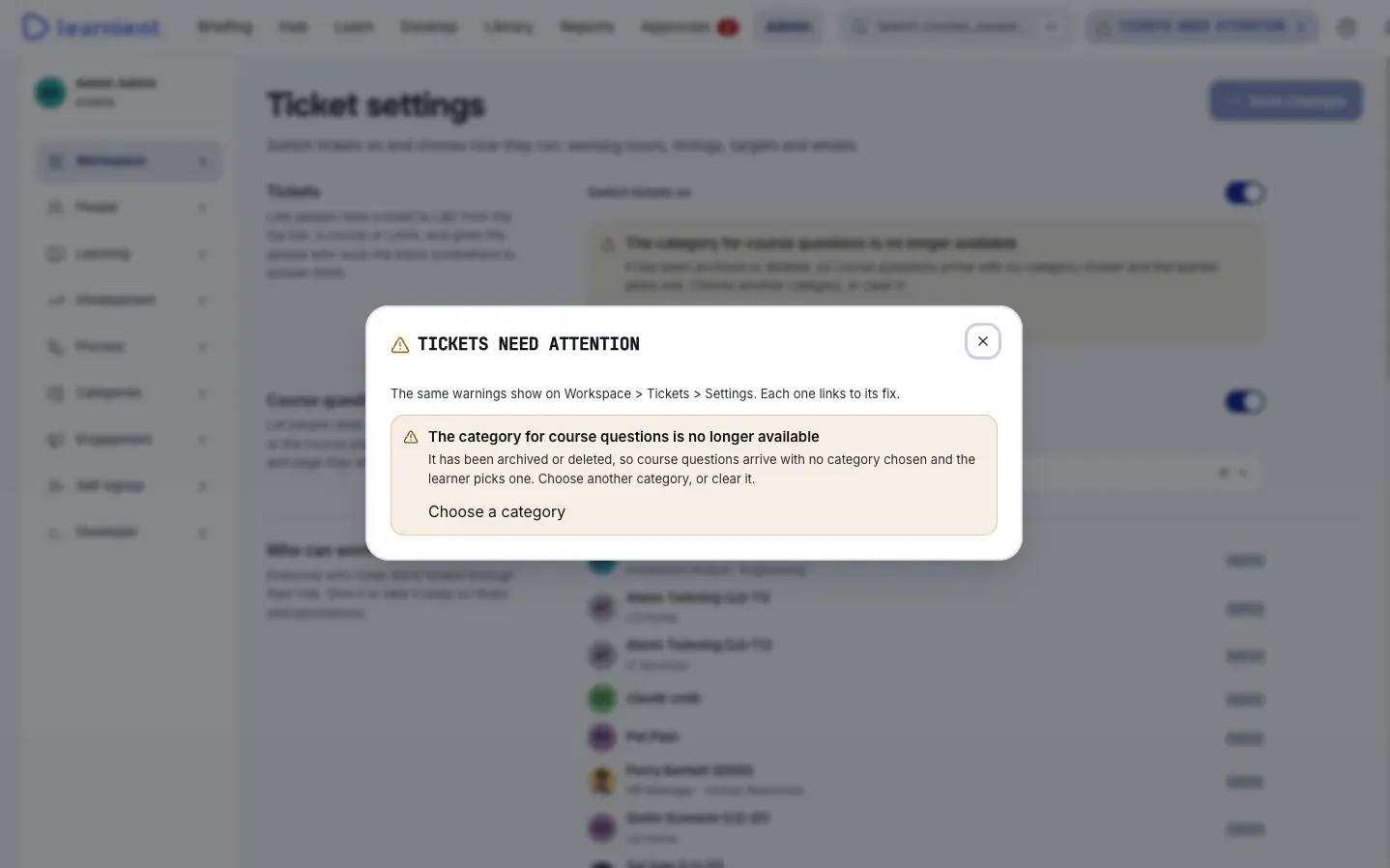
- On Ticket settings, under Course questions, switch on Ask about this course.
- Optionally choose a Category for course questions. A ticket raised from a course starts in that category, and the person can still choose another. Leave it empty, None: the learner chooses, to let them pick.
- Choose Save changes.
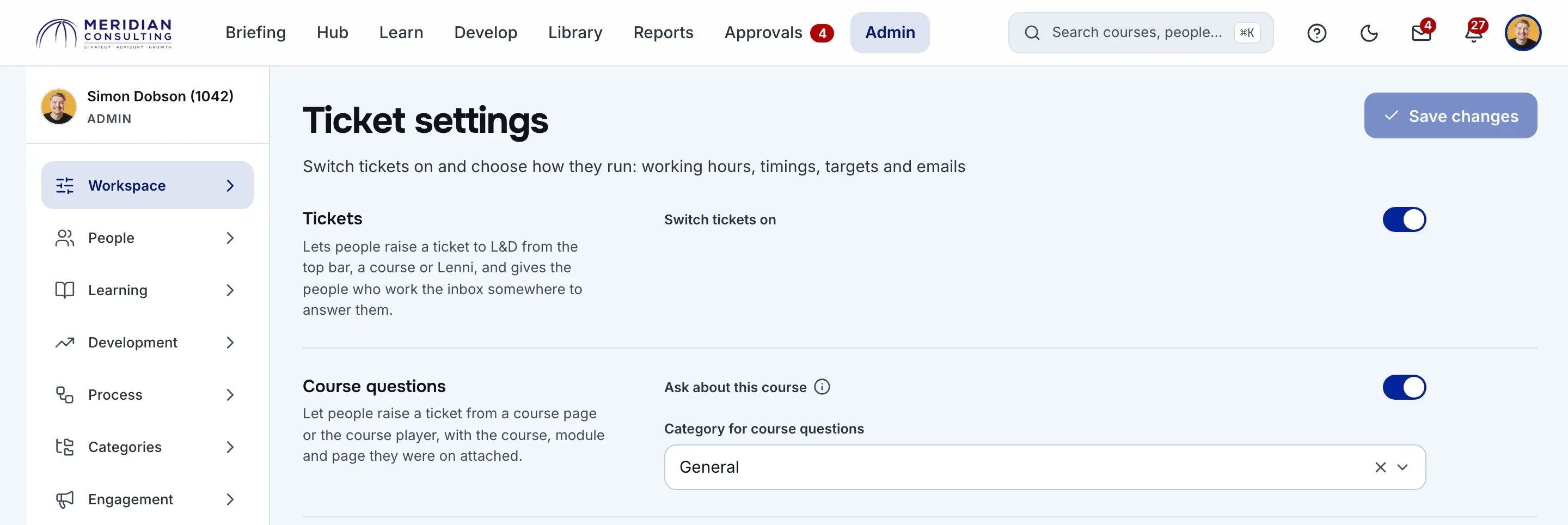
The categories to choose from are the ones a ticket can be raised in, so the list appears once tickets are switched on and saved. If you switch tickets and Ask about this course on together, save first, then choose the category.
The button shows only to people whose role has Raise tickets, and only while tickets are switched on. People who raise a ticket from a course stay where they are in the course. In the inbox, the ticket lists the Course, Module and Page, and reports can count tickets by course, module and Related page.
If the category you chose is archived or deleted later, course questions arrive with no category chosen, and the health warning The category for course questions is no longer available appears. Switching Ask about this course off again removes the button for everyone. Tickets already raised from a course keep their course, module and page.
Who can work the ticket inbox
Section titled “Who can work the ticket inbox”Who can work the inbox, on Ticket settings, lists everyone who holds Work tickets, with the roles that give it to them. It is there so you can see the team; you can’t change it here. To add or remove someone, change their role on Roles & permissions, where the permission is in the Tickets band. Work tickets can’t be removed from the Admin role.
Setting up ticket categories
Section titled “Setting up ticket categories”Categories are what people choose from when they raise a ticket, and each one can send its tickets straight to a person and set targets. They are on Ticket categories, under Categories and Tickets in the left-hand menu.
- Choose New ticket category. The Add ticket category form opens.
- Enter a Name, and a Description if it helps people choose.
- Optionally choose a Default assignee. Leave it empty and new tickets arrive unassigned in the inbox.
- Optionally set First reply within and Resolve within, in working hours. Quarter hours are allowed, such as 1.5.
- Choose Add category.
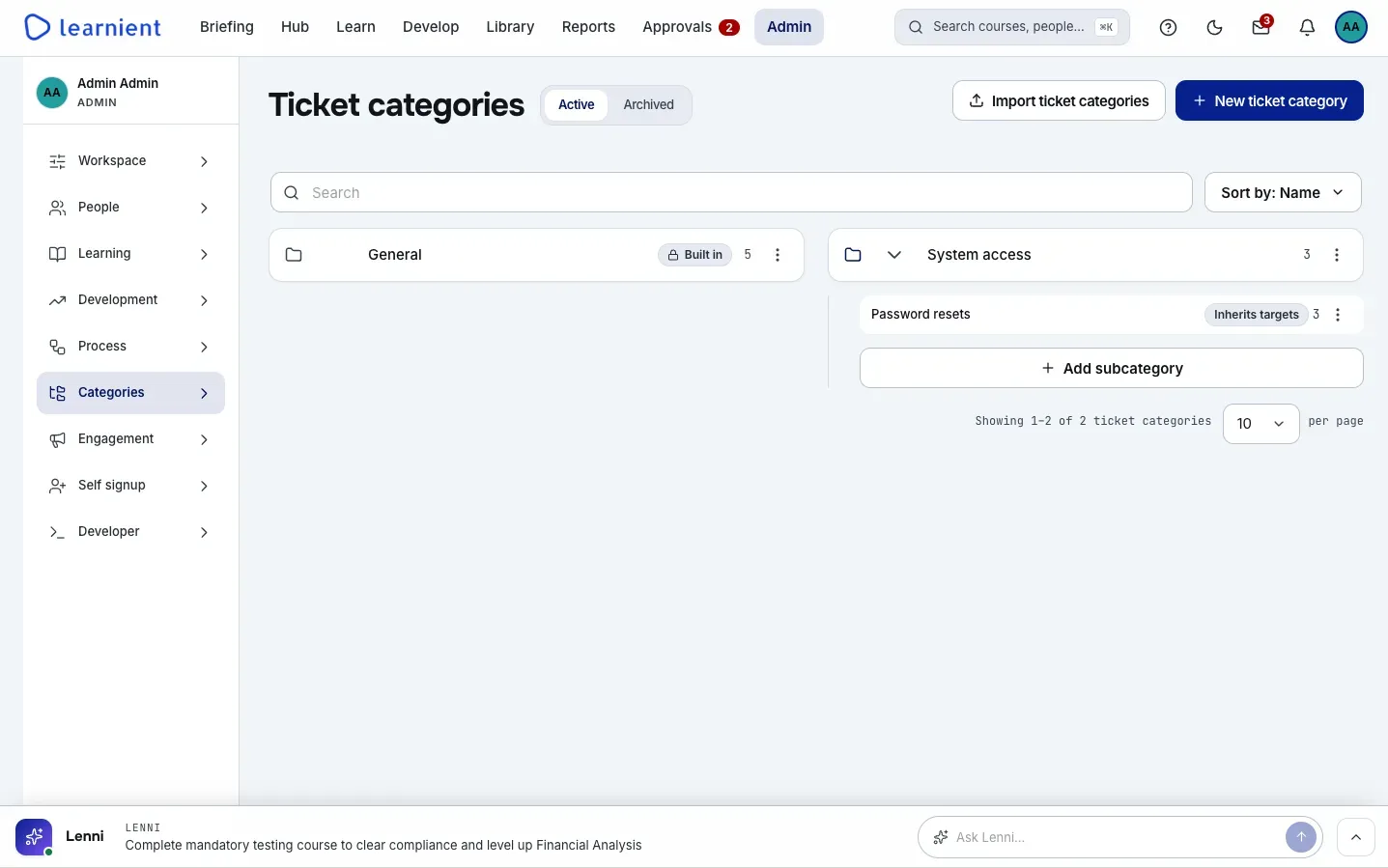
To change a category, choose Edit on its row, make your changes in Edit ticket category, or Edit subcategory for a subcategory, and choose Save category. Use Add subcategory on a row to add one level beneath a category, and Move to to put a subcategory under a different category. To add many at once, Import ticket categories takes a spreadsheet with a name, a parent category name and a description for each. Set default assignees and targets on the page afterwards.
The Mentoring concern ticket category
Section titled “The Mentoring concern ticket category”If your organisation uses mentoring, Ticket categories also lists Mentoring concern, marked Confidential. It is added the first time mentoring is switched on, and it is where flags arrive: when someone flags a mentoring message, invite or mentor profile, a ticket is raised here with a copy of what they flagged. Only people with Manage mentoring see its tickets, never the person a flag is about: point to Confidential to see that, and to Locked for why it can’t be changed. Its tickets show only their title in lists and in the envelope, never a preview of the flagged copy; the copy shows when the ticket is opened.
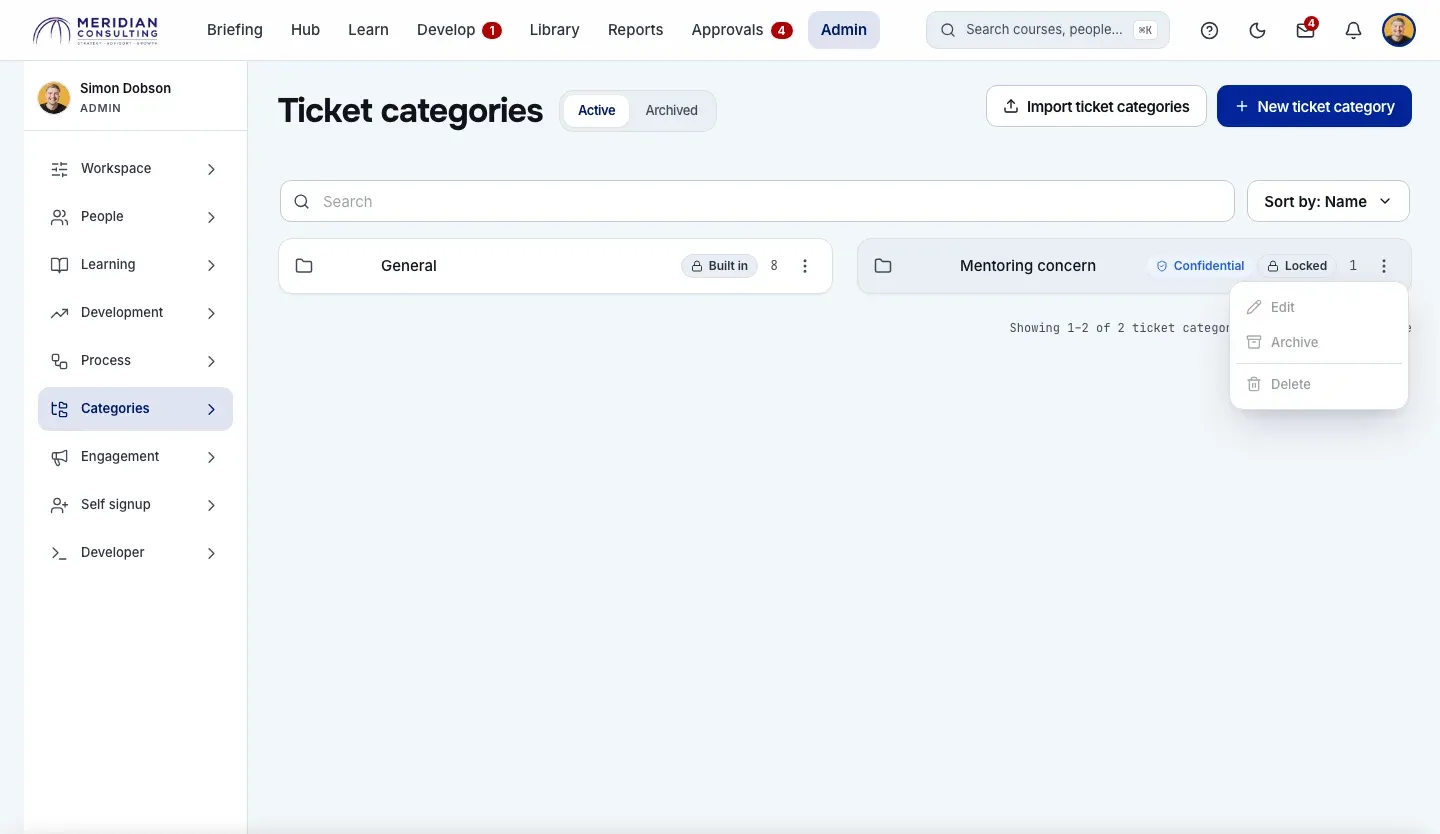
While mentoring is switched on, or Setting up on Features, Mentoring concern is also Locked: it can’t be edited, archived, deleted or given subcategories, and nobody can choose it when raising a ticket. It doesn’t count as another active category when you archive General. Once mentoring is Off, you can edit or archive it like any other category.
The number of open tickets in the Switch tickets off? dialog and the ticket counts on Ticket categories leave out any Mentoring concern ticket about you, so they never hint that one exists.
Default assignees for ticket categories
Section titled “Default assignees for ticket categories”A ticket raised in a category with a Default assignee goes straight to that person, who is told about it. It can be anyone active in your account, not only someone with Work tickets. A subcategory without its own default assignee uses its parent’s.
If the default assignee is the person raising the ticket, or has been archived, the ticket arrives unassigned instead. An archived default assignee is marked Default assignee archived on the category and raises a health warning until you choose someone else.
Targets for ticket categories, and how subcategories inherit them
Section titled “Targets for ticket categories, and how subcategories inherit them”First reply within and Resolve within are counted in working hours from when a ticket is raised. Leave both empty for no target; the General category starts with none.
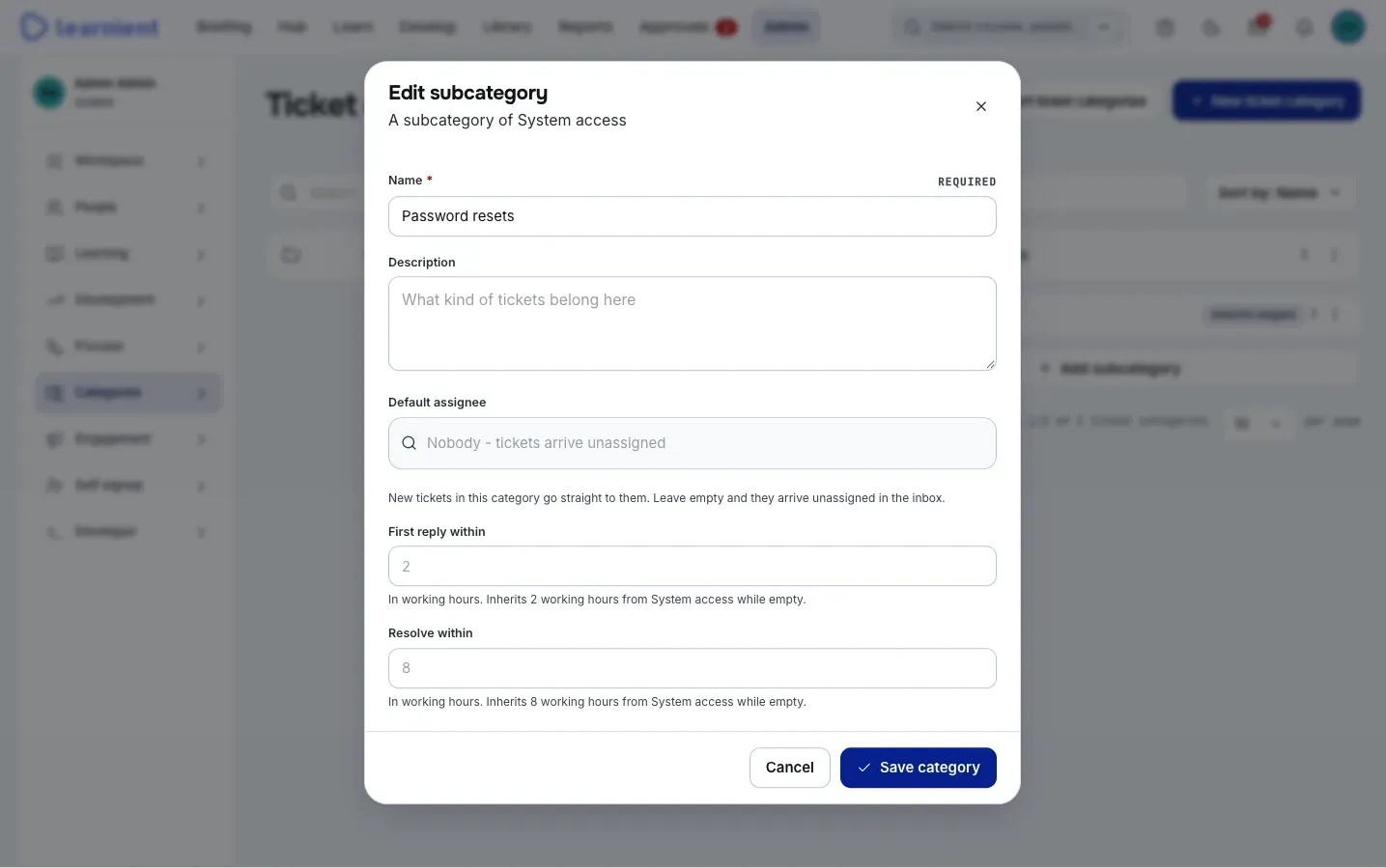
A subcategory with no targets of its own uses its parent’s and is marked Inherits targets. The form shows the inherited figure while the field is empty. Enter a value to replace it, or clear it to inherit again.
Archiving and deleting a ticket category
Section titled “Archiving and deleting a ticket category”Ticket categories opens on the Active categories, sorted by Name; switch to Archived to see the rest, or sort by Created date.
Archive takes a category out of the list people choose from, after you confirm in Archive ticket category. It names the category and lists what changes and what stays: people can no longer choose it for a new ticket, and under Kept, Tickets already in this category. Archiving a category archives its subcategories too. Activate on the Archived view brings one back, through Activate ticket category, so people can choose it for a new ticket again.
Delete asks you to confirm in Delete ticket category, which names the category and warns that this can’t be undone. It is refused while any ticket uses the category, so archive it instead. The General category, marked Built in, can be renamed but never deleted, and it can be archived only while another category is active. Its edit form says so under This is the General category.
Working hours for tickets
Section titled “Working hours for tickets”Working hours decide when ticket clocks run. Choose the Working days, the Start of the day and the End of the day. Time zone shows your account’s time zone for reference; you can’t change it here. Its information icon says where it is set: Account timezone under Admin, Workspace and Settings. See Setting up your account.
Only working time counts towards targets, reminders and automatic resolving, so a ticket raised on Friday evening starts its clock on Monday morning. Changing your working hours, or your account’s Account timezone, moves the due times of open tickets from then on. It never changes the times already recorded for tickets that have been answered or resolved. Bank holidays are not taken into account.
Ticket timings: closing, reminders and resolving automatically
Section titled “Ticket timings: closing, reminders and resolving automatically”Under Timings, choose what happens to a ticket while nobody acts on it.
| Setting | What it does | To begin with |
|---|---|---|
| Resolved tickets close after | Days a resolved ticket stays open to a reply before it closes | 7 days |
| Remind the requester after | Sends one reminder when a ticket has waited on its requester this many working days. Can be switched off | 3 working days |
| Resolve automatically after | Resolves a ticket still waiting on its requester after this many working days, recorded as no reply. Can be switched off | 10 working days |
The reminder has to come before the automatic resolving. In reports, a ticket resolved for no reply has no Time to resolve (working hours) or Time to resolve (clock hours), so averages of those leave it out; see Building a report.
High priority targets
Section titled “High priority targets”High priority targets sets a First reply within and a Resolve within for every High ticket, in working hours. A High ticket uses whichever is tighter: these or its category’s own targets. Leave both empty to use the category targets only.
What ticket emails include
Section titled “What ticket emails include”Ticket notifications go by email and push. Each person gets at most one email every 10 minutes about the same ticket, carrying everything since the last one. Ticket events never appear under the notifications bell: the envelope in the top bar counts tickets instead. Choose which events send under Notifications; see Setting notification preferences.
Under Emails, Include message text in emails, on to begin with, puts the reply itself in the email and the first line of it in the push notification. Switch it off if your tickets are sensitive: emails and push notifications then say there is a new reply without showing it. Attachments and internal notes are never included.
Replies to a ticket email are not received. Each email carries a Reply in Learnient button and says so.
Switching tickets off and on again
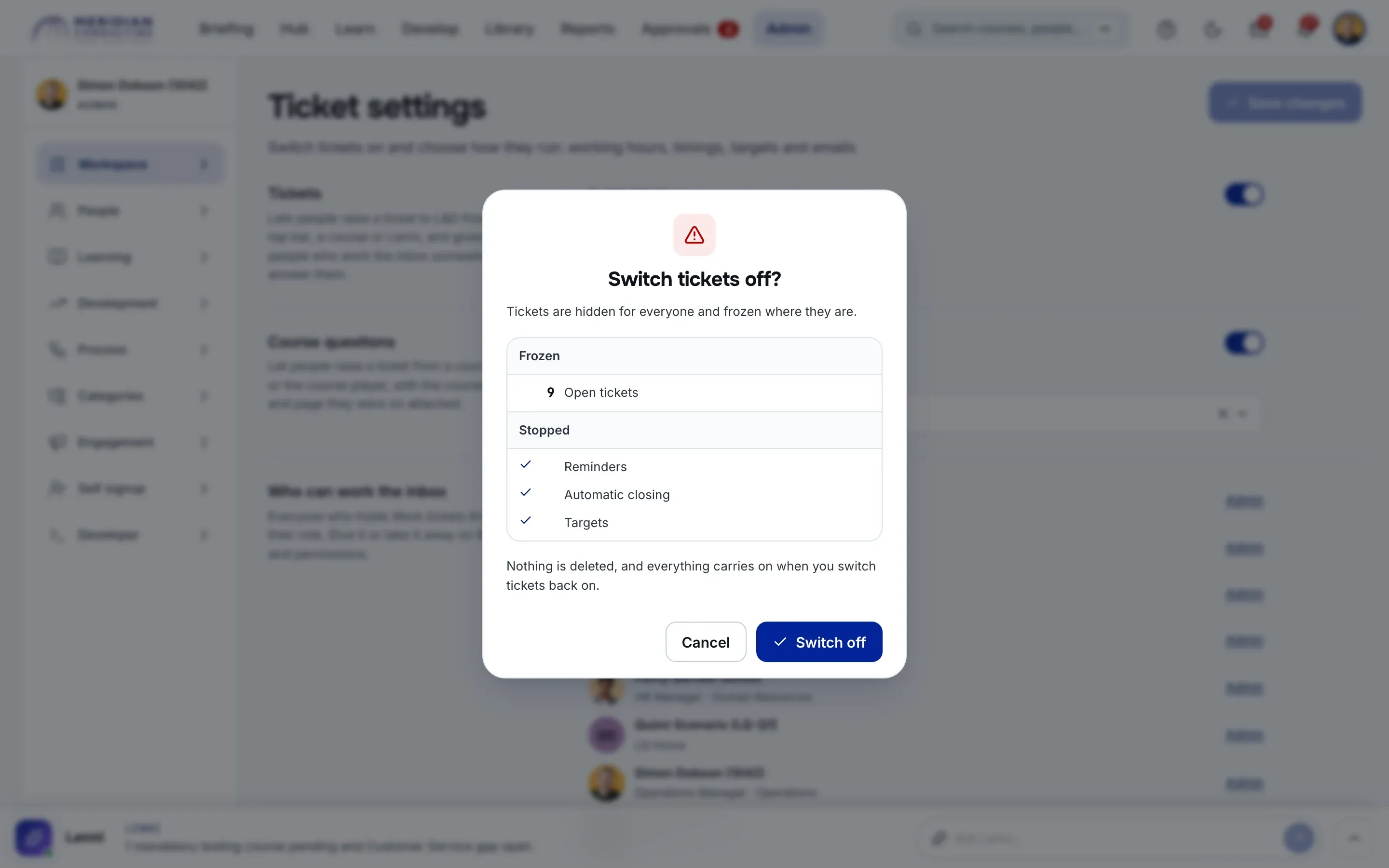
Section titled “Switching tickets off and on again”Switch Switch tickets on off and Learnient asks Switch tickets off?. Under Frozen it counts the Open tickets, and under Stopped it lists Reminders, Automatic closing and Targets. Nothing is deleted. Choose Switch off, then Save changes.
While tickets are off:
- the envelope, the ticket inbox, Ask about this course, Lenni’s Raise a ticket and Ticket categories disappear for everyone, while Ticket settings stays so you can switch tickets back on
- open tickets are frozen: no reminders, no automatic closing and no target clocks
- nothing is deleted, and nobody is told
Your settings and categories are kept. Switch tickets on again and save, and everything carries on where it stopped. Time spent switched off never counts against a target.
Switch tickets on and the Features page
Section titled “Switch tickets on and the Features page”Switch tickets on changes the same choice as Tickets on Features, under Admin and Workspace: switching it on makes tickets Live, and switching it off makes them Off. If you set tickets to Setting up there, admins can prepare categories and settings while nobody else sees tickets, and Switch tickets on shows as off until you make them Live. See Choosing which features your organisation uses.
Ticket reports while tickets are off
Section titled “Ticket reports while tickets are off”Reports built on tickets are hidden while tickets are off, and come back as they were when you switch tickets back on. A scheduled pack leaves them out, and a schedule of nothing but ticket reports pauses with Module switched off until then. See Scheduling report deliveries.
Once tickets are on and saved, Ready-made reports for this module under the switch links to the ticket reports in Ready-made reports, ready to add to your reports. Nothing is added until you choose. See Starting from a ready-made report.
Switching tickets off while mentoring is on
Section titled “Switching tickets off while mentoring is on”Mentoring needs tickets, because a mentoring flag raises a ticket. While mentoring is switched on, or Setting up on Features, Switch tickets on can’t be turned off, and Mentoring needs tickets explains why, with Mentoring settings to go straight there. Switch mentoring off first in Admin, Development, Settings, then come back. See Setting up mentoring.
On Features, you can set Tickets to Off while mentoring is on. Mentoring is paused with it, and comes back when tickets do, without you setting it again.