

Working the ticket inbox
The ticket inbox is the Tickets page, seen by the people who answer tickets. With Work tickets you see every ticket in your account and can do everything on this page. Without it, you see the tickets you raised and, while a ticket is assigned to you, that ticket under Assigned to me. Open it from the envelope in the top bar with Open inbox.
How statuses, targets and access work is explained in How tickets work.
The ticket inbox views and how to find a ticket
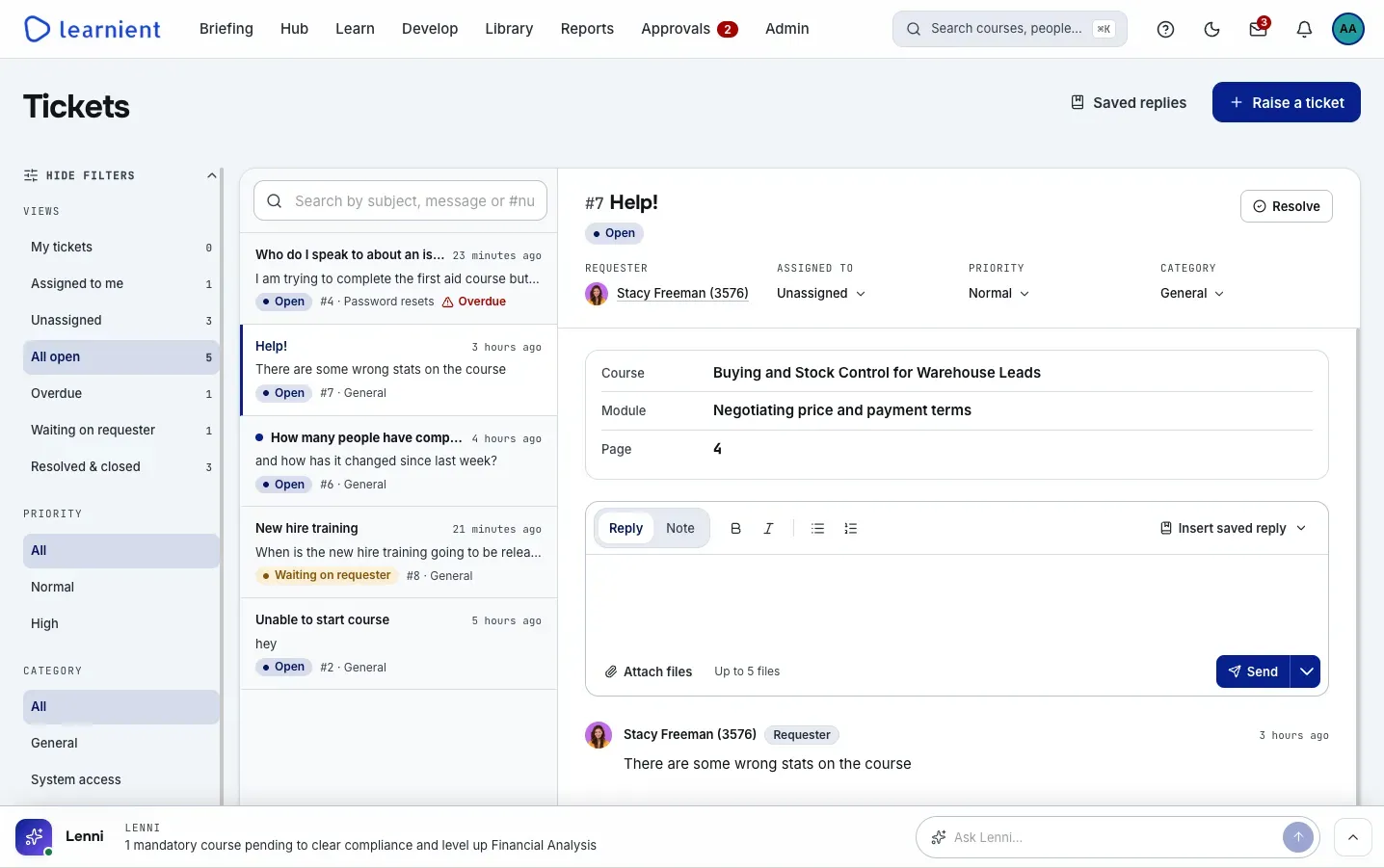
Section titled “The ticket inbox views and how to find a ticket”On a wide screen the filters are on the left, and the list and the open ticket share one panel beside them: the list on the left of the panel, the ticket on the right. The filters panel holds Views, with the number of tickets in each, then Priority (All, Normal or High) and Category, where subcategories sit under their parent. Clear filters appears once you have chosen a priority or category, and resets both; the view you’re in stays. On a medium screen the panel starts folded to a narrow strip beside the list, and Filters opens it. On a smaller screen Filters opens the panel above the list. On a phone the list comes first, and Back to tickets returns to it from a ticket.
| View | What it lists | Who sees it |
|---|---|---|
| My tickets | Tickets you raised | Everyone |
| Assigned to me | Tickets assigned to you | Anyone with a ticket assigned, and everyone with Work tickets |
| Unassigned | Open and waiting tickets nobody is assigned to | Work tickets |
| All open | Every open and waiting ticket | Work tickets |
| Overdue | Open and waiting tickets past a target | Work tickets |
| Waiting on requester | Tickets waiting for the person who raised them | Work tickets |
| Resolved & closed | Finished tickets | Work tickets |
High tickets come first in every view. Narrow the list with Category and Priority, and search by subject, by message text or by number, such as #1042. Each ticket in the list takes three lines: its subject and when it last changed, the latest message, then its status with its number and category, plus High and Overdue where they apply. Who raised it and who it is assigned to are shown when you open it. A dot marks Unread tickets, with activity you haven’t opened. Show more loads further tickets. Move through the list with the arrow keys and open a ticket with Enter.
Mentoring concern tickets in the inbox
Section titled “Mentoring concern tickets in the inbox”When mentoring is in use, someone can Flag a mentoring message, invite or mentor profile. A flag raises a ticket in the Mentoring concern category, with the person who flagged as the requester. Its first message is a copy of the flagged item, frozen as it was when it was flagged, with who wrote it and when, followed by anything the person flagging added. Nothing else from the mentoring conversation is in the ticket, and nobody working the ticket can open the conversation.
Mentoring concern tickets are confidential:
- Only people whose role has Manage mentoring see them, in every view, in the counts on the envelope and in reports. Work tickets alone shows none of them
- Only holders of Manage mentoring can be assigned one
- The person the flag is about never sees it, its count or that it exists, and can never be assigned it, even if they hold Manage mentoring
- The person who flagged sees their ticket under My tickets like any other
- Emails and push notifications about them never include message text, whatever your ticket settings say, because the first message holds the flagged words
Work one like any other ticket: reply to the person who flagged it and resolve it. If the flag shows a real problem, deal with it in Admin, Development, Mentoring, with Hide profile, Suspend from mentoring or End relationship. A Mentoring concern ticket can’t be moved to another category, and no other ticket can be moved into it. See Handling mentoring flags.
What the number on the envelope counts
Section titled “What the number on the envelope counts”The number on the envelope counts tickets waiting for you to act, and the envelope groups them under Needs you:
| Group | A ticket counts while | It stops counting when |
|---|---|---|
| Waiting for your reply | It is assigned to you, Open, and nobody has replied since the requester last wrote or since it was assigned to you | You reply (with Send and keep open too), resolve it or hand it back. It counts again when the requester replies |
| Unassigned | You have Work tickets, and it is Open with nobody assigned, including a new reply on it | Someone replies or assigns it |
| Overdue | You have Work tickets, and it is assigned to someone else, Open and past a target | Its assignee replies, or it is reassigned |
| New replies to you | You raised it and L&D has replied since you last opened it | You open it |
Reading a ticket clears only New replies to you. The other three clear when somebody acts. A ticket in two groups counts once, and your own messages never count. The number stops at 99+, and it is part of the number on the Learnient app icon. Where your organisation uses mentoring, the envelope’s number also adds your unread mentoring messages, which are on the dropdown’s Mentoring tab. See Mentoring messages in the envelope.
Reading a ticket: newest message first
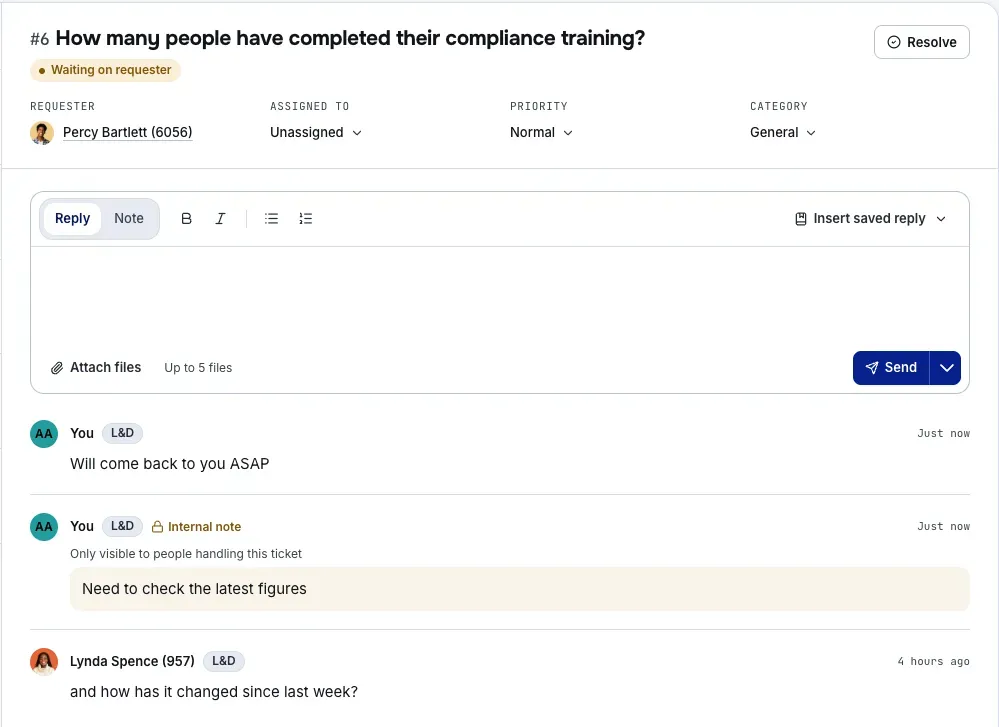
Section titled “Reading a ticket: newest message first”A ticket’s conversation reads newest first. Under the ticket’s header is the reply box, and under that the latest message, so the newest reply and the place to answer it are the first things you see. Older messages follow below; scroll down for them.
Seeing what’s new in a ticket since you last looked
Section titled “Seeing what’s new in a ticket since you last looked”When you open a ticket with messages you haven’t seen, they are the run at the top of the conversation, and a line marked New since you last looked, with an arrow pointing up, sits below the oldest of them. Everything above the line is new; everything below it you had already seen. Your own messages and the ticket’s history, such as assignments and status changes, never start the new run, and a ticket you have never opened has no line. Where you read up to is kept with your account, so the line is in the same place on the web and in the app.
Assigning a ticket
Section titled “Assigning a ticket”- Open the ticket. Under its title, Assigned to shows Unassigned: choose it.
- In Assign ticket, search Assign to for the person.
- Choose Assign.
Anyone active in your account can be assigned, except the person who raised the ticket. They are told at once and see that ticket only. Once assigned, Assigned to shows their name; choose it to reassign, or Unassign to return the ticket to the inbox. Assigning never changes the status, and the first reply target keeps running, so an assignment nobody picks up shows as Overdue.
Replying to an unassigned ticket assigns it to you: whoever answers it has it. The conversation shows a line such as “Sam Patel (957) took this by replying”, and nobody is notified about the assignment. A reply to a ticket someone else has leaves it with them, and an internal note never assigns a ticket.
Replying to a ticket: Send, Send and resolve, Send and keep open
Section titled “Replying to a ticket: Send, Send and resolve, Send and keep open”The reply box is at the top of the ticket, under its header. Its top row holds Reply and Note, the formatting buttons and Insert saved reply; its bottom row holds Attach files, for up to five files, and the send button. Write with Reply chosen, add files if you need to, then choose how to send. A green tick beside a file shows it has uploaded; a file marked Upload failed didn’t arrive, so remove it and attach it again. Your draft is kept if you move to another ticket and come back. Once your message is sent, the reply box empties and the draft is gone; if sending fails, your text stays so you can try again.
| Choice | The ticket becomes | Use it when |
|---|---|---|
| Send | Waiting on requester | You need something back from them |
| Send and resolve | Resolved, and they are asked whether it answered their question | This reply is the answer |
| Send and keep open | Still Open | You are still working on it |
Send is the main button; the other two are on the arrow beside it. The person who raised the ticket is told by email and push. When they reply, the ticket is Open again, and its assignee, or the inbox if nobody has it, is told.
Opening the files attached to a ticket
Section titled “Opening the files attached to a ticket”Each file in a ticket shows as a tile with an icon for its type, its name and its size. Choose a picture to see it full size in a preview. Choose a document, such as a Word file, a spreadsheet, a presentation or a PDF, to read it in the document viewer: Learnient turns it into a PDF to show it, so nothing opens in Office and nothing in the file runs. Download at the top of the preview saves the original. While a document that has just arrived is still being prepared, the viewer shows it is processing; if it can’t be shown, the viewer says so and Download still works. A file shown as This file was removed by a security scan can’t be opened or downloaded.
Internal notes on a ticket
Section titled “Internal notes on a ticket”Choose Note at the top of the reply box to write something only the people handling the ticket can see, then Add note. While Note is chosen the box turns amber and shows Internal with a lock beside Add note. In the conversation a note’s text sits on amber, headed Internal note with a lock and Only visible to people handling this ticket. Adding one changes nothing for the person who raised the ticket, and nobody is notified.
As the line under the box says while Note is chosen, Notes are hidden from the requester, but can be disclosed if they ask for their data. Write them accordingly.
Changing a ticket’s priority or category
Section titled “Changing a ticket’s priority or category”Priority and Category sit under the ticket’s title with their current values; choose a value to change it. Priority sets the ticket to Normal or High. High puts it at the top of every view with a red High marker, and it uses the tighter of its category’s targets and your account’s High priority targets. Because targets count from when the ticket was raised, marking an older ticket High can make it overdue at once. The assignee can change priority as well as anyone with Work tickets.
Choosing the Category value opens Change category. Targets follow the category, so due times may change. Only people with Work tickets can change a ticket’s category.
Resolving, reopening and closing tickets
Section titled “Resolving, reopening and closing tickets”Resolve resolves a ticket without a reply, and the person who raised it is asked whether it answered their question. If they say no, or reply, it opens again.
A closed ticket takes no replies, so it has no reply box. Someone with Work tickets can choose Reopen, for example on a ticket closed by mistake, and it counts in Reopens in ticket reports. Otherwise the person who raised it starts a follow-up, which links back to the closed ticket.
Handing a ticket back to the inbox
Section titled “Handing a ticket back to the inbox”If a ticket assigned to you isn’t yours to answer, choose Hand back to inbox, give a Reason and choose Hand back. The ticket returns to the inbox unassigned, your reason is kept as an internal note, and you lose access to it unless you have Work tickets. You can’t pass a ticket straight to someone else: the inbox decides.
Raising a ticket for someone else
Section titled “Raising a ticket for someone else”When someone calls or stops by, raise the ticket for them. Choose Raise a ticket, switch on Raise for someone, choose the Person, then fill in the ticket as usual and choose Raise ticket. They become the person who raised it: they are told, see every reply and own the conversation from then on. This needs Work tickets.
Ticket targets and Overdue
Section titled “Ticket targets and Overdue”When a ticket’s category has targets, the ticket shows when its reply or resolution is due, such as Reply due in 3 hours, and Reply overdue by or Resolution overdue by once it is late. A late ticket is marked Overdue in the list. Its assignee, or the inbox if nobody has it, is told once when each target is missed.
Saved replies for answers you give often
Section titled “Saved replies for answers you give often”Saved replies are answers you insert into a reply and edit before sending. They are for everyone who answers tickets: people with Work tickets, and anyone with a ticket assigned.
- Choose Saved replies at the top of the Tickets page, then New saved reply.
- Give it a Title you will recognise, and write the Text.
- To let everyone who answers tickets use it, switch on Share with everyone who works the inbox. Only people with Work tickets can share one.
- Choose Save reply.
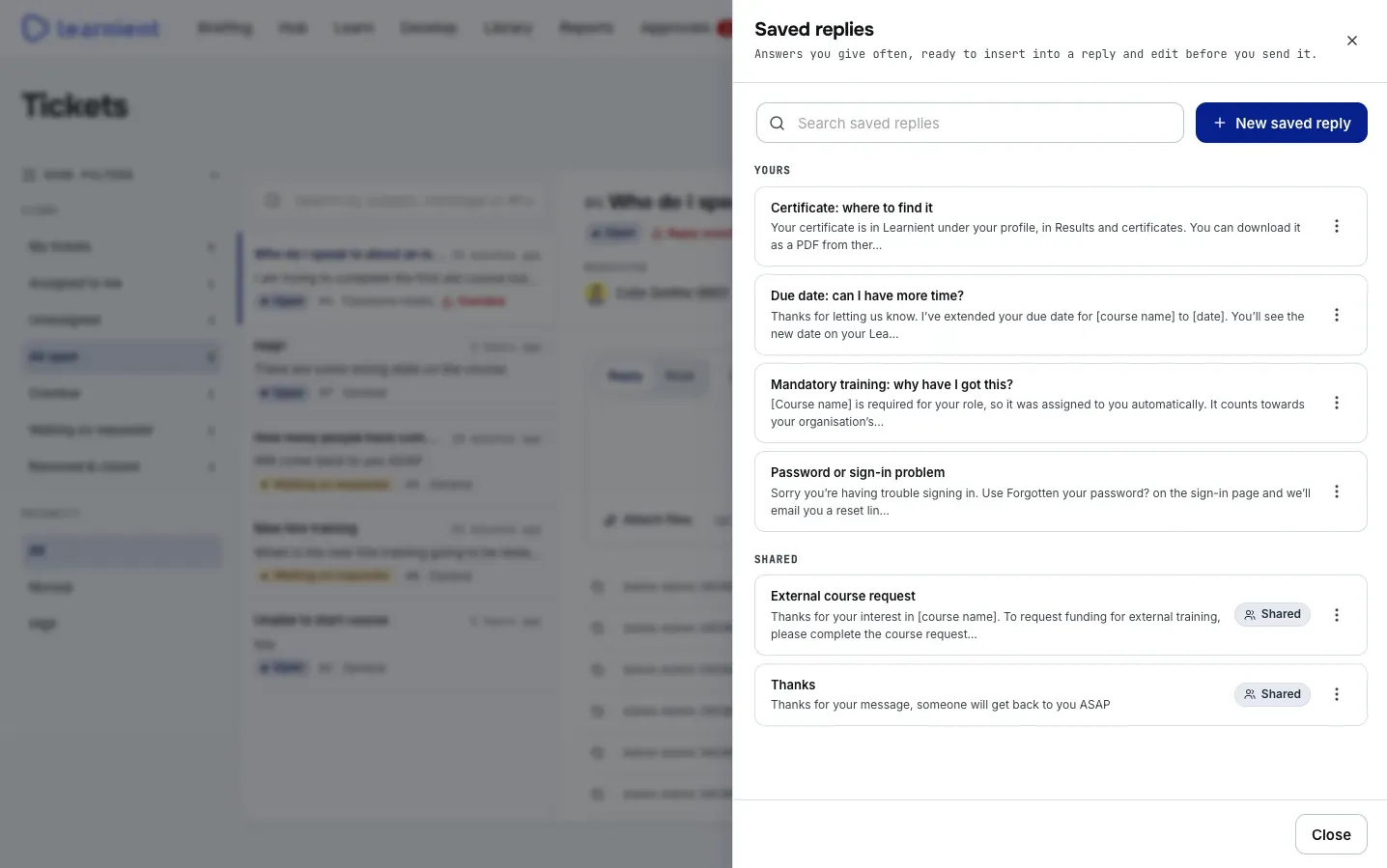
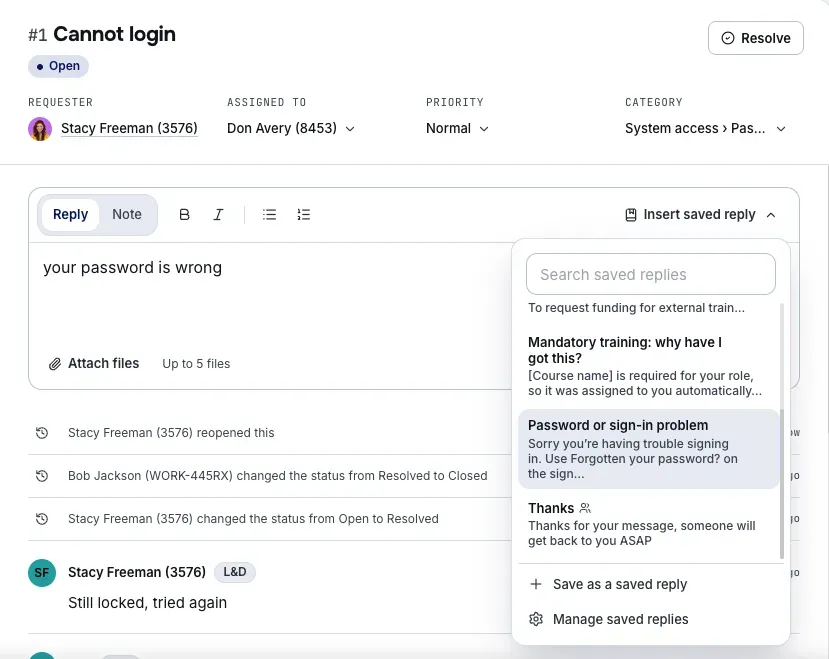
In a reply, choose Insert saved reply at the right of the reply box’s top row and pick one. Its text is added for you to change before you send it. Save as a saved reply in the same menu saves what you have written, and Manage saved replies opens the list. The list is grouped into Yours and Shared. You can change your own in Edit saved reply or remove them with Delete saved reply, which shows the reply, says under Deleted whether it goes From your saved replies or For everyone who works the inbox, and lists Replies already sent with it under Not affected. Shared ones can be changed only by people with Work tickets.
Who raised a ticket, and what it is about
Section titled “Who raised a ticket, and what it is about”The top of a ticket shows its number, subject and status, then a row of its details: Requester, Assigned to, Priority and Category. A ticket raised from a course lists Course, Module and Page on lines of their own below: the course, the module and the page of it the person had open. Course links to the course page when you can open it. The module and page are named but not linked, because opening the course player would start the course for you. Requester is the person who raised it, with their photo or initials, named with their works ID when they have one, such as Sam Patel (957), so two people with the same name can be told apart; this is the same everywhere a ticket names someone. Raised by appears under their name when someone raised it for them. Their name links to their profile when you are allowed to see them elsewhere in Learnient; ticket access alone doesn’t add people to what you can see.
When you no longer have access to a ticket
Section titled “When you no longer have access to a ticket”If a ticket is reassigned or you hand it back, it leaves your Assigned to me view. Opening an old link to it shows You no longer have access to this ticket. What you wrote stays in the conversation.
Working tickets in the Learnient app
Section titled “Working tickets in the Learnient app”Everything above works in the app too:
- Views: My tickets, Assigned to me and the inbox views are along the top of the list, with Filters for category and priority
- Getting around: the tabs stay at the bottom of the screen while you work your tickets, and the back arrow takes you back to where you were. From a push notification, it takes you to the ticket list
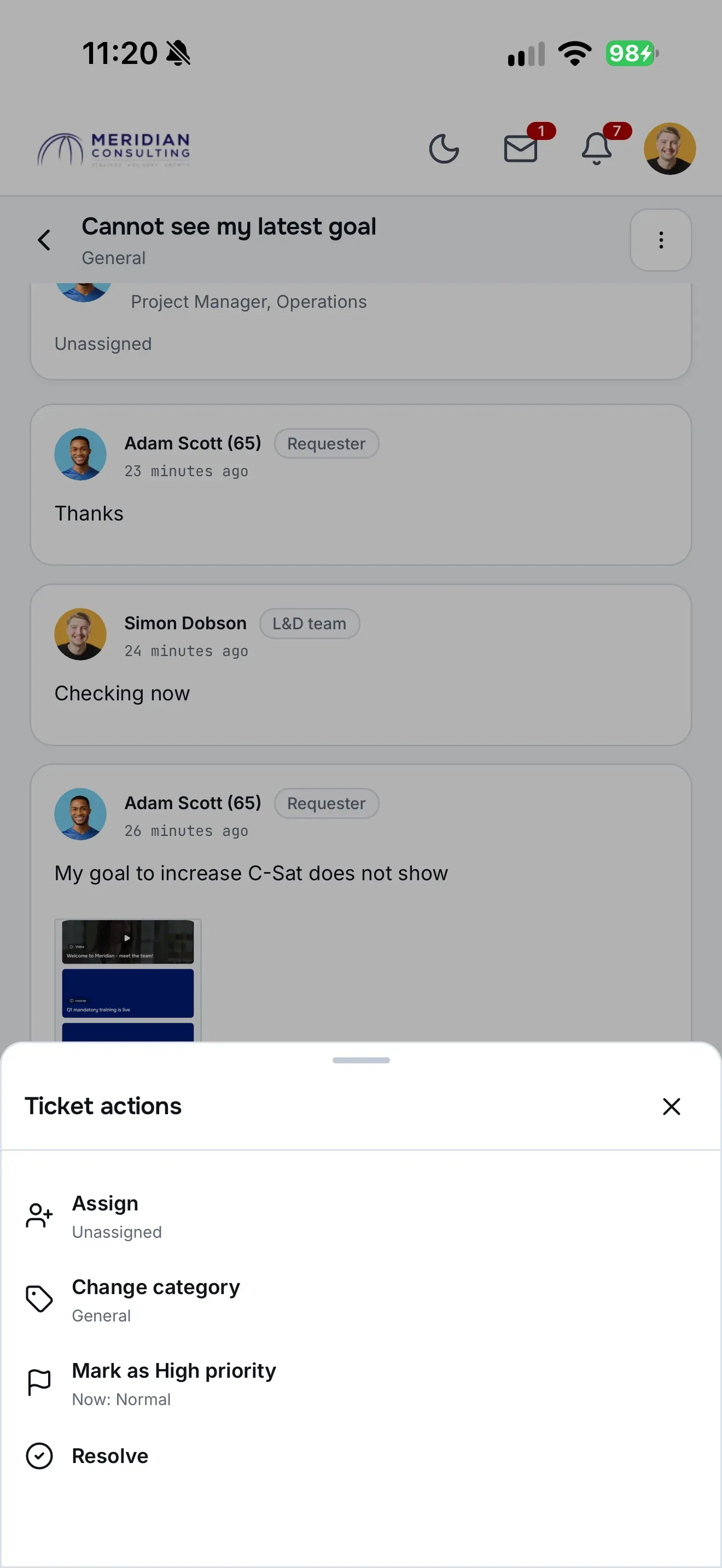
- Ticket actions on a ticket holds Assign, Unassign, Change category, Mark as High priority, Set back to Normal priority, Resolve, Reopen and Hand back to inbox
- Replying: the reply box has Reply and Note, with Send, Send and resolve and Send and keep open under its send options, and Add note for a note
- Saved replies: Insert saved reply adds one to your reply. Create and change saved replies on the web
- Raising for someone: switch on Raise for someone and use Choose a person
- Reading: the ticket’s status, requester and assignee are in the band under its title, with Ticket actions at the top right. The messages are below, under Conversation, newest first as on the web, and the reply box stays at the bottom of the screen above the keyboard
- What’s new: New since you last looked marks the same place as on the web, below the new messages
- Attachments: tap a picture to see it full size, or a document to read it in the app’s document viewer; Save or share keeps the original
The app doesn’t refresh on a timer, except while a document you’ve opened is still being prepared. A ticket refreshes when you open it, when you return to the app and when a push notification about it arrives.