Becoming a mentor
Becoming a mentor means offering to help colleagues with something you know well. You write a short mentor profile, colleagues who want help find it and send you an invite, and you decide whether to accept. You never have to approach anyone, and you choose how many mentees you take on.
Your mentor profile is under Develop, Mentoring, in My mentor profile. If you see You can’t become a mentor, your role doesn’t include it; speak to your L&D team if you’d like to. How mentoring works explains what your manager and your organisation can see.
Writing your mentor profile
Section titled “Writing your mentor profile”- In Develop, Mentoring, choose Become a mentor under My mentor profile. Once you have a profile, the same button reads Edit profile.
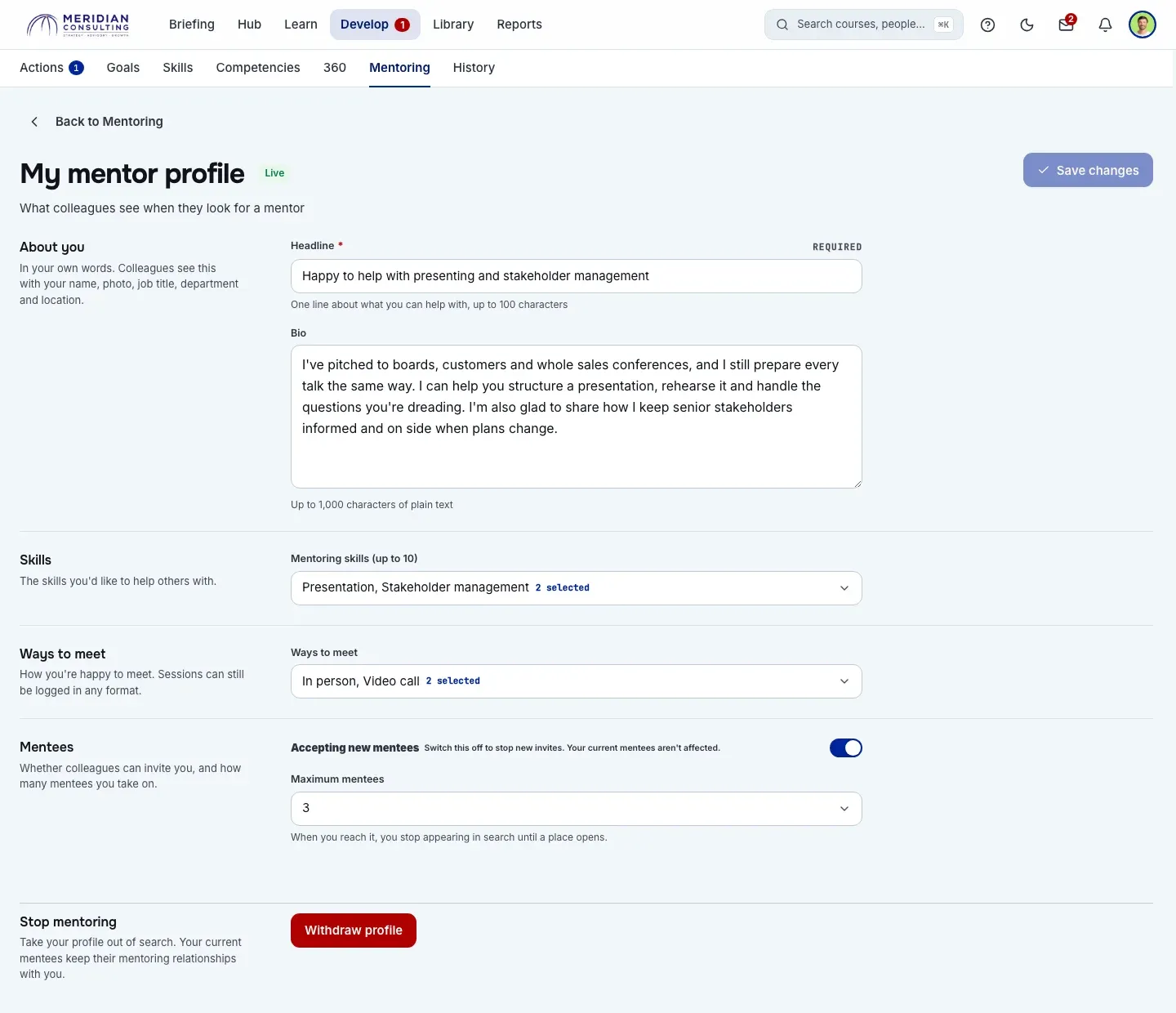
- Under About you, write a Headline: one line about what you can help with, up to 100 characters.
- Write a short Bio in your own words, up to 1,000 characters of plain text. Colleagues see it with your name, photo, job title, department and location.
- Under Skills, choose your Mentoring skills (up to 10): the skills you’d like to help others with.
- Choose your Ways to meet: In person, Video call or Phone. Sessions can still be logged in any format.
- Under Mentees, leave Accepting new mentees on, and set your Maximum mentees, from 1 to 10. It starts at 3.
- Choose Save and publish. Later changes are saved with Save changes.
Your profile then appears in Find a mentor for colleagues who can find a mentor. It never shows your skill levels, your email or phone number, your manager or your other mentees. You don’t appear in search for your own manager, anyone above them, or anyone who reports to you.
Mentor approval before your profile is listed
Section titled “Mentor approval before your profile is listed”Your organisation may check mentor profiles before they’re listed. If so, your new profile shows Waiting for approval and appears in search once it’s approved. You’re told the outcome either way.
When you later change your headline, bio or skills, your profile shows Changes waiting for approval, and colleagues keep seeing your current profile until the change is approved. Ways to meet, Accepting new mentees and Maximum mentees change straight away.
Which skills you can list as a mentor
Section titled “Which skills you can list as a mentor”What you can choose under Mentoring skills (up to 10) depends on your organisation:
- Usually you can list any skill in your organisation’s catalogue
- If your organisation uses Verified skills, you can list only skills that someone else, such as your manager, has confirmed you have at a high level. Skills you can’t list yet are shown with You can’t list this skill yet and can’t be chosen
Skills marked Hidden until it qualifies on your mentor profile
Section titled “Skills marked Hidden until it qualifies on your mentor profile”If your organisation uses Verified skills, a skill on your profile that doesn’t qualify is hidden, not removed. It stays on your profile, marked Hidden until it qualifies, and Some of your skills are hidden lists them. Colleagues don’t see a hidden skill on your profile, in search or when they invite you. This happens when your organisation switches to Verified skills or raises its bar, and overnight if your level changes or the skill expires. You’re told which skills are no longer shown. Nobody else is told, and no skill level is ever shown to anyone in mentoring.
A hidden skill shows again on its own once it qualifies, for example when your manager rates you higher, or if your organisation goes back to letting mentors list any skill. Saving your profile keeps hidden skills where they are. To take one off for good, remove it from Mentoring skills (up to 10) and save. You can’t add a new skill that doesn’t qualify yet.
Taking a break from new mentees
Section titled “Taking a break from new mentees”Switch off Accepting new mentees and save to stop new invites while you’re busy. You stop appearing in search, your current mentees carry on as before, and nobody sees why. You also stop appearing in search when you reach your Maximum mentees, until a place opens. Lowering the maximum below the number of mentees you have ends nothing; it only stops new invites.
Stopping being a mentor
Section titled “Stopping being a mentor”Under Stop mentoring, choose Withdraw profile. Withdraw your mentor profile? tells you nobody new can find or invite you, and shows what’s kept: Current mentoring relationships carry on, with how many you have. Choose Withdraw profile again to confirm. Your profile then says Your profile is withdrawn. Save your profile again at any time to list it again.
To finish with a mentee, end that relationship instead. See Ending a mentoring relationship.
When your mentor profile is hidden or you are suspended
Section titled “When your mentor profile is hidden or you are suspended”An administrator can hide your profile, with a reason. It then shows Hidden and An administrator has hidden your profile: you don’t appear in search, and your current mentees keep their mentoring relationships with you. Only an administrator can show it again.
An administrator can also suspend you from mentoring. That ends all your mentoring relationships, as mentor and as mentee, withdraws your invites, and stops you mentoring or sending invites until the suspension is lifted. Your profile shows You’re suspended from mentoring. When it’s lifted, your profile comes back hidden and you publish it again yourself. You’re told in both cases.
Answering an invite from a mentee
Section titled “Answering an invite from a mentee”When someone invites you, you’re told by email and push notification, and the invite waits under Invites to answer in Develop, Mentoring, and in Develop, Actions. Choose Answer to open it.
- Read their message and the skills they’d like help with.
- Read the line above the buttons: “Your manager will see who you mentor and your session hours, never your messages or notes.”
- Choose Accept, or Decline.
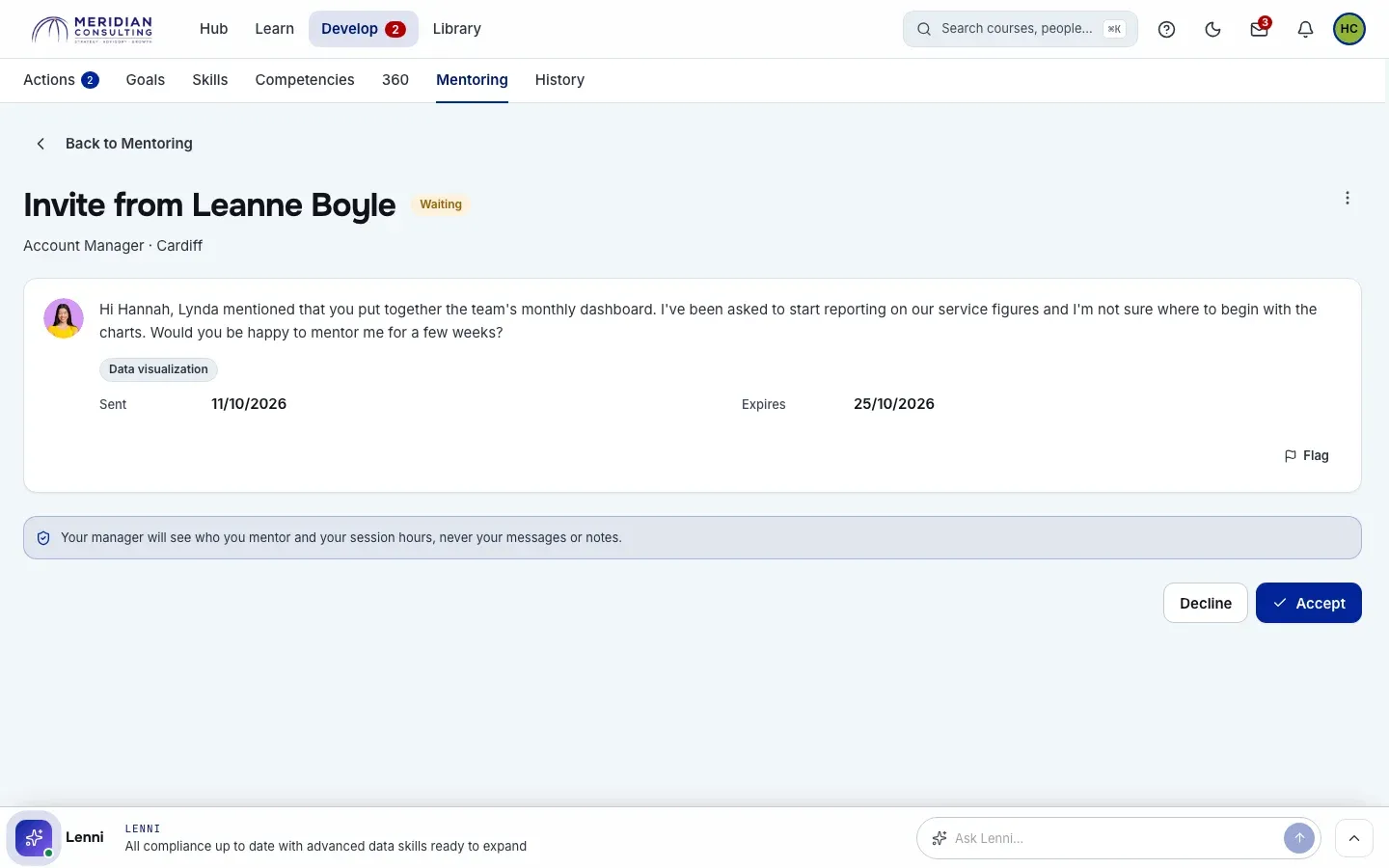
Accept starts the mentoring relationship, with their invite message as the first message of your conversation. Decline asks Decline this invite? and lets you add a Note to them. They’re told, and no conversation is started. An invite you don’t answer expires after 14 days, and you’re reminded once after a week.
If an invite worries you, choose Flag on it. See Flagging a message, invite or profile.
Blocking someone from their invite
Section titled “Blocking someone from their invite”If you want no contact with the person at all, you don’t have to answer their invite. Open the invite’s menu at the top right and choose Block. The confirmation, titled with their name, such as Block Sam Lee?, lists what happens: The invite is cancelled, Invites between you stop and You’re hidden from each other’s search. Choose Block again to confirm. They aren’t told you blocked them: they see only that the invite was cancelled. You return to Mentoring, and People you’ve blocked lists them, with Unblock if you change your mind.
Only the mentor an invite was sent to can block from it. The person who sent it can withdraw it instead.
Mentoring sessions with your mentees
Section titled “Mentoring sessions with your mentees”Each mentee is under My mentees. Open one to message them and log your sessions, exactly as a mentee does: Log a session after you meet, and Confirm or That’s not right when they log one. Confirmed sessions count towards your development record as well as theirs, and, if your organisation chooses, towards your CPD. See Logging a mentoring session.
Ending, blocking and flagging work the same for mentors. Your mentee is told when you end the relationship; if you block them, they see only that it ended.
Being a mentor in the Learnient app
Section titled “Being a mentor in the Learnient app”Your profile and your mentees are in the app too, under Develop, Mentoring:
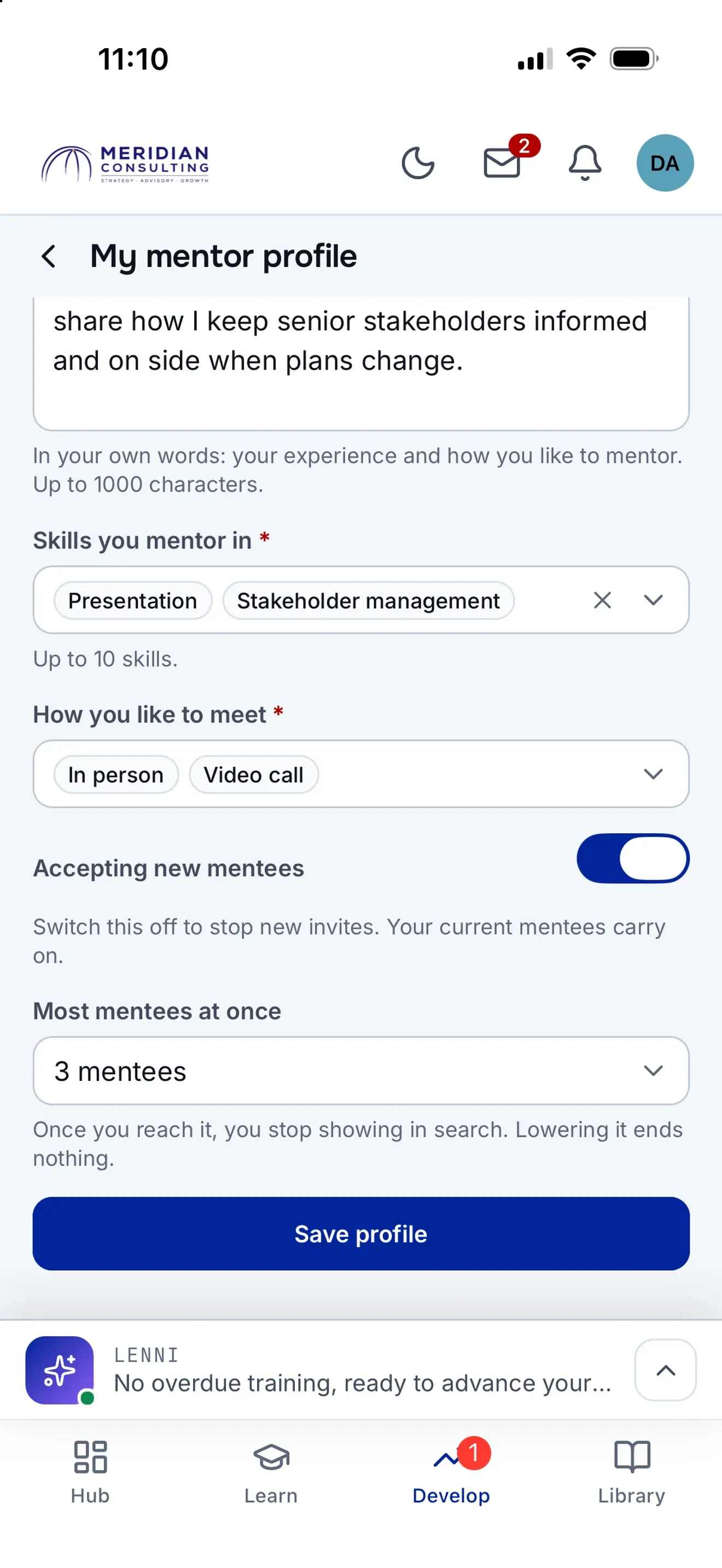
- My mentor profile: About you, Skills you mentor in, How you like to meet, Accepting new mentees and Most mentees at once. Save with Save profile, or Publish profile the first time. Accepting new mentees saves as soon as you switch it
- Stop being a mentor takes your profile out of search, as Withdraw profile does on the web
- Invites: open one from Develop, Actions or a push notification, read the notice, then Accept or Decline. The actions button at the top has Flag this invite and Block with their name, such as Block Sam Lee
- Sessions and messages work as for mentees: Log a session, Confirm, That’s not right and Add a private note