Raising a ticket to L&D
A ticket is how you ask your L&D team for help: access to a course, a module that won’t load, a question about something you have to complete. You write it once, L&D answers in the same conversation, and you can see every reply in one place.
Only the people handling your ticket can see it. That means the person answering it and your L&D team. Your manager can’t see it, whatever they can see about your training.
The envelope in the Learnient top bar
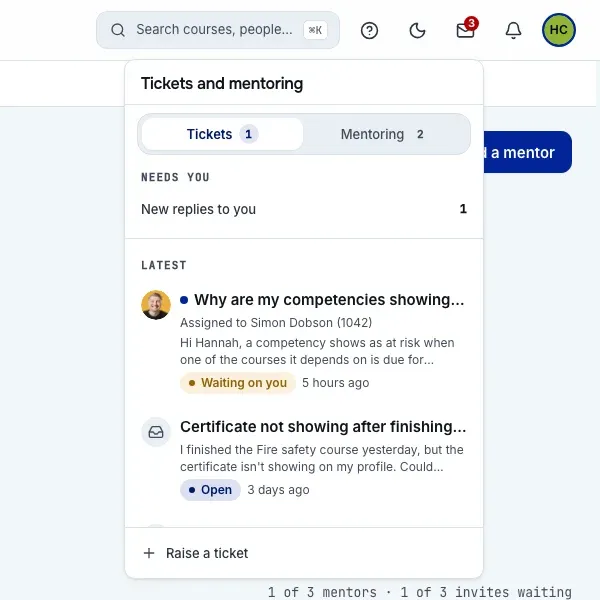
Section titled “The envelope in the Learnient top bar”The envelope icon sits in the top bar between the dark mode switch and the notifications bell. Choose it to see the tickets that need you, your Latest eight tickets, Raise a ticket and Open inbox, which opens the Tickets page. Each of the latest tickets shows an inbox icon beside its subject and names, in words, who it is Assigned to, or, for the people who answer tickets, who it was Raised by, with their works ID when they have one.
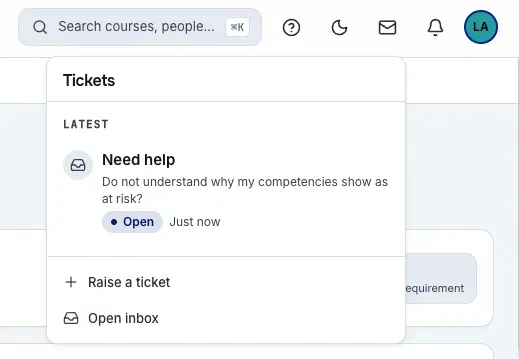
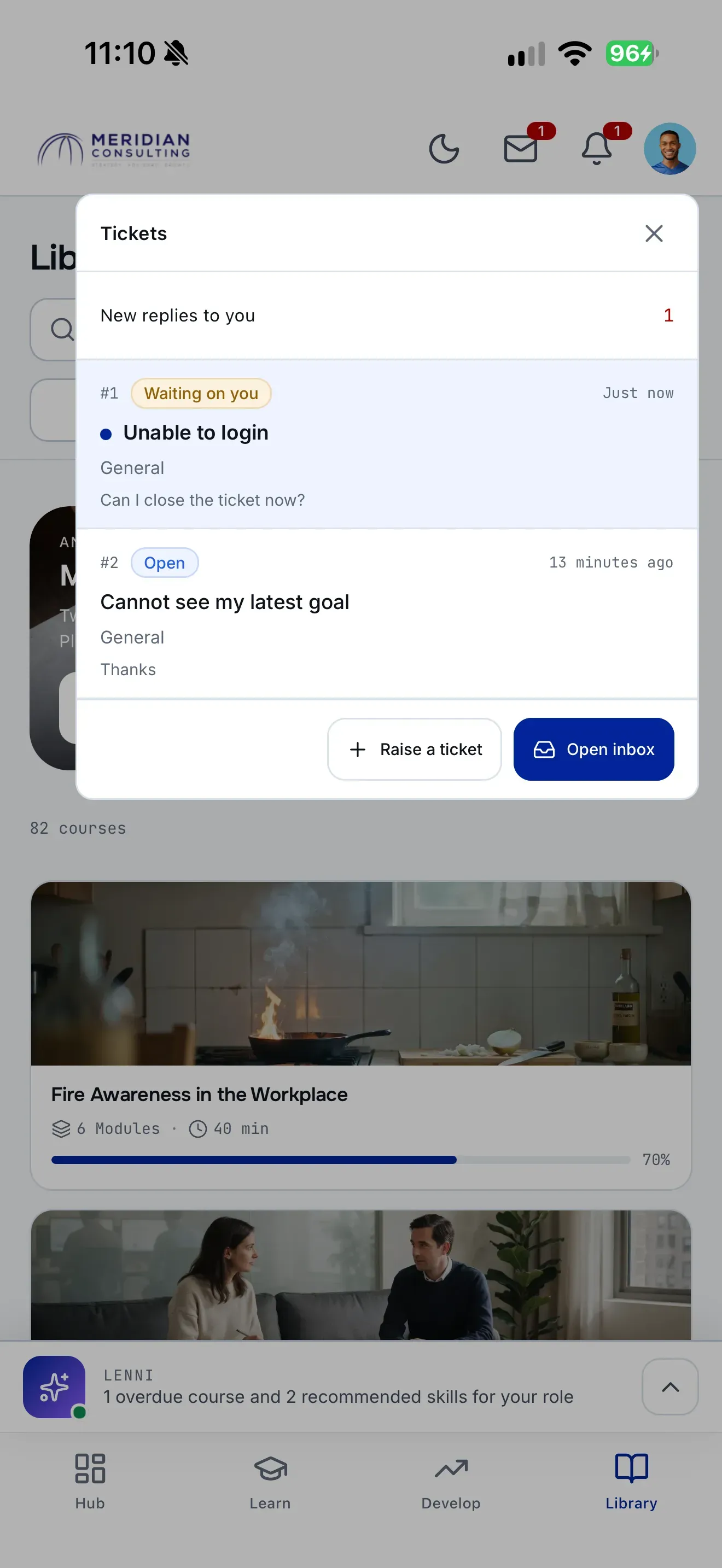
The number on the envelope counts tickets waiting for you to act. For a ticket you raised, that is New replies to you: L&D has replied since you last opened it. Opening the ticket clears it. It is not a count of unread messages, and your own messages never add to it. If you answer tickets as well, Working the ticket inbox explains the other groups.
Ticket replies never appear under the bell. You are told about them by email and push notification, and on the envelope.
Mentoring messages in the envelope
Section titled “Mentoring messages in the envelope”If your organisation uses mentoring, the envelope carries your mentoring messages too. The number then adds your unread mentoring messages to the tickets waiting for you, and reading a conversation clears its part. The dropdown has two tabs, Tickets and Mentoring, and each tab’s name carries its own number, so you can see at a glance which one has something for you. The dropdown opens on the tab that has something waiting. If both do, it opens on Tickets, and the number on Mentoring tells you there is more to read there. Choose a tab to switch, or use the left and right arrow keys.
The Tickets tab has what needs you, your Latest tickets, View all, which opens the Tickets page, and Raise a ticket. The Mentoring tab lists your Latest conversations, unread first, showing who wrote and when, never what they wrote, and View all opens Develop, Mentoring. If you use only one of the two, there are no tabs: the envelope shows that one alone. See Finding a mentor.
Raising a ticket
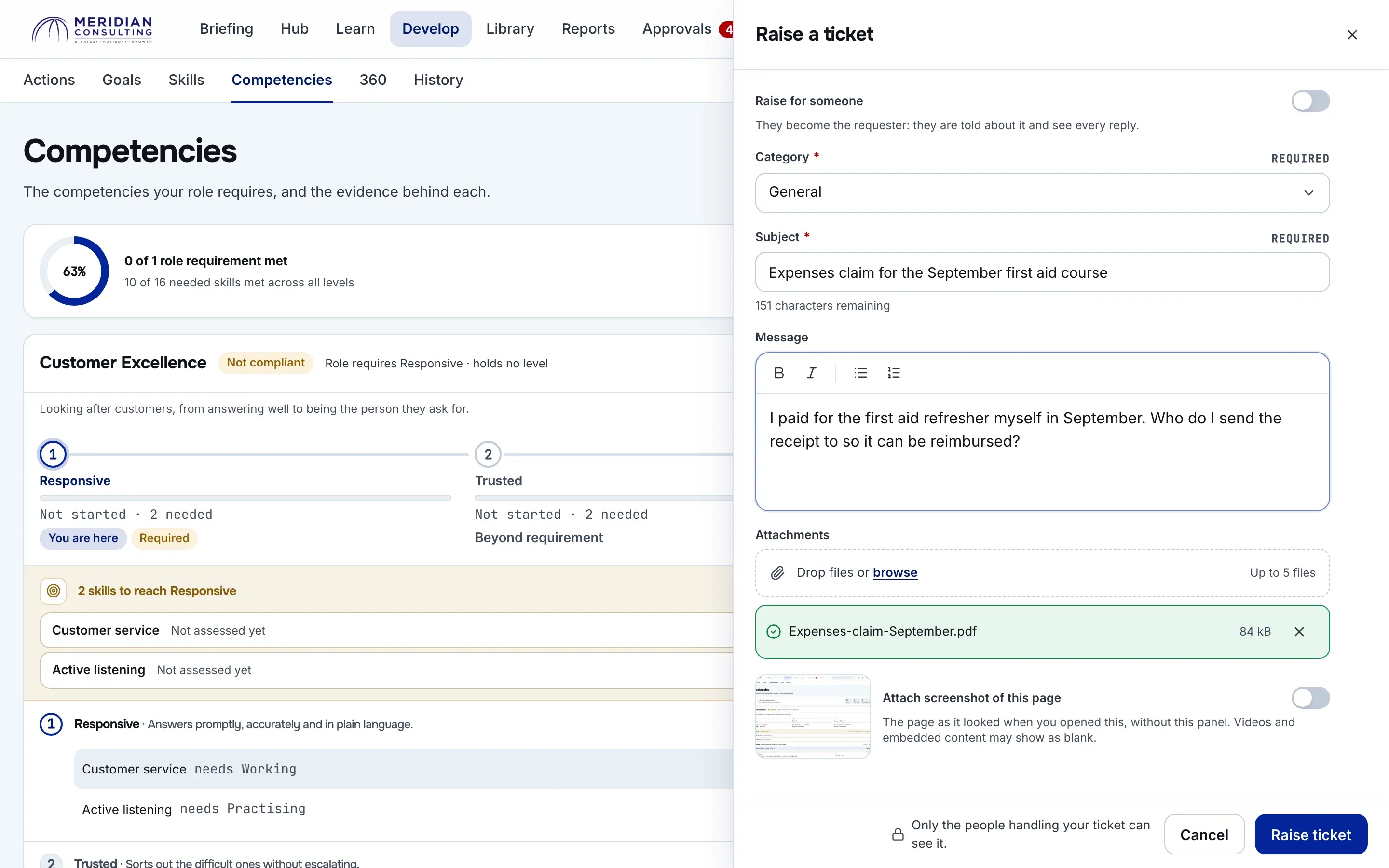
Section titled “Raising a ticket”- Choose the envelope, then Raise a ticket. On the Tickets page, Raise a ticket is at the top.
- Choose a Category. If there is only one, it is chosen for you.
- Write a Subject of up to 200 characters, so L&D can see what it is about at a glance.
- Write your Message.
- Add any files, up to five: drop them on the dashed box under Attachments, or choose browse in Drop files or browse to pick them. Opened from a page, the form can also attach a screenshot of that page with Attach screenshot of this page.
- Choose Raise ticket.
Your ticket gets a number such as #1042, and it opens so you can follow it. Quote the number if you speak to L&D about it.
Asking about a course with a ticket
Section titled “Asking about a course with a ticket”Ask about this course is on a course or learning path page, and in the top bar of the course player, when your organisation has switched it on. It opens the same form with the course attached, and in the player the module and the page you have open too, so L&D can see exactly where you are. They are listed at the top of the form as Course, Module and Page. If your organisation has chosen a category for course questions, it is already picked, and you can choose another. In a course delivered from another system, the button is in Learnient’s own bar above the course, not inside the course itself.
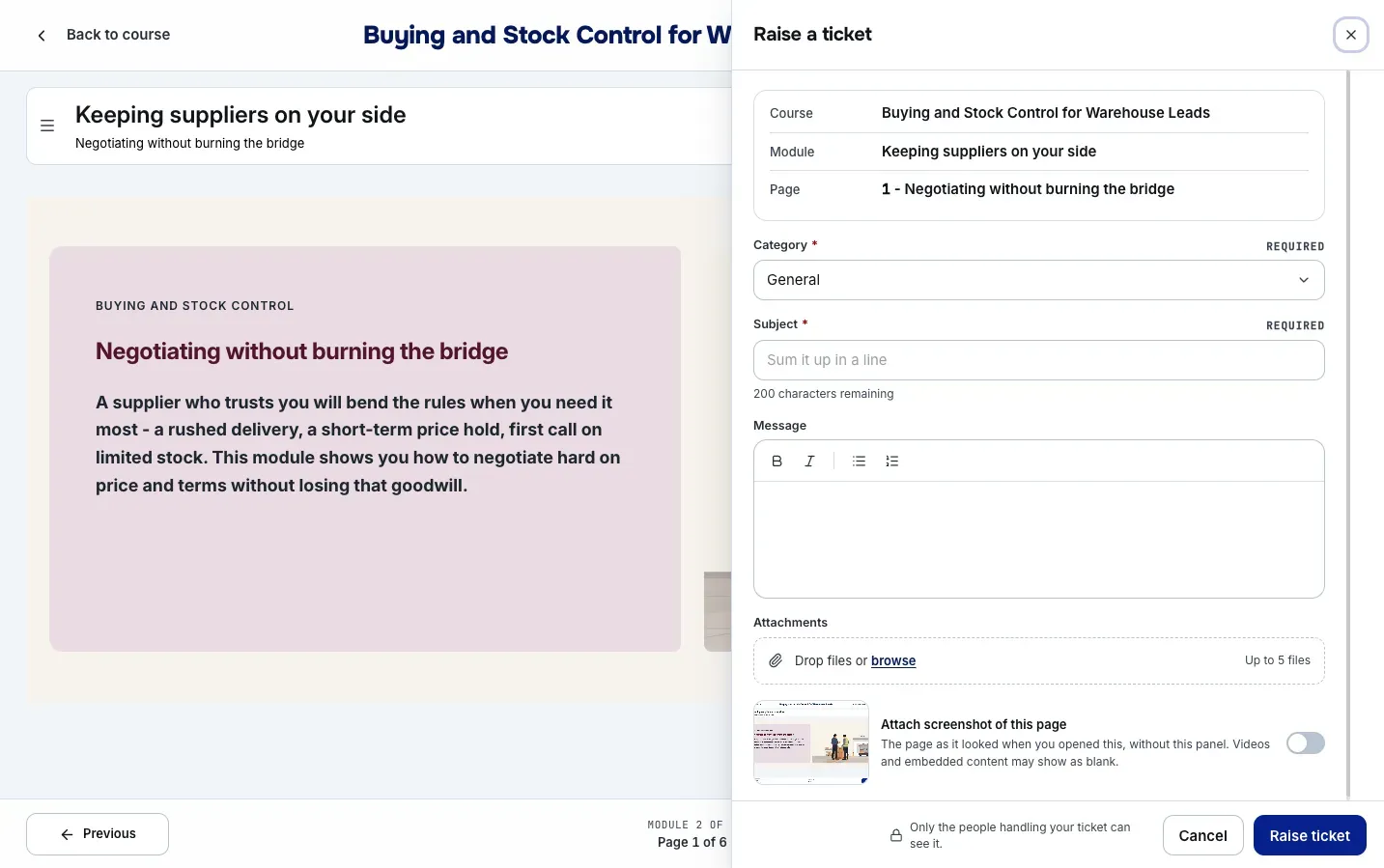
When you choose Raise ticket, you stay where you were in the course. A message confirms the ticket’s number, such as Ticket #1042 raised, with View ticket to open it; the ticket is also under the envelope whenever you want it.
If there is no Ask about this course button, your organisation hasn’t switched it on. Choose Raise a ticket from the envelope instead, and say which course you mean.
Raising a ticket from Lenni
Section titled “Raising a ticket from Lenni”When Lenni can’t answer a question from your organisation’s content, Raise a ticket appears under its reply. It opens the form with your question already in the subject and message. Change anything you like; nothing is sent until you choose Raise ticket (Raise a ticket in the app).
Attaching files to a ticket
Section titled “Attaching files to a ticket”You can attach up to five files to each message, within your account’s upload size limits: PDF, Word, Excel, PowerPoint (older formats included), RTF, text, CSV, and pictures in PNG, JPG, GIF, WebP, HEIC or SVG. Video can’t be attached.
Each file uploads as soon as you pick or drop it, with its progress beside it. A green tick shows it has arrived. A file marked Upload failed didn’t, so remove it with the red bin beside it, which reads Remove and the file’s name, and attach it again. Photos are saved again as they upload, which removes the location and camera details stored in them.
Attaching a screenshot of the page you were on
Section titled “Attaching a screenshot of the page you were on”When you open Raise a ticket from a page, Learnient takes a picture of that page as the form opens, so L&D can see what you were looking at. That’s from the envelope, from Ask about this course and from Lenni’s Raise a ticket. A small thumbnail of it sits under your attachments with the switch Attach screenshot of this page.
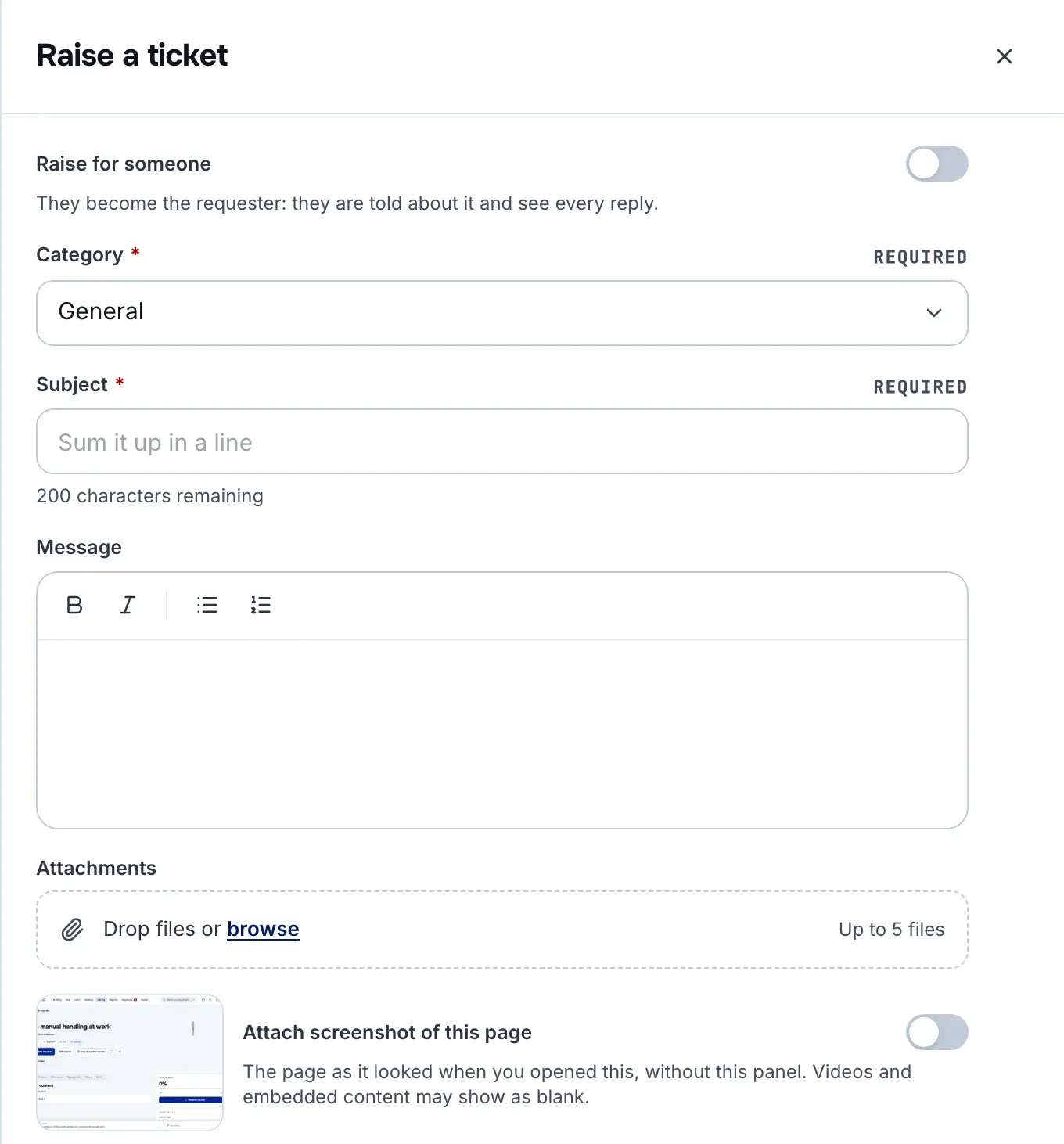
The switch is off until you turn it on, so the screenshot is never sent unless you choose to send it. Choose the thumbnail to see it full size first. Turned on, it uploads like any other file, with its progress and then a green tick, and counts as one of your five attachments. Turn it off, or remove it from the list, to take it out again.
The screenshot shows the page as it was on your screen, the visible part only and in light or dark mode as you had it, without the form itself, open menus or messages. A video, or a course or page delivered from another system, can’t be pictured and shows as a blank area. If a screenshot can’t be taken, the switch isn’t shown.
There’s no screenshot when you raise a ticket from the Tickets page or from a ticket, or with Raise a follow-up: those pages would only show your tickets.
Opening the files attached to a ticket
Section titled “Opening the files attached to a ticket”Files in the conversation show as tiles with an icon for their type, their name and their size. Choose a picture to see it full size in a preview. Choose a document, such as a Word file, a spreadsheet, a presentation, a text file or a PDF, to read it in Learnient’s document viewer. Learnient turns the document into a PDF to show it, so nothing opens in Word or Excel and nothing in the file runs. Choose Download at the top of the preview to save the original file.
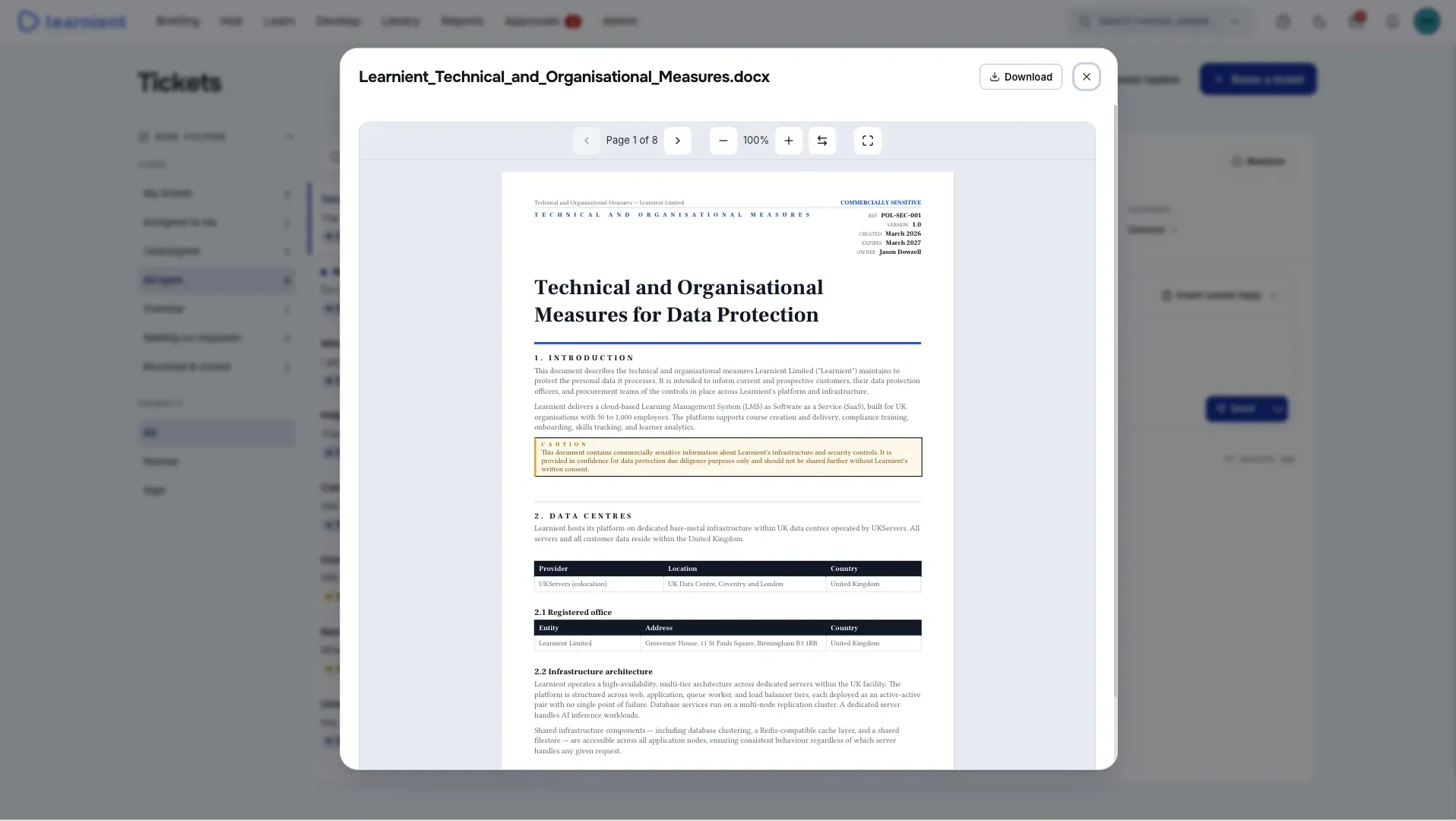
A document that has only just been sent can take a moment to be ready. Until then the viewer shows it is still processing, and it opens by itself when it’s ready. If a document can’t be shown, the viewer shows Document preview unavailable, and Download still gives you the original. A HEIC photo that couldn’t be converted downloads instead of opening.
A file shown as This file was removed by a security scan was flagged by a malware check and can’t be opened or downloaded; ask the sender for a clean copy.
Following your ticket and replying
Section titled “Following your ticket and replying”My tickets on the Tickets page lists every ticket you have raised. Open one to see Assigned to, the person handling it once someone has it, with its Category and when it was Raised. When L&D replies and waits for you, your ticket shows Waiting on you. The conversation reads newest first: the reply box is at the top, under the ticket’s header, and the latest reply is just below it. Write in the box and choose Send, and it goes back to L&D; the box then empties, ready for your next message. If sending fails, your text stays so you can try again. Replies you haven’t seen are at the top, and a line marked New since you last looked sits below them.
A ticket you raised from a course lists its Course, Module and Page at the top. Choose the course to open its page, or the module or page to go straight back to that point in the course.
If you don’t reply, you usually get one reminder after a few working days, and if you still don’t reply the ticket is resolved for you a while later. Your organisation chooses both, and can switch them off.
Messages can’t be edited or deleted after you send them. To correct something, send another message.
When L&D resolves your ticket
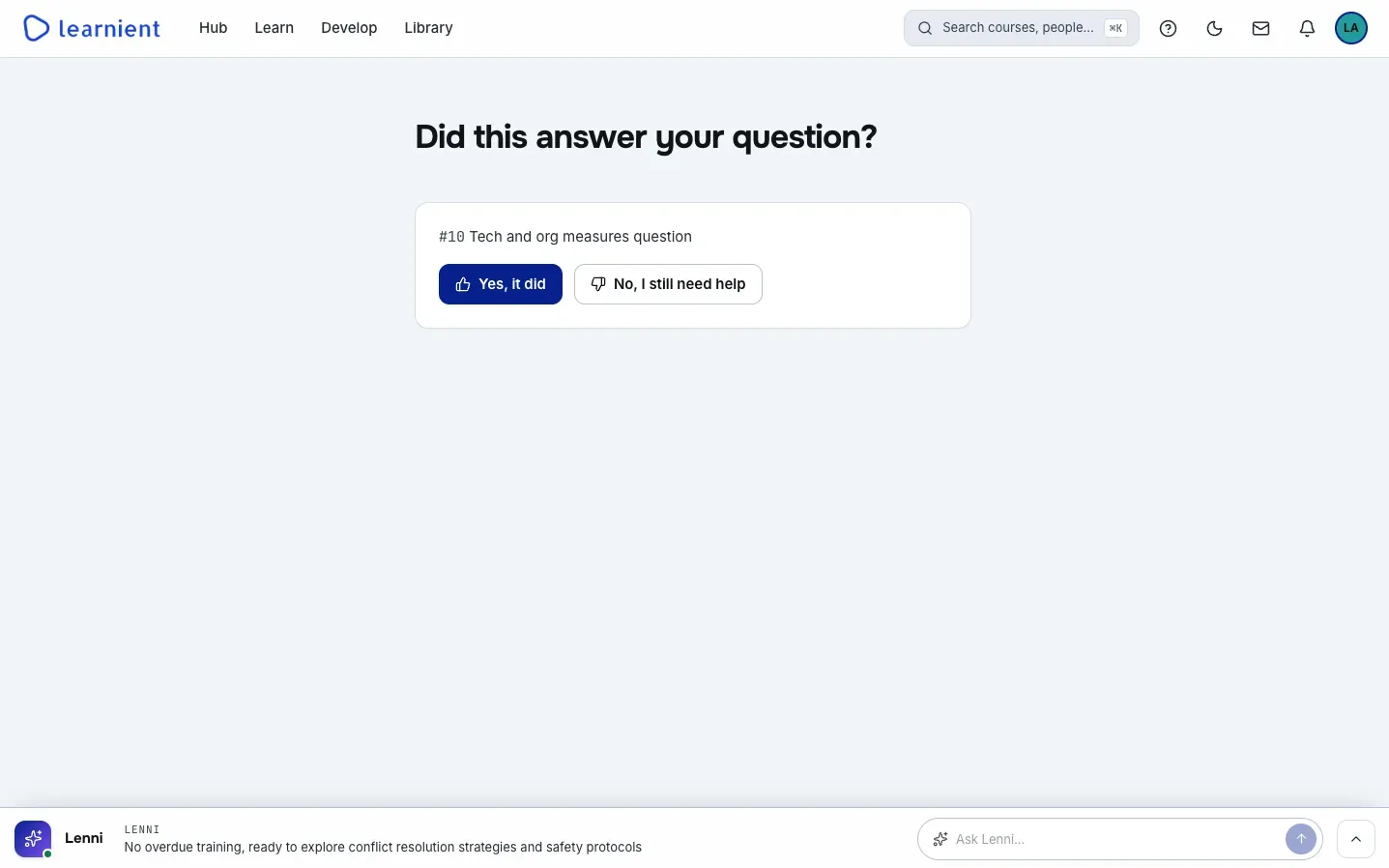
Section titled “When L&D resolves your ticket”When L&D resolves your ticket, you are asked Did this answer your question?, in the conversation and in the email.
- Yes closes the ticket
- No opens it again for L&D, with an optional What’s still missing? box to say what you still need
The links in the email open a page with Yes, it did and No, I still need help. Nothing is recorded until you choose one of those, so a link opened by your email’s security scanning never answers for you. If the ticket no longer needs an answer, the page says so and offers Open the ticket.
Replying to a resolved ticket also opens it again, until it closes. A resolved ticket closes by itself after a number of days, seven unless your organisation has changed it.
Closing your ticket yourself
Section titled “Closing your ticket yourself”On a ticket that is still open, two buttons at the top right let you finish it:
- This answered my question closes it, recorded as answered
- Close ticket closes it because you no longer need an answer, after asking Close this ticket?
Raising a follow-up after a ticket is closed
Section titled “Raising a follow-up after a ticket is closed”A closed ticket shows This ticket is closed where you would reply. If you still need help, choose Raise a follow-up. It starts a new ticket linked to the old one, marked Follow-up to with the old ticket’s number, so L&D can see what was said before.
Emails about your ticket
Section titled “Emails about your ticket”You get an email when L&D replies, resolves your ticket or raises one for you. Each email has a Reply in Learnient button. Replies to the email itself are not received, so always reply in Learnient. Your organisation may choose to leave the reply text out of emails, in which case the email says there is a new reply and the button takes you to it.
Raising and following tickets in the Learnient app
Section titled “Raising and following tickets in the Learnient app”The app works the same way:
- The envelope is in the app’s header beside the bell, with the same number. Tap it for what needs you, your latest tickets, Raise a ticket and Open inbox. With mentoring in use, the sheet has Tickets and Mentoring tabs, each showing its own number and with its own View all, and it opens on the one with something waiting (Tickets if both have), as on the web
- Getting around: the tabs stay at the bottom of the screen while you’re in your tickets, so you can go anywhere else in one tap. The back arrow takes you back to where you were; from a push notification, it takes you to your tickets. Lenni’s bar is hidden on a ticket and on the Raise a ticket form, so it never covers the reply box or the button
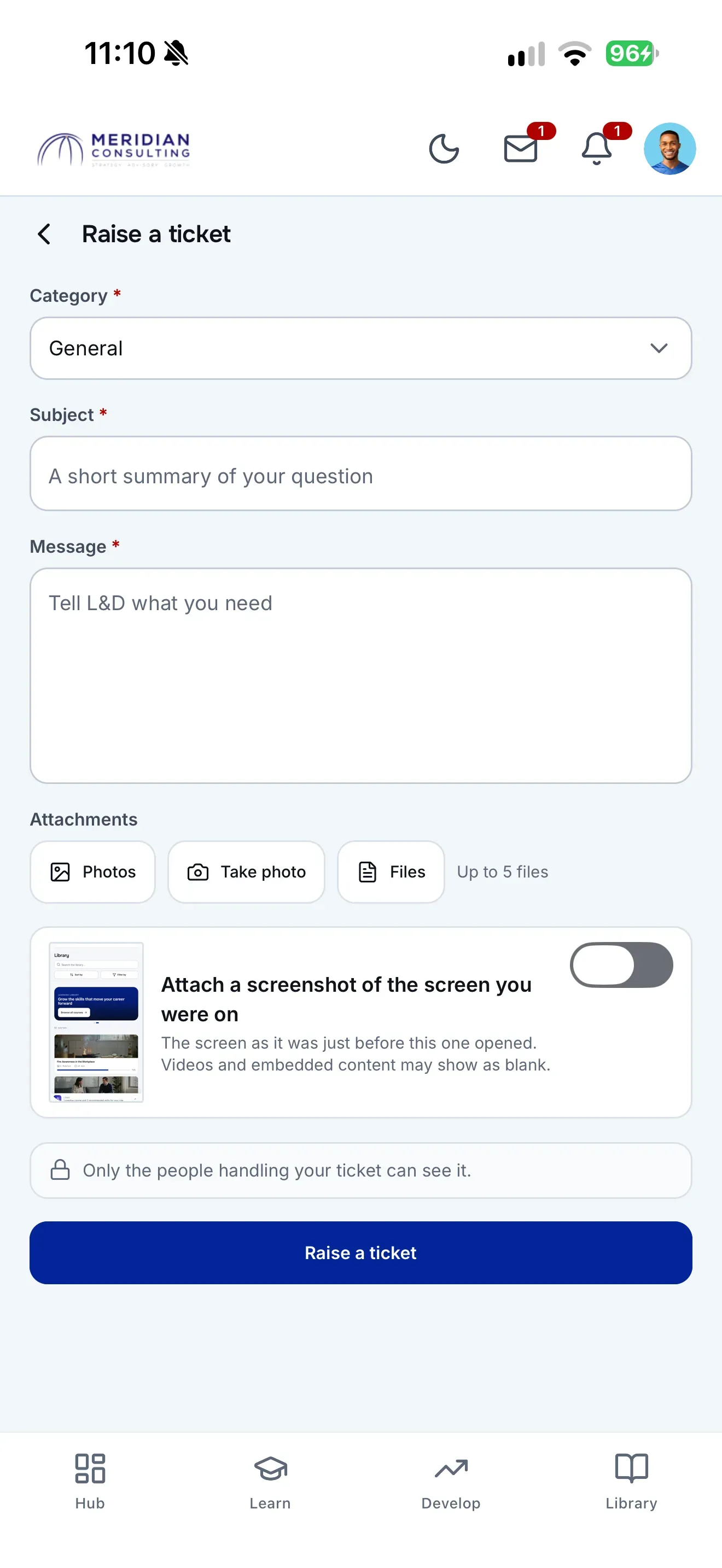
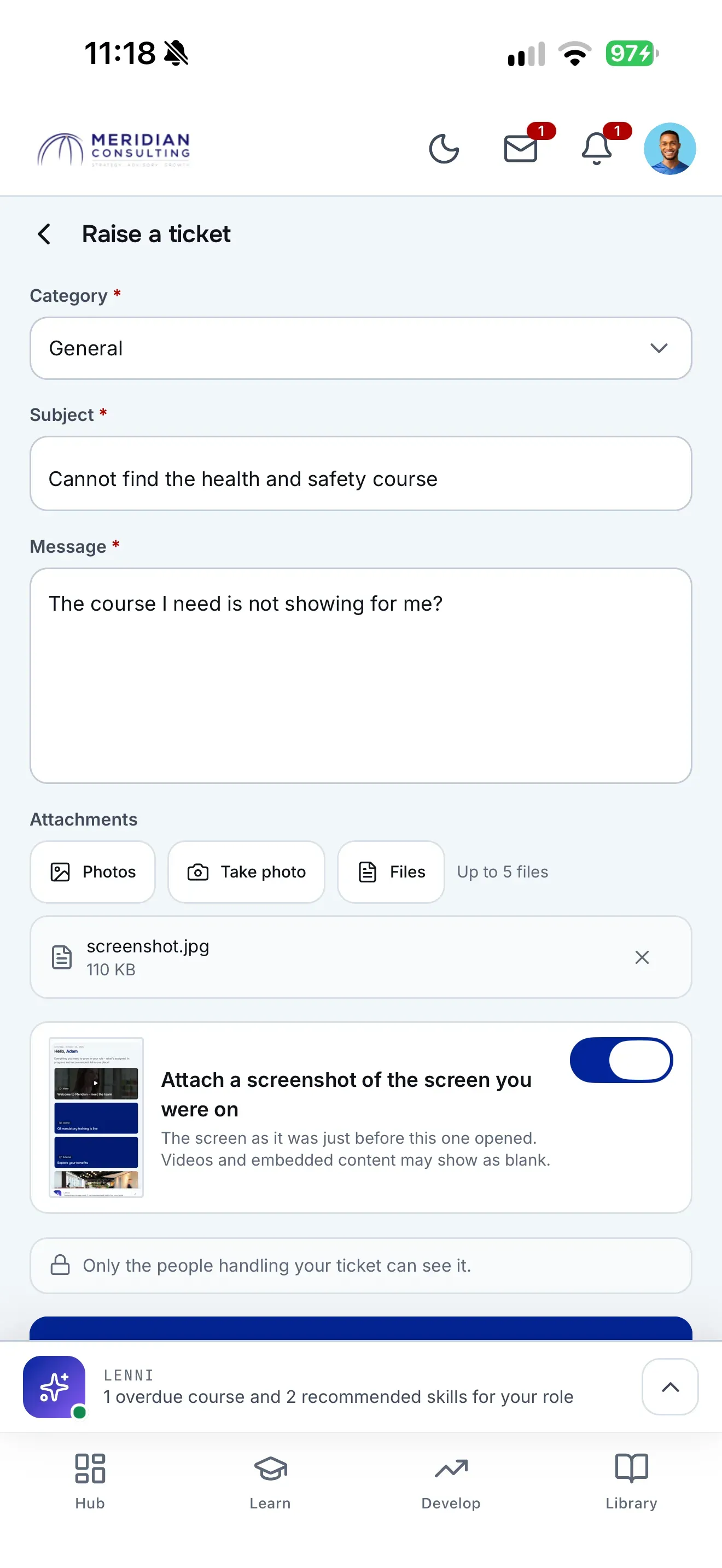
- Raising: the form is the same, and you send it with Raise a ticket at the bottom. Attach Photos, take one with Take photo, or pick Files, up to five per message
- Ask about this course is on the course screen and in the bar at the top of a course you are taking, just before Help, when your organisation has switched it on, including on a SCORM or xAPI course. It attaches the page you are on as well, and once you raise the ticket you’re back in the course, with View ticket on the message at the bottom of the screen. A course fills the screen in the app, so the envelope isn’t there while you’re taking one: leave the course with its back button to reach it
- Lenni: Raise a ticket appears under a reply Lenni can’t answer, as on the web
- Screenshot: tapping Raise a ticket in the envelope sheet, Ask about this course or Lenni’s Raise a ticket takes a screenshot of the screen you were on. The form offers it with Attach a screenshot of the screen you were on, off until you turn it on; tap the thumbnail to see it full size. Videos and content delivered from another system may show as blank, and it isn’t offered from the Tickets screens or for a follow-up
- Following your ticket: the ticket’s status, This answered my question and Close ticket are in the band under its title. The messages are below, under Conversation, newest first as on the web, and the reply box stays at the bottom of the screen above the keyboard
- Attachments: tap a picture to see it full size, or a document to read it in the app’s document viewer, and use Save or share to keep the original. The download button beside a file opens the share sheet
- Push notifications about a ticket open that ticket, and tickets that need you add to the number on the Learnient app icon
- With no signal: a ticket can’t be raised. Raise a ticket and Ask about this course say This needs a connection. Try again when you’re back online., and what you’ve typed stays on the form, ready to send once you’re back online