How choosing several options from a list works
Some lists in Learnient take more than one choice, such as User groups on a person’s details, the Report type and Data source filters on your reports, or the value of an Is any of filter in a report. Each option has a tick box, and they all work the same way.
Options stay in the same order when you choose several from a list
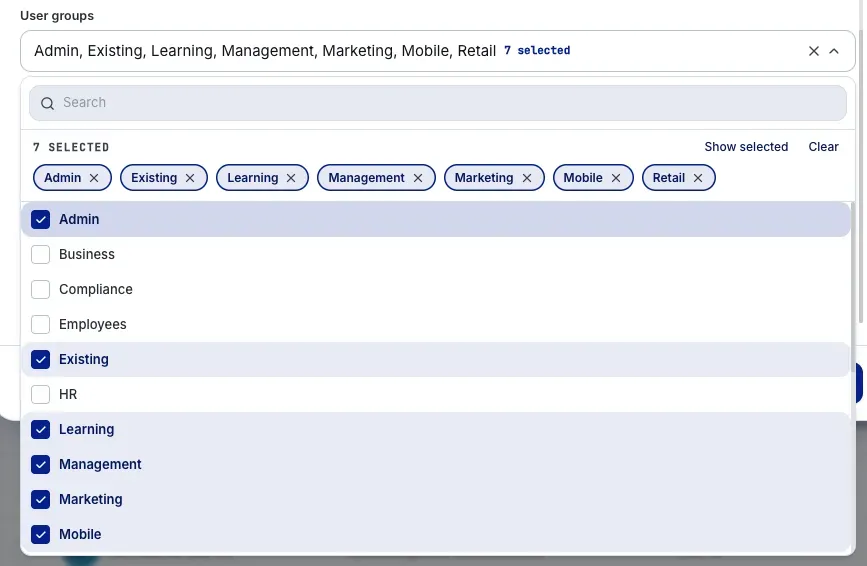
Section titled “Options stay in the same order when you choose several from a list”Options never move. Whatever you tick, and however often you close and reopen the list, every option stays where it always is. A chosen option is shaded and its name is in bold, so you can see what is chosen without anything jumping to the top.
Next to each other, chosen options join into one shaded block, which makes a run of choices easy to see at a glance.
How groups of options work, and what a dash in a tick box means
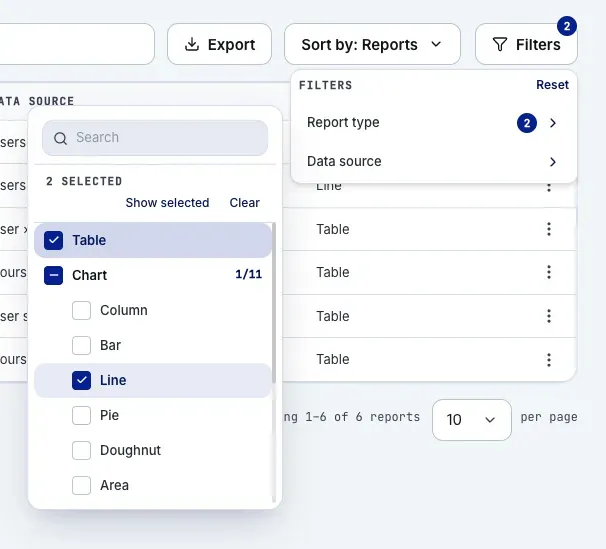
Section titled “How groups of options work, and what a dash in a tick box means”Some lists sort their options into groups, such as Chart in the Report type filter, with every chart type under it. The group has a tick box of its own, but it isn’t a choice in its own right. It shows how much of the group you have chosen:
| The group’s tick box | What it means |
|---|---|
| Empty | Nothing in the group is chosen |
| A dash | Some of the group is chosen |
| A tick | Everything in the group is chosen |
Once you have chosen anything in a group, a count at the end of its row shows how much, for example 2/11 when you have chosen two of eleven chart types. That count is there even on a short list, so you can tell a group is partly chosen without opening it up or scrolling.
Tick a group to choose everything in it. Tick it again to clear everything in it. If the group is partly chosen, ticking it chooses the rest.
How a whole group counts when you choose several options
Section titled “How a whole group counts when you choose several options”When everything in a group is chosen, it counts as one choice, everywhere the choices are counted or named. All eleven chart types read as Chart (all) and count as 1, including the number on the Filters menu. Part of a group is named with the group in front, such as Chart · Bar, and each option counts on its own.
Seeing, removing and clearing choices in a long list
Section titled “Seeing, removing and clearing choices in a long list”A list long enough to scroll shows a line between the search box and the options, with how many things you have chosen, for example 3 selected. A short list doesn’t need it: everything is already in view, and the counts on any groups say how much of each is chosen.
- Show selected narrows the list to the options you have chosen, each under the name of its group, so you can check them without scrolling. Select Show all to see every option again. The full list comes back by itself when you close the list or clear your choices.
- Clear removes every choice at once. In the Filters menu on your reports, use Reset instead, which clears every filter.
When the list is wide enough, such as User groups on a person’s details, your choices also show as tags on that line. A whole group is one tag, and removing it with its × clears everything in the group. The tags fill up to two rows; when there are more, the last tag reads, for example, +3 more. Select it to show every tag, and Show less to fold them away again. In a narrow list, such as a filter on your reports, there are no tags: use Show selected instead.
What a closed list with several choices shows
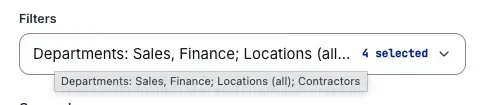
Section titled “What a closed list with several choices shows”Once the list is closed, it names your choices the same way: whole groups as, for example, Locations (all), part of a group as Departments: Sales, Finance, and how many things are chosen at the end, such as 4 selected. If the names don’t all fit, they are shortened with … and the count stays visible.
Point at the closed list to read every choice in full.