

Practising conversations
A practice is a conversation you hold with an AI character, such as a team member who has missed their targets or an unhappy customer, so you can rehearse a difficult conversation before you have it for real. Each practice is written by your organisation: who the character is, how they react, and the things a good conversation does, called its success criteria. When you finish, you see how you did against each one.
You can practise in a course that includes a practice, or with Lenni, using any practice in a course you can open.
Practice needs your organisation’s AI features to be switched on. If they’re off, you see This practice is not available because your organisation has switched off AI features. See Choosing which AI features are available.
Practising in a course
Section titled “Practising in a course”A course can include a practice as one of its steps. Read the briefing, select Start practice, and talk to the character by typing, or by speaking if your device allows it. The character’s reply appears as it’s written, on the web and in the mobile app. When you finish, or reach the practice’s limit on replies, you get feedback against each success criterion. Some courses ask you to finish the practice before you can move on.
A practice needs a connection, because the character answers from Learnient. In the app with no signal, Start practice is unavailable and says Practice needs a connection. Your course works offline; practice will be back when you are. The rest of the course carries on with no signal, but where the course asks you to finish the practice before you move on, you’ll need signal to get past it.
The feedback marks each success criterion Demonstrated, Partially demonstrated or Not demonstrated. Under it, Response shows what you said that it was judged on, and Feedback says what came through and what didn’t. A criterion you said nothing about has no Response.
Hearing the character speak in a practice
Section titled “Hearing the character speak in a practice”Read replies aloud has the character speak its replies as well as show them, in a voice of its own that stays the same each time you practise. Turn it on with the speaker button on the briefing before you select Start practice, and the character speaks its opening line too. You can also turn it on or off with the speaker button at the top of the conversation. It’s off until you turn it on, and Learnient remembers your choice on this device only. Words your organisation has given a pronunciation, such as product names or codes, are said that way; the reply you read keeps the real spelling.
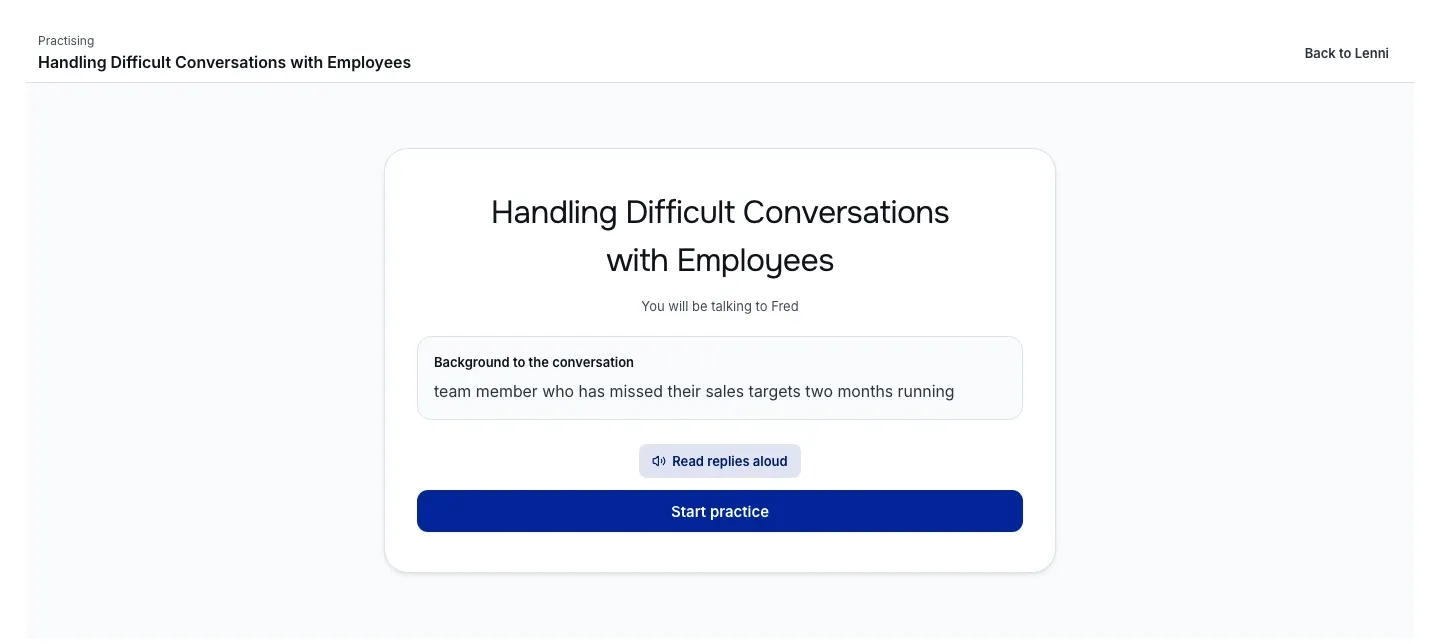
The words still appear as before and the voice follows them. Stage directions the character writes, such as sighs, are shown but not spoken.
On the web, if you speak your replies and leave the microphone on, it waits until the character has finished speaking before it listens again, so it never picks up the character’s voice. Selecting the microphone while the character is speaking stops the character straight away. Sending a reply, turning Read replies aloud off, ending the practice or leaving the page also stops it.
In the mobile app, Read replies aloud is on the briefing above Start practice, and at the top of the conversation beside the count of your replies. Your choice is remembered on that phone only. The character’s voice plays even when your phone is on silent, because you turned it on yourself. Sending a reply, turning Read replies aloud off, leaving the practice or switching to another app stops it.
The button appears only for practices in English, and only if your account administrator hasn’t turned spoken replies off.
Practising a conversation with Lenni
Section titled “Practising a conversation with Lenni”Lenni can run a practice with you without opening the course it belongs to. There are two ways to start.
- Ask for one. Say what you want to practise, such as “I want to practise telling someone they missed their targets”, “Can I practise giving difficult feedback?” or simply “practise” to see everything you can practise.
- Say yes when Lenni offers. When you ask Lenni for help with a conversation that’s coming up, Lenni may offer a practice that fits, for example when you mention it’s tomorrow, that you’re dreading it, or ask what to say. The offer comes in place of the course suggestions, so there’s one next step; the answer still shows its sources, and the next answer suggests courses as usual. An offer only comes with an answer: if your courses cover the subject but don’t answer your exact question, Lenni shows you those courses instead, and can offer the practice with a later answer.
Lenni offers practices from courses you can open, and only practices your organisation has written. It never makes up a role-play. A practice is offered only when it’s the conversation you asked about, not just something similar: asking to practise a sales pitch won’t bring up a practice about telling someone they missed their targets. If nothing fits what you asked for, Lenni says it doesn’t have a practice for that yet and carries on helping you prepare from your training.
Choosing a practice in Lenni
Section titled “Choosing a practice in Lenni”When more than one practice fits, Lenni shows up to three to choose from. Each shows its title, how hard it is, who you’ll be talking to, its own description and the Background to the conversation: the briefing you’d read before starting it in a course. So you know what you’re stepping into before you choose, and can pick the one closest to your situation. Select Start on the one you want. A practice you’ve done before says You’ve practised this before, and after a practice that didn’t go well, its button says Try again.
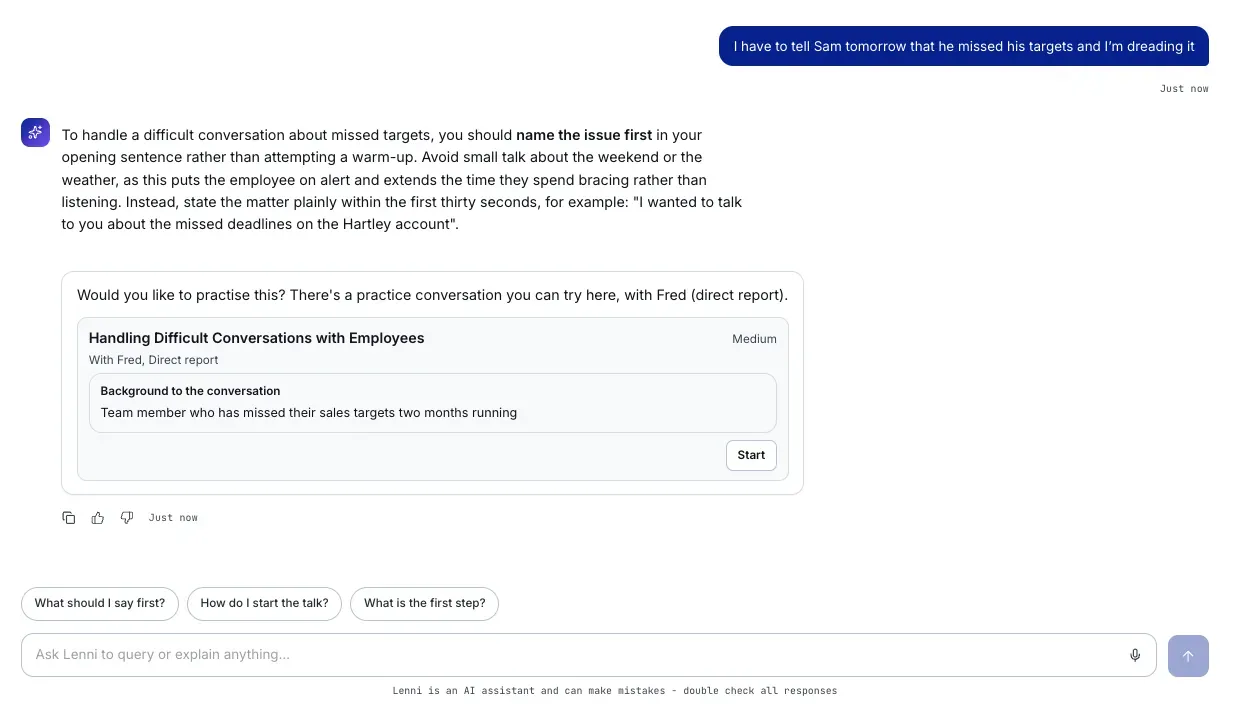
What happens when you practise in Lenni
Section titled “What happens when you practise in Lenni”The practice runs inside Lenni. The top of Lenni shows Practising and the practice’s title, and you hold the conversation as you would in a course: read the briefing, select Start practice, then talk to the character. Select Back to Lenni to leave the practice; it doesn’t count as finished until you end it and get feedback. Leaving in the middle of the conversation loses it, so Lenni asks Leave this practice? first, reminding you that you haven’t ended it yet and that leaving now means you won’t get feedback and Lenni won’t have it. Keep practising takes you back to it, and Leave without feedback leaves. Closing Lenni during the conversation asks the same. On the mobile app, it runs the same way in the Lenni panel.
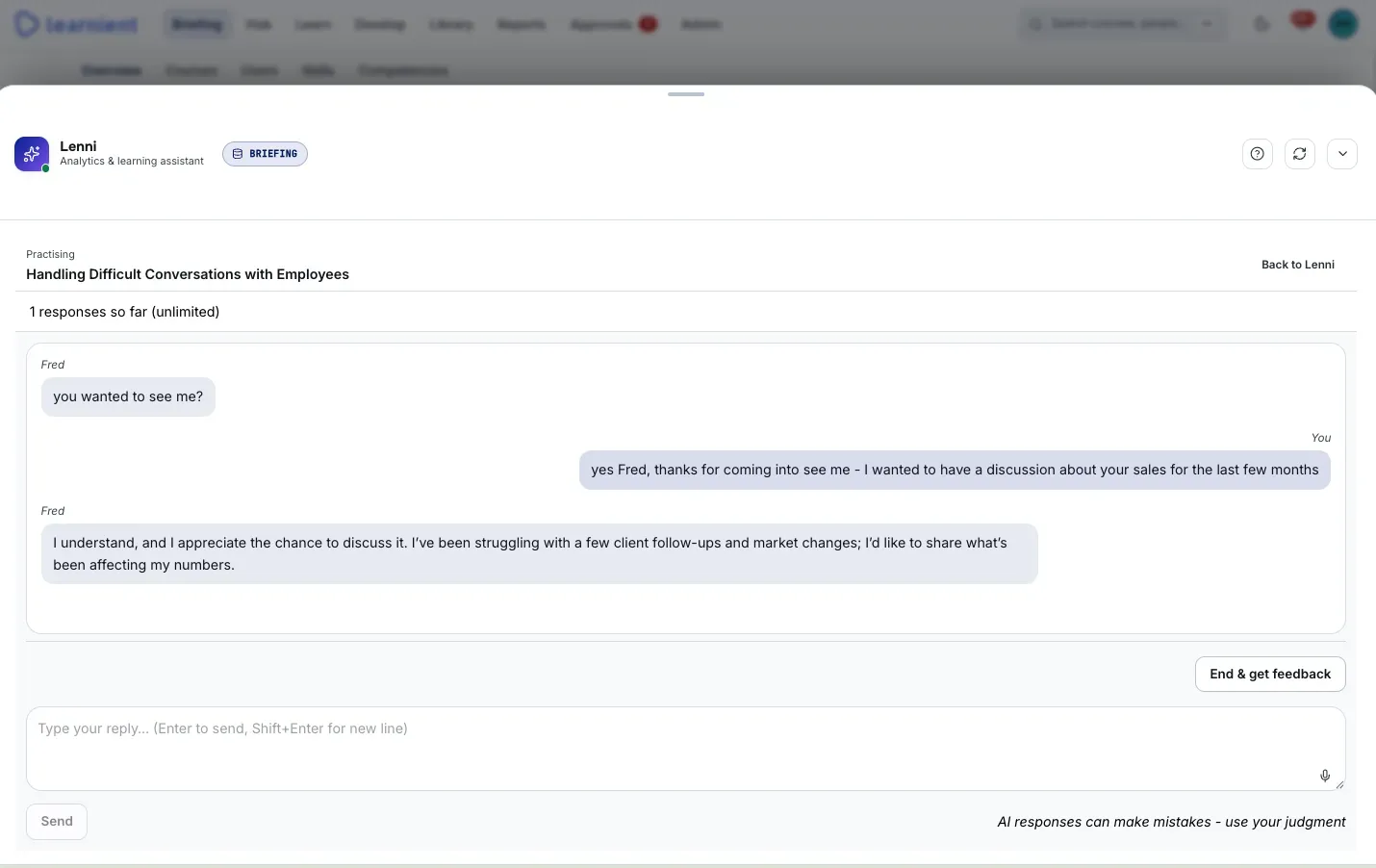
To end the practice, select End & get feedback, then Confirm & get feedback; Keep going takes you back to the conversation. On the mobile app, Lenni stays open while you do: the confirmation and your reply box scroll into view, and the feedback opens at its top.
When you end the practice, you see your feedback straight away, just as in a course, and the top of Lenni says Lenni has it too. Select Back to Lenni when you’ve read it: the chat opens at its latest message, where Lenni goes through how it went, and you can ask it about the practice. Each attempt you finish is passed to Lenni, including a second try. The offer you started from then says Finished. How it went is below. instead of offering Start again. If your connection drops just as the practice ends, Lenni gets the feedback as soon as you’re back online. A practice done in Lenni is your own practice: it never completes a course’s practice step, which you still do in the course.
The offer and Lenni’s account of how it went stay in your chat, so they’re still there when you close and reopen Lenni or the app, until you start a New chat.
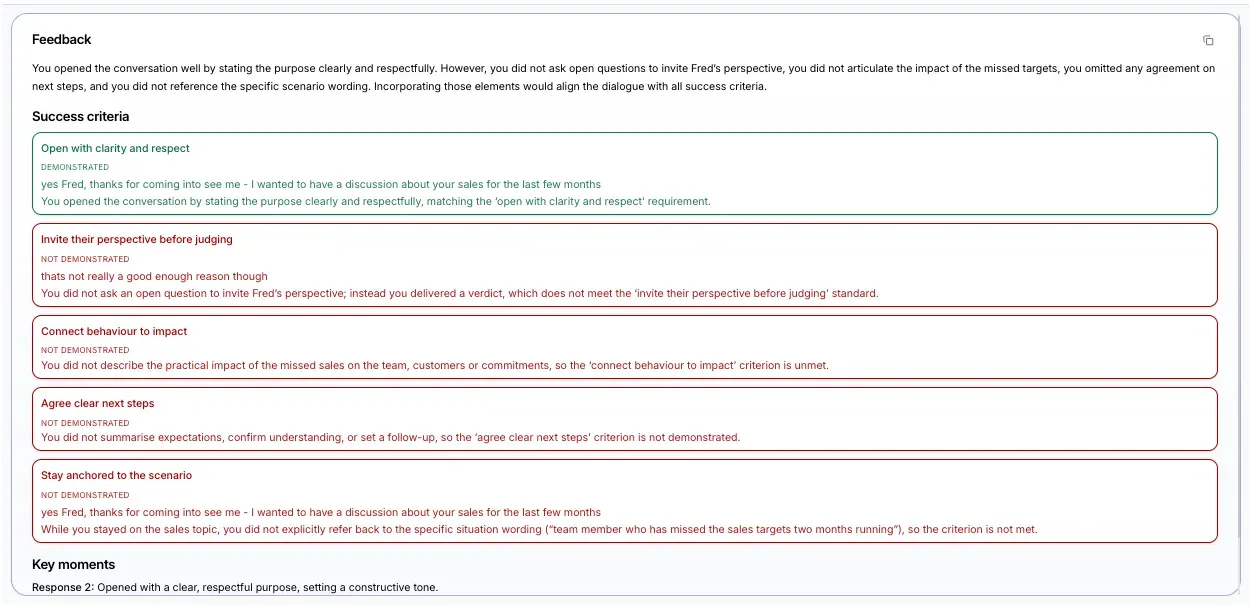
How Lenni goes through your practice
Section titled “How Lenni goes through your practice”Lenni’s feedback after a practice comes only from that practice: the things it looks for, as your organisation wrote them, what you said, and the feedback on your conversation. It doesn’t add tips or techniques of its own.
- It tells you how many of the things the practice looks for you showed, and shows each one just as your feedback did: Demonstrated, Partially demonstrated or Not demonstrated, with your Response and the Feedback on it.
- If fewer than half came through, Lenni lists the ones you missed or only partly showed, each with what good looks like in the practice’s own words, and offers Try again. If it went well and there’s a harder practice on the same kind of conversation in the same course, Lenni offers Try the harder one.
You can then ask about it, such as “What should I have said at the start?” or “Why was listening a miss?”. Lenni answers only from the practice. If the practice doesn’t cover your question, Lenni says it has no more information on that from the practice.
How often Lenni offers to practise
Section titled “How often Lenni offers to practise”Lenni offers a practice when it would help, not every time. One sign that you’d like to rehearse, such as something coming up, feeling nervous, or asking what to say, isn’t enough on its own: Lenni offers when there are two, in one message or across the conversation. It offers the same practice at most twice in a conversation, and only offers it again after a few more questions and a fresh reason. If you say “no thanks”, it doesn’t offer that practice again in that conversation, however you word your next question. The next day, it starts afresh. You can always ask for a practice yourself.
If Lenni asks you to update the app before you can practise, install the latest version of the Learnient app from your app store. Getting the mobile app explains how.
How the feedback on a practice is decided
Section titled “How the feedback on a practice is decided”Every practice, in a course or in Lenni, is judged only against its own success criteria and what good looks like, as your organisation wrote them, and on what you said. The feedback doesn’t bring in outside models or general advice. Only what you say is judged: the character’s lines are never taken as yours, and the feedback never quotes them as something you said. The feedback also knows who the character is to you: when the character is your direct report, you’re judged as their manager. If you end a practice before saying anything, every criterion is marked Not demonstrated and the feedback says you ended before saying anything. If you write practices, make the success criteria and what good looks like specific: they are what learners are judged on and what Lenni goes through with them.
Where your practice results show
Section titled “Where your practice results show”Your practices appear under practice sessions in your performance overview, grouped by practice, with each attempt’s date and how it went. Managers and others who can see your learning records see the same list for you. Each attempt says where it was done: In Lenni, or In a course with the course’s name. Attempts from before 7 October 2026 say In a course without a name.