

Setting up AI connections
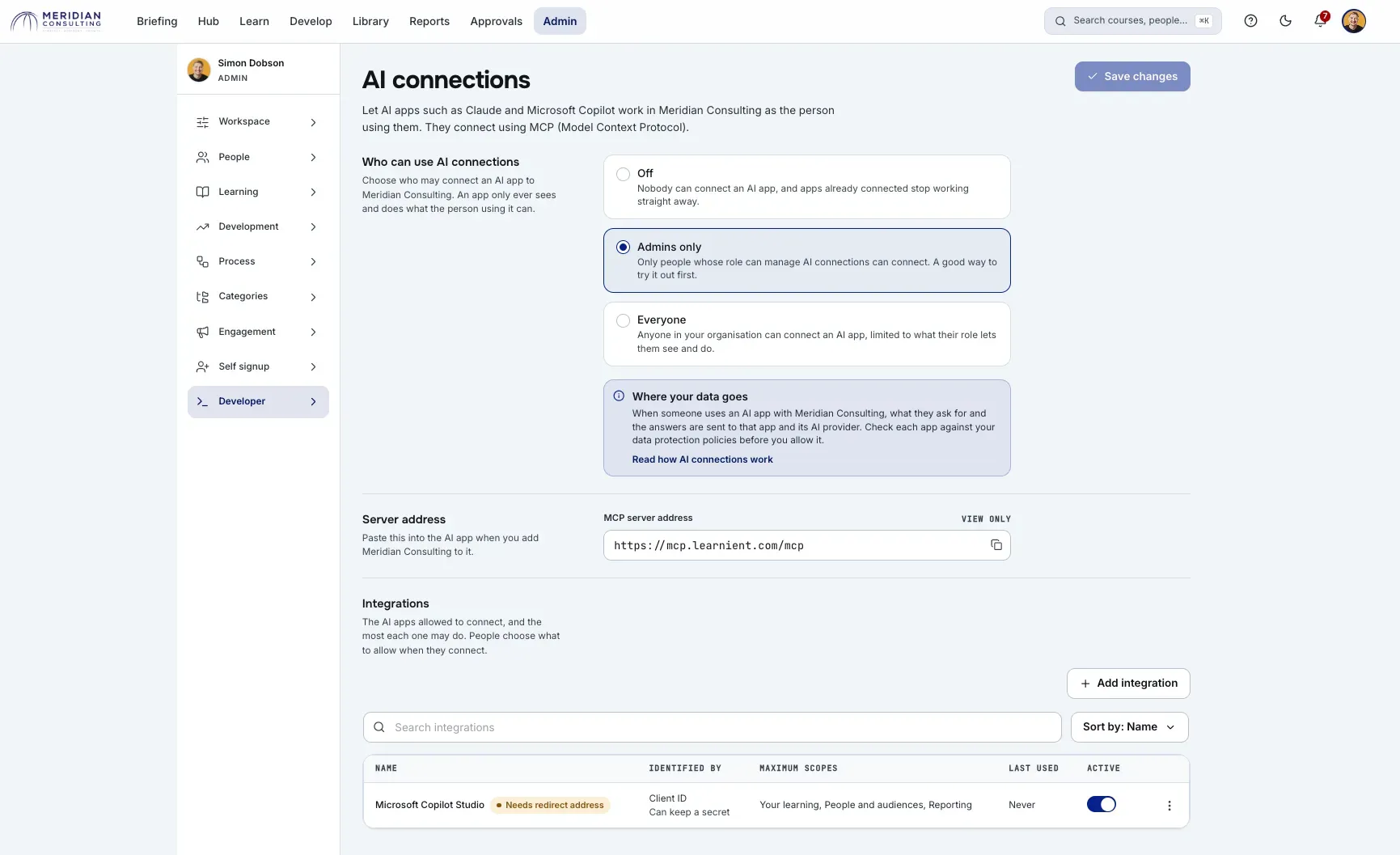
AI connections let people use an AI app they already have, such as Claude, ChatGPT or Microsoft Copilot, to ask about and work in Learnient. The app works as the person using it and never does more than they could do in Learnient themselves. This is the screen where you choose who may connect and which apps they may connect.
AI apps connect using MCP (Model Context Protocol), the technical term you may see in the app’s own settings. How the access works, and where the data goes, is explained in How AI connections work. If your developers are building on it, the AI connections developer reference covers the sign-in flow, every tool and the ready-made prompts.
Where to find AI connections in Learnient
Section titled “Where to find AI connections in Learnient”AI apps are integrations, so they live with your HR connections and WhatsApp. Choose Admin, then Integrations in the left-hand menu and Integrations. Choose Connect on an app’s card under AI apps to add it, or Manage on an AI app’s card under Connected to change it: either opens a panel over the page with the same form as this screen. Choose AI connections beside the AI apps heading for this screen, where you also choose who can use AI connections; Back to integrations returns you to the Integrations page. You need the Manage AI connections permission, which the Super admin, System admin and Admin roles have to begin with.
AI connections are included for every organisation. If the screen says AI connections aren’t part of your plan, contact your account manager.
Who can use AI connections
Section titled “Who can use AI connections”Who can use AI connections has three choices:
| Choice | What it means |
|---|---|
| Off | Nobody can connect an AI app, and apps already connected stop working straight away. This is where every organisation starts |
| Admins only | Only people whose role has Manage AI connections can connect. A good way to try it out first |
| Everyone | Anyone in your organisation can connect an AI app, limited to what their role lets them see and do |
Choose one and select Save changes. The change applies to connected apps from their next request, so switching to Off stops every app at once.
This setting is separate from the AI settings that control Learnient’s own AI features, such as Lenni. Turning Learnient’s AI off does not turn AI connections off, and the other way round. See Choosing which AI features are available.
Where your data goes when someone uses an AI app
Section titled “Where your data goes when someone uses an AI app”The Where your data goes note on the screen is there for your data protection review. When someone uses an AI app with Learnient, what they ask for and the answers Learnient gives are sent to that app and its AI provider, such as Anthropic for Claude, OpenAI for ChatGPT or Microsoft for Copilot. Check each app against your data protection policies before you allow it. Read how AI connections work opens this article.
The MCP server address for AI apps
Section titled “The MCP server address for AI apps”Server address shows the MCP server address. It’s the same for every organisation. Copy it with the copy button and paste it into the AI app when you add Learnient to it, or give it to the people who will connect.
People don’t need to ask you for it. Once AI connections are open to them, their own Profile has a Connect an AI app section with the server address and, for any app that needs one, its Client ID. See Your profile and sign-in settings.
The AI apps you can add, and how each one identifies itself
Section titled “The AI apps you can add, and how each one identifies itself”An integration is one AI app that people in your organisation may connect. Add one for each app you want to allow. Nothing can connect until you’ve added it, even an app as well known as Claude.
Every app has to prove which app it is when people sign in. It does that in one of two ways, and App to connect fills in the right one for the apps Learnient already knows:
| App to connect | How it identifies itself | What people need to connect |
|---|---|---|
| Claude (on the web, the desktop app, the mobile app and Cowork) | Its metadata address | Just the server address |
| Claude Code | Its metadata address | Just the server address |
| ChatGPT | Its metadata address | Just the server address |
| Microsoft Copilot Studio (for agents in Microsoft Teams and Microsoft 365 Copilot) | A Client ID and client secret that you set up in Copilot Studio | Nothing: your IT team sets it up once for everyone |
| Another app | Whichever the app supports: you choose | Depends on the app |
A metadata address is a web address where the app’s maker publishes the app’s details, including where it may send people back to after they sign in. Learnient reads it when you add the app, so there’s no Client ID, secret or redirect address for you to copy. A Client ID is an identifier Learnient gives the app, which you paste into the app’s own settings.
Adding Claude, Claude Code or ChatGPT as an AI connection
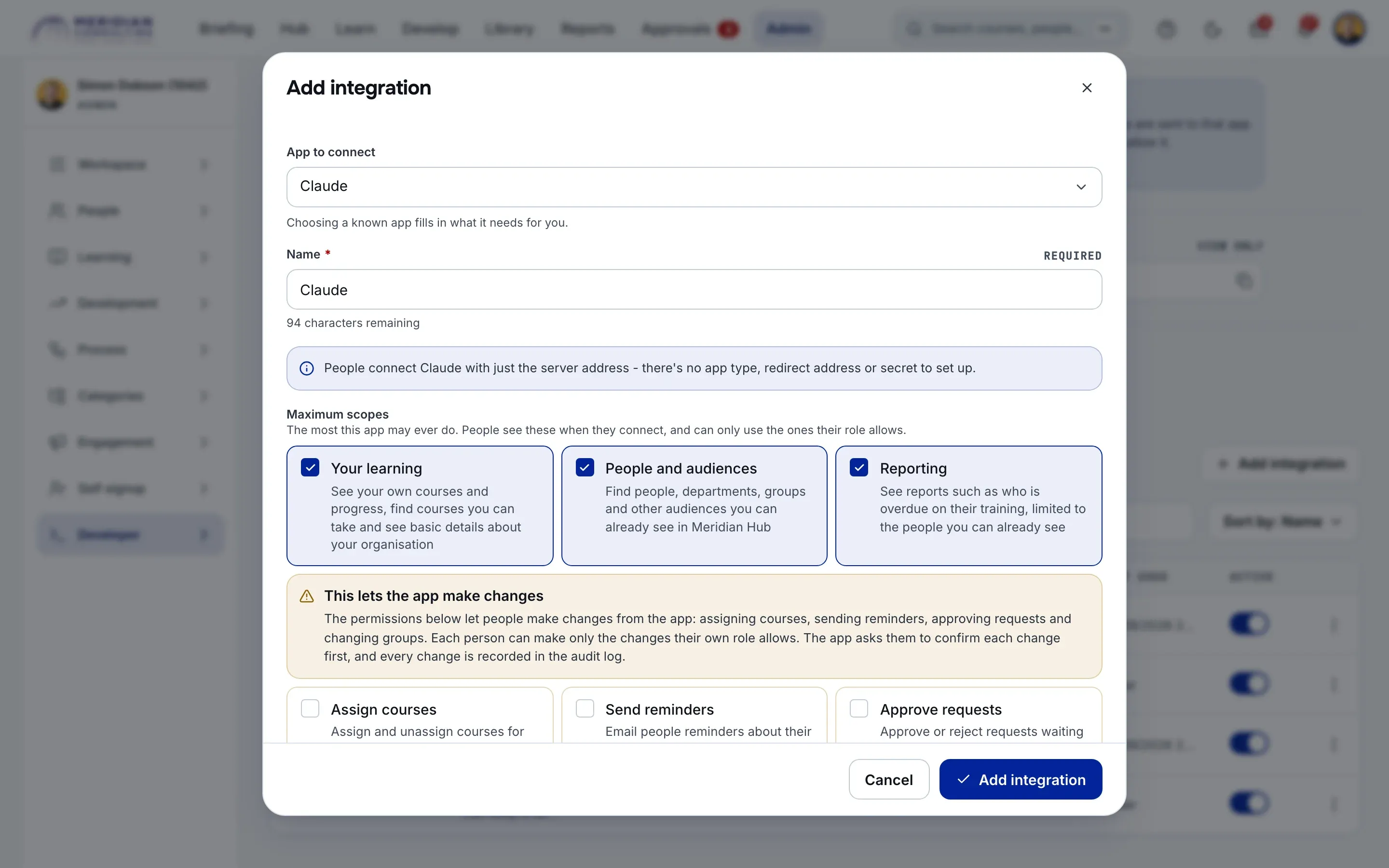
Section titled “Adding Claude, Claude Code or ChatGPT as an AI connection”- On the Integrations page, under AI apps, choose Connect on Claude (for Claude or Claude Code) or ChatGPT. The Add integration panel opens over the page. For ChatGPT the app is already chosen in App to connect; for Claude, App to connect offers just Claude and Claude Code, so choose which. Already on AI connections? Choose Add integration under Integrations, then choose the app in App to connect.
- The window tells you that people connect it with just the server address.
- Change the Name if you like, such as “Claude for our team”. The name is what you’ll see in this list and in the audit log.
- Under Maximum scopes, tick the most this app may ever do (see below).
- Choose Add integration.
Learnient checks the app’s details as you add it. Integration added then confirms that people can connect the app with just the server address, and shows the MCP server address to copy. There’s nothing else to copy.
Each app can be added once. If you try to add it again, the window says This app is already allowed in your organisation.
Adding Microsoft Copilot Studio as an AI connection
Section titled “Adding Microsoft Copilot Studio as an AI connection”Microsoft Copilot Studio is how Learnient reaches Microsoft Teams and Microsoft 365 Copilot: your IT team adds Learnient as a tool to a Copilot Studio agent. Copilot Studio shows the address it sends people back to only after the tool is set up, so this takes a trip to Copilot Studio and back.
- On the Integrations page, under AI apps, choose Connect on Microsoft Copilot Studio. The Add integration panel opens over the page, the app already chosen in App to connect. Already on AI connections? Choose Add integration under Integrations, then choose it in App to connect.
- The App type is set to Can keep a secret for you.
- Leave Redirect addresses empty for now. The window says you’ll add it later.
- Tick the Maximum scopes and choose Add integration.
- Integration added shows everything Copilot Studio asks for: the MCP server address, the Client ID, the Client secret, the Authorization URL, the Token URL, the Refresh URL and the Scopes. Copy each with its copy button.
- Follow Finish in Copilot Studio in the same window: in Copilot Studio, add a Model Context Protocol tool with the MCP server address, choose OAuth 2.0 and then Manual for authentication, paste the values into the matching fields and create the tool. Copilot Studio then shows you a callback URL. Copy it.
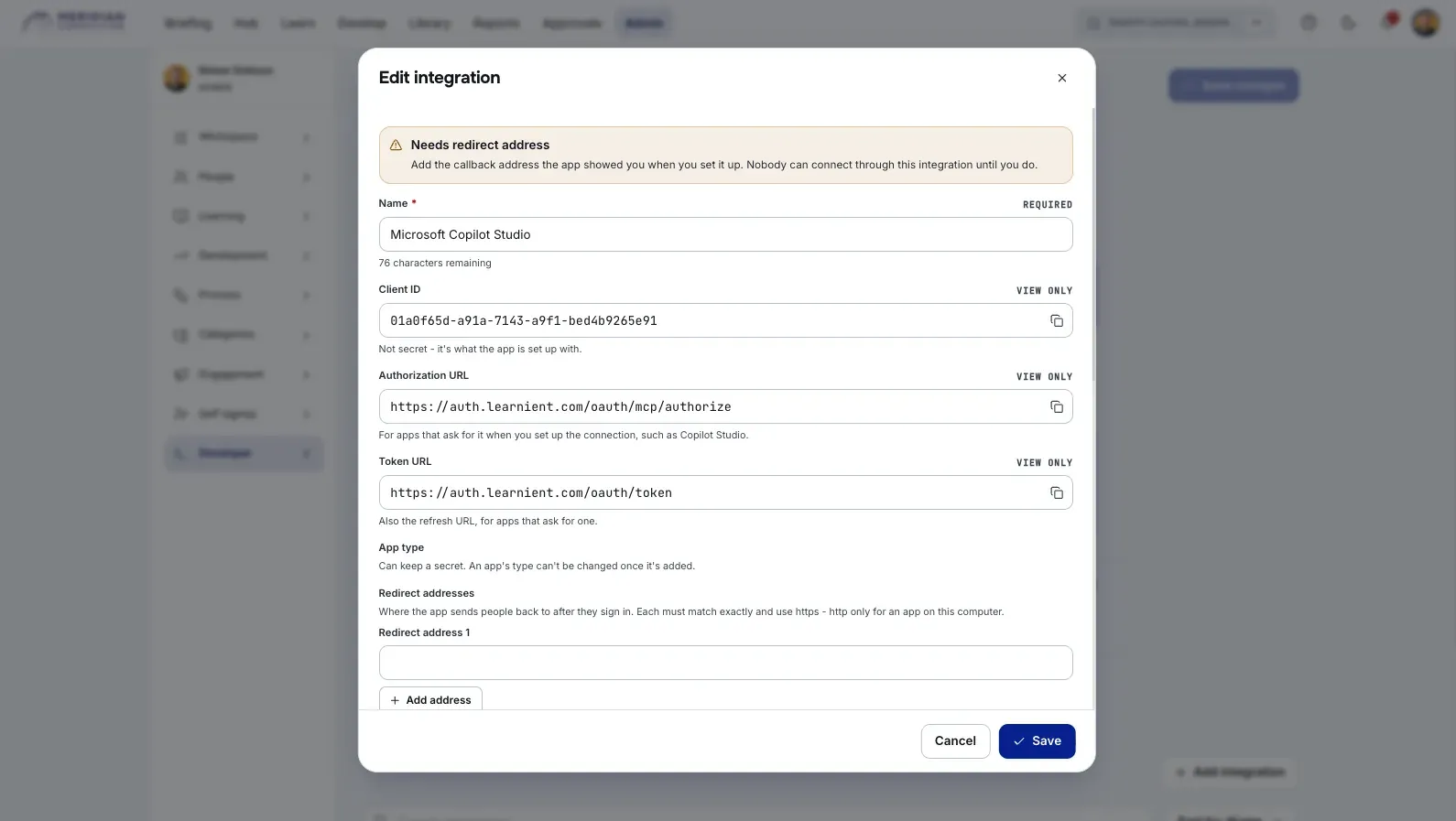
- Back on AI connections, the integration shows Needs redirect address. Choose Add redirect address from its row menu, paste the callback URL under Redirect addresses and choose Save.
Copy the client secret before you choose Done. It’s only shown once. The Client ID isn’t secret and you can find it again at any time (see below), but if you lose the secret, revoke the integration and add it again.
Until you add the callback URL, nobody can connect through the integration: people who try see “This app isn’t finished being set up”, and it doesn’t appear on their profile. Edit integration shows the same Needs redirect address warning until you’ve added it.
Adding another AI app by its metadata address or a Client ID
Section titled “Adding another AI app by its metadata address or a Client ID”For an app that isn’t in the list, choose Connect on Another AI app, always last under AI apps on the Integrations page (or Another app in App to connect), then choose under How the app identifies itself. The app’s own set-up instructions say which it supports.
- Identify it by its metadata address: for apps that publish their own details. Enter the address under Metadata address. It must be a full
https://address including the path, such ashttps://example.com/oauth/client.json. People then connect with just the server address - Give it a Client ID: for apps that ask for a Client ID when you add Learnient to them, and sometimes a client secret. You then choose the App type and the Redirect addresses, as below
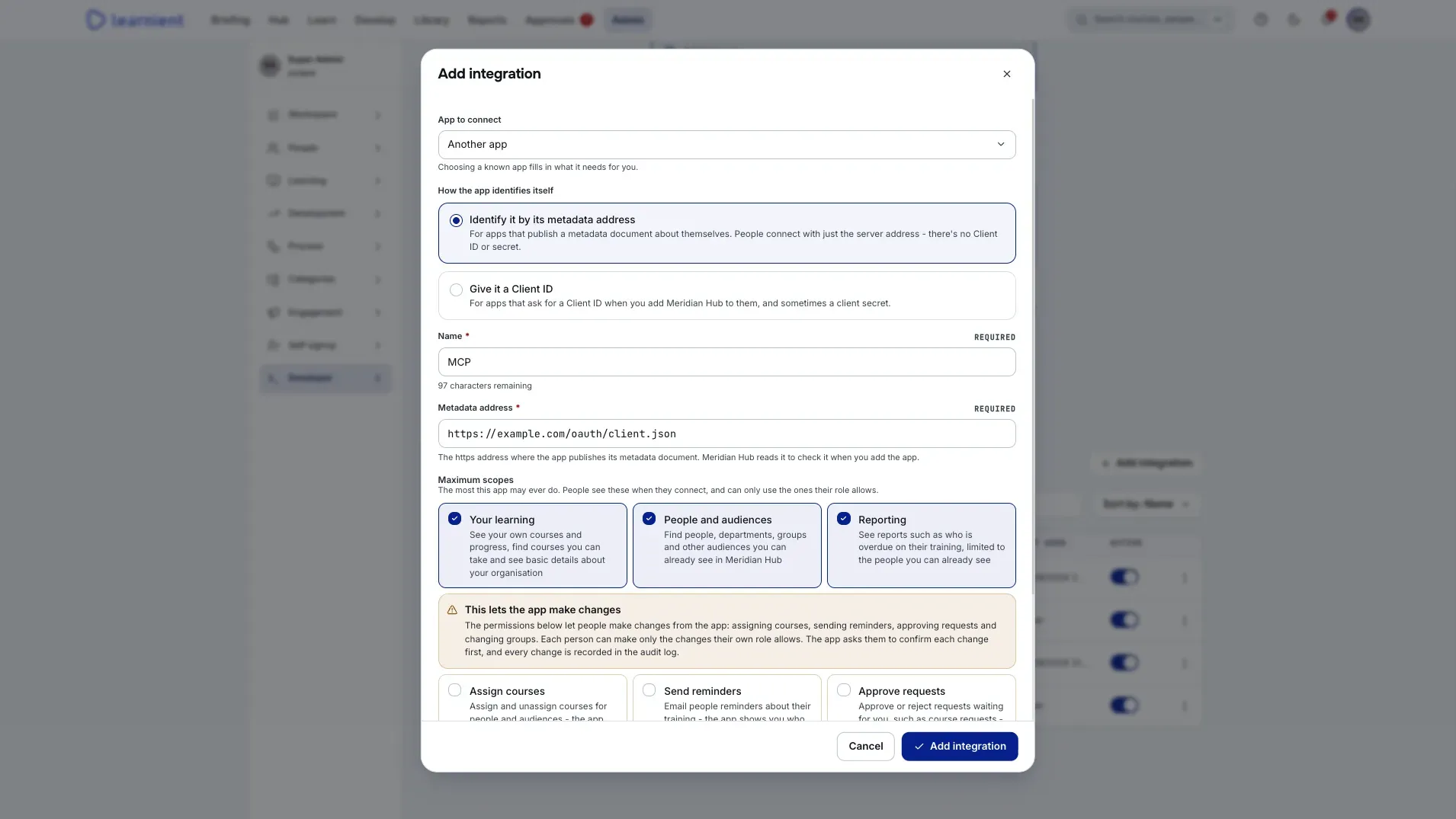
Learnient reads the metadata address when you choose Add integration. If it can’t use it, the reason appears under the field, for example “The metadata address couldn’t be reached - check it and try again”, or “This app can only connect with a private key, which isn’t supported” for an app that needs a secret Learnient doesn’t support. Nothing is added until the address works.
For an app that Give it a Client ID suits:
- Give the integration a Name.
- Choose the App type:
- Can keep a secret: the app runs on a server that your organisation or the app’s maker controls. It gets a Client ID and a client secret
- Can’t keep a secret: the app runs on people’s own computers, phones or browsers. It gets a Client ID only
- Under Redirect addresses, enter the address the app sends people back to after they sign in. The app’s own setup screen tells you what it is. Each address must match exactly and start with
https://;http://is only allowed for an app on your own computer (localhost). Choose Add address if the app has more than one. - Under Maximum scopes, tick the most this app may ever do, and choose Add integration.
An integration needs a name and at least one scope, and one set up with a Client ID needs at least one redirect address unless it’s Copilot Studio. If one is missing, the window says so, for example Add at least one redirect address or Choose at least one scope. An app’s type, and how it identifies itself, can’t be changed after you add it. If you chose the wrong one, revoke the integration and add it again.
Choosing the maximum scopes for an AI app
Section titled “Choosing the maximum scopes for an AI app”Maximum scopes are the most an app may ever do. People see them when they connect, and each person can only use the ones their own role allows.
| Scope | What it lets the app do |
|---|---|
| Your learning | See the person’s own courses, progress, recommendations, skills gaps and CPD, search the courses they can take and the content inside them, and see basic details about your organisation |
| People and audiences | Find people, departments, groups and other audiences the person can already see |
| Reporting | See reports such as who is overdue on their training, the team overview and the team’s expiring certificates, and how a course’s questions are answered and how it is rated, limited to the people the person can already see |
| Assign courses | Assign and unassign courses for people and audiences, confirming every change first |
| Send reminders | Send people reminders about their training, by email, in the bell and on the Learnient app. The app shows who will get one and asks the person to type how many before anything is sent |
| Approve requests | Approve or reject requests waiting for the person, such as course requests, confirming every decision. Decisions can’t be undone |
| Manage groups | Create groups and add people to them or take people out, confirming every change first |
The first three are ticked for a new integration. The four that make changes never are, and the window warns This lets the app make changes above them. Only people whose role lets them make that change in Learnient can use them from the app, the app asks them to confirm each change first, and every change is recorded in the audit log.
Integrations you added before Send reminders, Approve requests and Manage groups existed don’t get them. To allow them, tick them in Edit integration. People who connected the app before that connect it again to allow the new ones.
Finding an AI app’s Client ID again
Section titled “Finding an AI app’s Client ID again”The Client ID isn’t secret, so it stays on this screen:
- choose Copy client ID from the integration’s row menu, or
- open Edit integration, where the Client ID is shown read-only with a copy button, alongside the Authorization URL and Token URL for apps that ask for them, such as Copilot Studio
An app identified by its metadata address has no Client ID. Its row menu has Copy metadata address instead, and Edit integration shows its Metadata address read-only.
Only the client secret can’t be shown again, by the screen or by support.
What the AI connections integrations list shows
Section titled “What the AI connections integrations list shows”Each row shows the integration’s Name, how it’s Identified by (Metadata address, or Client ID with its app type underneath), its Maximum scopes, when it was Last used, and whether it’s Active. Last used says Never until someone first uses the app, and after that updates at most every five minutes, so it’s a guide to whether an app is in use rather than an exact time.
An integration still waiting for its redirect address shows Needs redirect address beside its name, and Add redirect address at the top of its row menu.
Use Search integrations to find one by name, and sort the list by Name or Last used. If you haven’t added any, the list says No integrations yet. You can add integrations while Who can use AI connections is Off; the list then shows Nobody can connect yet until you choose Admins only or Everyone and save.
Changing or switching off an AI connection integration
Section titled “Changing or switching off an AI connection integration”Choose Edit from a row’s menu to change its name, maximum scopes or, for an app with a Client ID, its redirect addresses. Edit integration also has the Active switch.
Switching Active off, in the list or in Edit integration, stops the app at its next request. Nobody can use it or connect through it until you switch it back on, and its settings are kept. For an app identified by its metadata address, such as Claude, switching it off also disconnects everyone using it, so people connect again once it’s back on. Use this to pause an app; use Revoke to get rid of it.
Narrowing the Maximum scopes takes effect within about a minute for everyone already connected, because an app can never do more than the integration’s maximum scopes allow.
Revoking an AI connection integration
Section titled “Revoking an AI connection integration”Choose Revoke from a row’s menu, then Revoke again in Revoke this integration?. Everyone in your organisation connected through it is disconnected straight away, and nobody can connect through it again.
Revoking can’t be undone. To use the app again, add it again as a new integration. An app with a Client ID then gets a new Client ID, so it needs setting up again in the app too.
Finding AI connection changes in the audit log
Section titled “Finding AI connection changes in the audit log”Adding, editing and revoking an integration, changing who can use AI connections, and each person connecting an app are all recorded in Admin → Audit logs, under the area AI connections. What people do through an AI app is recorded too, with the channel AI app, including looking at other people’s details, such as the team overview. See Reading the audit log.
These settings can’t be changed while you’re viewing Learnient as someone else.
Common questions about setting up AI connections
Section titled “Common questions about setting up AI connections”Why can’t anyone connect even though I’ve added an integration?
Section titled “Why can’t anyone connect even though I’ve added an integration?”Check Who can use AI connections. While it’s Off, nobody can connect, and while it’s Admins only, only people with Manage AI connections can. Check too that the integration is Active, and that it isn’t showing Needs redirect address.
Why do people see “Your organisation hasn’t allowed this app yet”?
Section titled “Why do people see “Your organisation hasn’t allowed this app yet”?”They’re connecting an app such as Claude, ChatGPT or Claude Code that you haven’t added as an integration, or have revoked. Add it under Integrations and they can connect straight away.
How do people add Learnient to their AI app?
Section titled “How do people add Learnient to their AI app?”They follow Connecting an AI app to Learnient. Everything they need is in Connect an AI app on their own Profile: the MCP server address and, for an app that needs one, its Client ID.
Does connecting an AI app give anyone more access?
Section titled “Does connecting an AI app give anyone more access?”No. Every request the app makes is checked against the person’s own role and the people they can see, as well as the integration’s maximum scopes and what the person allowed when they connected.