

Connecting an AI app to Learnient
You can connect an AI app you already use, such as Claude, ChatGPT or Microsoft Copilot, to Learnient and ask it about your training in your own words: “what’s due for me this month?”, “what does our training say about lone working?” or, if your role allows it, “how is my team doing?”. The app works in Learnient as you. It only ever sees and does what you could see and do in Learnient yourself, and it asks you to confirm before it changes anything.
Your organisation calls these AI connections. You may also see them called MCP (Model Context Protocol), which is the technical name the AI apps use.
Before you connect an AI app to Learnient
Section titled “Before you connect an AI app to Learnient”Two things must be in place first, and both are up to your administrator:
- your organisation has switched AI connections on, for everyone or for administrators only
- the app you want to use has been added as an integration
Once both are in place, your own Profile has a Connect an AI app section. Choose your initials at the top right, then Profile. It lists the apps your organisation allows under Apps you can connect, with Learnient’s MCP server address to copy and, for any app that needs one, its Client ID. If the section isn’t there, AI connections aren’t open to you yet. See Your profile and sign-in settings.
If you’re the administrator, see Setting up AI connections.
Adding Learnient to your AI app
Section titled “Adding Learnient to your AI app”Each AI app does this in its own settings, and the wording differs from app to app. In general:
- In the AI app, add a new connector or MCP server.
- Paste Learnient’s MCP server address as the server address or URL.
- If the app asks for a client ID, copy the Client ID from Connect an AI app on your profile.
- Save it. The app opens Learnient’s sign-in page in your browser.
Claude, Claude Code and ChatGPT need only the server address: they identify themselves to Learnient, so there’s no client ID to enter. In Claude, Learnient is added as a custom connector.
In Microsoft Teams and Microsoft 365 Copilot, your IT team adds Learnient to an agent in Microsoft Copilot Studio once, for everyone. You don’t add anything: the agent asks you to sign in to Learnient the first time you use it.
Signing in to Learnient from an AI app
Section titled “Signing in to Learnient from an AI app”The app sends you to Learnient’s own sign-in page, the same one you use every day, so you sign in the way you normally do: with your password, a passkey, a two-factor code or your organisation’s single sign-on. If you’re already signed in to Learnient in that browser, you go straight to the next step.
Connecting an app never signs you out of Learnient on the web or in the mobile app, and signing in to Learnient on the web never disconnects the app.
The sign-in lasts ten minutes. If you take longer, you see This request has expired; go back to the app and start connecting again.
Choosing what the AI app may do
Section titled “Choosing what the AI app may do”After you sign in, Learnient shows Checking the request… for a moment, then asks whether to let the app work as you, for example Allow Claude to use Learnient as you?. If your organisation has its own name for Learnient, the question uses that name, the same one you see everywhere else. It also names your organisation, so you can check you’re connecting the right account.
Beside it, the panel reads Connect an AI app, unless your organisation has written its own text for the sign-in panel.
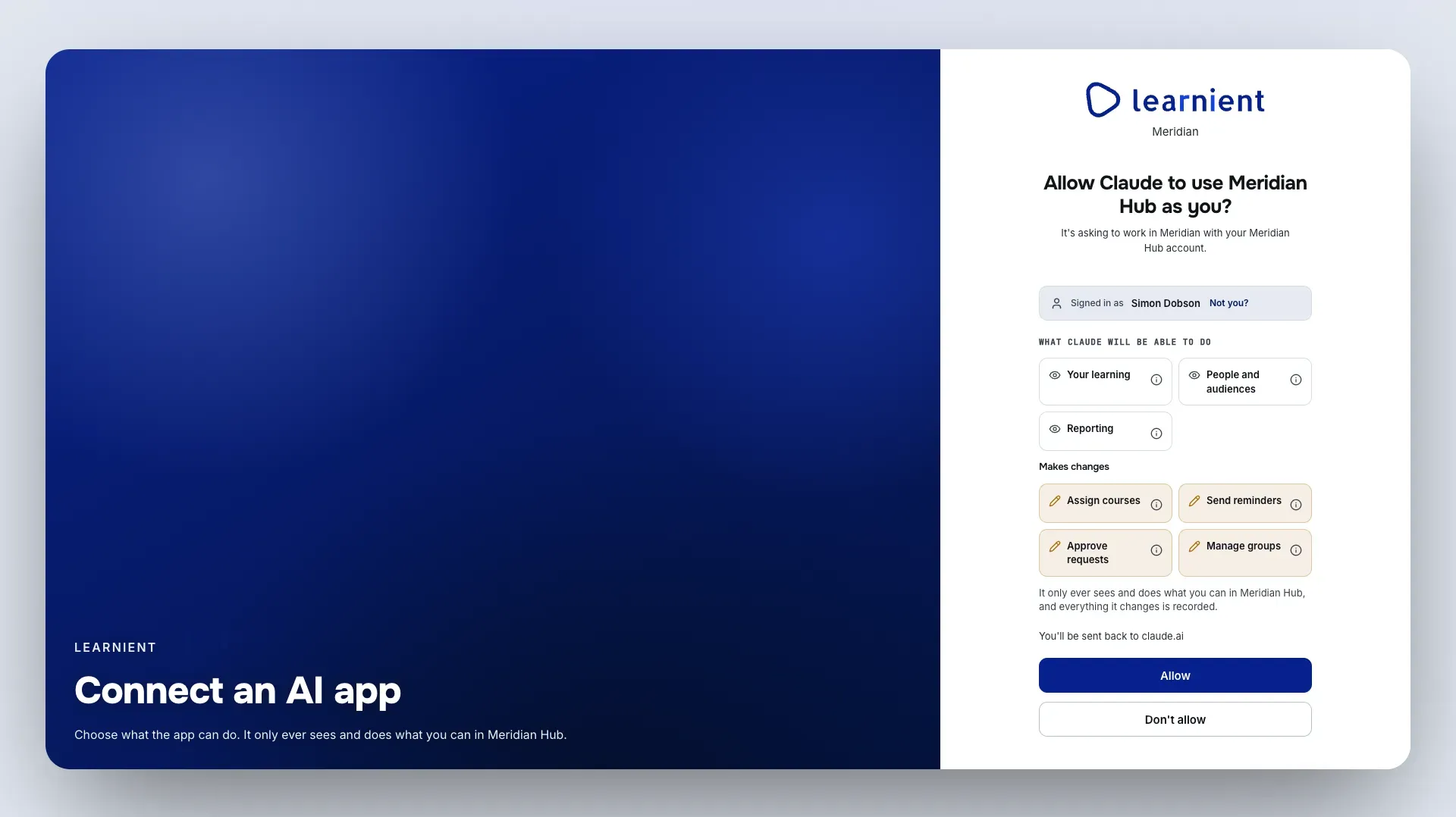
- Signed in as shows who you’re signed in as. If that isn’t you, choose Not you? to sign out and sign in with the right account. You come back to the same screen afterwards
- What Claude will be able to do (with your app’s name) lists everything the app is asking for, such as Your learning, People and audiences or Reporting. Beside each one, the i icon shows what it allows: hover over it, tap it on a phone or tablet, or tab to it, to read the description. Anything that changes things in Learnient, such as Assign courses or Send reminders, is listed separately under Makes changes
- Anything your role can’t use is greyed out with the reason, such as Not available - Your role can’t send reminders, or just Not available to your role. The app won’t get it
Below the list, “You’ll be sent back to” names the website Learnient returns you to, such as claude.ai, so you can check it’s the app you meant. An app that runs on your own computer, such as Claude Code, also shows a warning: “This app will receive access on this computer”. Only allow it if you started connecting from an app you trust on that computer.
Choose Allow to connect the app with everything on the list that isn’t greyed out, or Don’t allow to go back to the app without connecting it. Either way, Learnient takes you back to the app.
If your role can’t use anything the app is asking for, Learnient says there’s nothing to allow and Allow isn’t available. Ask your administrator if you think that’s wrong.
What you can ask a connected AI app about your own learning
Section titled “What you can ask a connected AI app about your own learning”Everyone can ask about their own learning and the courses they can take. When the app uses Learnient, it may show you which part it used, such as My learning summary or Search inside courses.
| What you can do | For example |
|---|---|
| My learning summary: what you have outstanding, overdue and completed, and how compliant you are | “What’s due for me this month?”, “Am I up to date on my mandatory training?” |
| Search courses: find courses by title and description, among the courses you can reach | “Find me a course on giving feedback” |
| Search inside courses: answer a question from what your courses actually say, naming the course and module each point comes from | “What does our training say about lone working?” |
| Course details: what a course covers, including its learning objectives and what each module is about, how long it takes, the skills it builds if your organisation uses Performance, whether it’s mandatory for you, your due date and how far you’ve got | “How long is Fire Safety Awareness, and have I done it?”, “What will I learn on Negotiation Basics?” |
| Recommended courses: the same recommendations as your Learn page, each with the reason | “What should I learn next?” |
| My skills gaps: your skills against the levels your role needs, with courses that build them. Only if your organisation uses Performance (skills and competencies) | “Which skills do I need for my role?” |
| My CPD summary: your CPD for the current period, what’s required and what’s left. Only if your organisation tracks CPD and you take part | “How many CPD hours do I still need?” |
| Expiring certificates: your certificates that run out in the next 30 days, or the period you ask for | “Do any of my certificates expire soon?” |
| Learnient context: your organisation’s name and your role | “What can you do for me in Learnient?” |
People who manage courses search, and get details of, every published course in the organisation. For them, Course details also says how many people a course is assigned to and its completion rate.
What you can ask a connected AI app about other people
Section titled “What you can ask a connected AI app about other people”Depending on your role, you can also ask about the people you can see in Learnient. A manager who sees only their team gets answers about the people they can see: the people who report to them, and anyone their visibility rule sets match. The app names people with their works ID in brackets, such as “Lynda Spence (957)”, so two people with the same name can be told apart.
| What you can do | Who can do it | For example |
|---|---|---|
| Find people: look people up by name, works ID or mobile number, with their email, mobile number, job, department, location, company and groups | People whose role lets them see or manage people | “Find Lynda Spence” |
| Person details: everything you could see about one person in Learnient, such as their mobile number, manager, start date and other employment dates, works ID and HR system ID, status, when they last signed in, the custom fields you’re allowed to see, and how many courses they have, have completed and have overdue | People whose role lets them see people (View users) | “When did Lynda Spence start, and who is her manager?” |
| Find an audience: look up departments, locations, job titles, companies, groups, positions and custom field values | People whose role lets them assign courses | “Which teams are called Sales?” |
| Team overview: how everyone you look after is doing, with the people who need attention first | Managers with people below them, and administrators | “How is my team doing?” |
| Overdue learners: who is overdue, for one course or one audience if you like | People whose role lets them see reports | “Who in the Leeds location is overdue on fire safety?” |
| Expiring certificates for your team: whose certificates run out soon | People whose role lets them see reports | “Whose first aid certificates expire in the next 60 days?” |
A mobile number can be asked about in any shape, such as “07911 123456” or “+44 7911 123456”, and the app is given it in international format. It finds a person by number only when it has at least four digits to go on.
Team overview lists up to 50 people, those with the most overdue training first, and says how many there are in all. Looking at other people’s details from an AI app is recorded in your organisation’s audit log.
Person details shows exactly what you could see about that person in Learnient. Anything that isn’t recorded, such as a leaving date for someone who hasn’t left, is left out rather than guessed. You see only the custom fields your role lets you see on that person. Unless you’re an admin, that never includes your own, just as on your profile in Learnient. Someone outside the people you can see isn’t found at all.
What you can ask a connected AI app about courses’ questions and ratings
Section titled “What you can ask a connected AI app about courses’ questions and ratings”If your role has View course report, the app can also tell you how a course is doing, with the same figures as the course report’s Questions and Reviews tabs, for the people you can see. Both are part of Reporting.
| What you can do | For example |
|---|---|
| Course question results: how often each question in one course is answered correctly, the question people get wrong most first, with any Check the answer key or Too few answers to judge flag and its reason, and a SCORM or xAPI course’s objectives. Finished attempts only; ask for first attempts only, or a period | “Which question do people get wrong most on Manual handling essentials?” |
| Course ratings: the courses and learning paths rated lowest, with how many ratings each has, or one course’s Average rating, its ratings by stars and its reviews. Approved reviews only | “Which courses are rated lowest?”, “What do people say about Fire safety awareness?” |
An anonymous review never names its writer, and the app is told never to try to work out who wrote one. A manager who sees only their own people gets the reviews their people wrote and no anonymous reviews, as on the course report’s Reviews tab. See Seeing how a course is performing.
Getting answers from your organisation’s training rather than general knowledge
Section titled “Getting answers from your organisation’s training rather than general knowledge”An AI app connected to Learnient decides for itself whether to look in your training before it answers. Learnient tells it that your organisation’s training comes first for anything about how your organisation does things, such as your policies, procedures, safety rules and internal names. But for a question the app thinks it already knows, it may still answer from general knowledge. Where your organisation does things differently, that answer is wrong for you, and it can sound just as confident.
How to tell where an answer came from: an answer taken from your training names the course and module it came from. If no course is named, the answer came from the app’s general knowledge.
To make the app check your training first:
- Say so in your question, for example “According to our training, what’s the lone-working procedure?” or “Check Learnient: how do we report a near miss?”
- Use the Find training on a topic prompt, which always searches inside your courses
- Give the app a standing instruction, as described below, so you don’t have to ask each time
Adding a standing instruction so an AI app always checks your organisation’s training first
Section titled “Adding a standing instruction so an AI app always checks your organisation’s training first”Most AI apps and agents let you give standing instructions that apply to every conversation. Depending on the app, these are called custom instructions, personal preferences, project instructions or, for an agent your organisation builds (for example in Microsoft Copilot Studio), the agent’s instructions. Paste this text into whichever your app has:
Learnient holds our organisation's training, which is our source of truth for how we do things. For any question about our policies, procedures, safety rules, systems or internal names and terms, search Learnient's course content first and answer from what it says, naming the course and module. If our training differs from general guidance, give our answer and say that general guidance differs. If Learnient has nothing on the subject, say so before answering from general knowledge, and make clear which parts are general.If your organisation sets up a shared project or its own agent for staff, putting this text in its instructions gives everyone the same behaviour without each person adding it.
Note: A standing instruction makes the app far more likely to check your training, but no instruction can guarantee it. For anything that matters, such as a safety procedure, check that the answer names a course and module.
Don’t upload your course documents into the AI app instead. Uploaded copies go out of date when a course changes, and everyone who can use that project or agent sees all of them. Searching through Learnient stays current and only ever shows each person what they can open in Learnient.
The search only covers courses you can open. If the app finds nothing, the answer may be in a course you haven’t been given, so ask your L&D team.
Opening what the AI app found in Learnient
Section titled “Opening what the AI app found in Learnient”Answers from Learnient come with links. A course, a person you’re allowed to open, or your CPD record opens straight in Learnient, at your organisation’s own address, so you can pick up there where the app left off.
Ready-made prompts for Learnient in your AI app
Section titled “Ready-made prompts for Learnient in your AI app”Learnient gives your AI app five ready-made prompts. Apps that support them list them in their own menu, often as commands you choose rather than type. Each one only appears if you can use what it needs.
| Prompt | What it does | Who sees it |
|---|---|---|
| Weekly compliance check | Who is overdue and whose certificates expire in the next 30 days, among the people you can see, with reminders suggested. Nothing is sent until you confirm | People whose role lets them see reports |
| Onboard a new starter | Finds the person you name, looks at their job, department, location and start date if your role lets you see people’s details, suggests the mandatory and role courses they need and assigns them once you confirm | People whose role lets them assign courses |
| My learning plan | Your progress, what’s recommended for you and the skills your role still needs | Everyone |
| Team check-in | How your team is doing and who needs attention | Managers and administrators |
| Find training on a topic | Searches the course catalogue and the content inside courses for the topic you give | Everyone |
Interactive views of Learnient in Claude, ChatGPT and Microsoft 365 Copilot
Section titled “Interactive views of Learnient in Claude, ChatGPT and Microsoft 365 Copilot”In Claude (on the web and the desktop app), ChatGPT and Microsoft 365 Copilot, some answers appear as an interactive view inside the chat rather than as text. Other apps show the same answer as text.
- Compliance dashboard, for overdue learners and expiring certificates: the counts, a chart By course, and the list of people with Open links. Send reminders starts sending reminders to the people listed, which still asks you to confirm
- Team overview: each person with a completion bar and their Overdue and Expiring in 30 days counts
- Course cards, for course searches and recommendations: each course with its type, how long it takes and Why it matched, with Open in Learnient. If your role lets you assign courses, Assign offers Assign to me, or Assign to people, which asks the app to help you choose who
- My learning: your completion, Mandatory compliance, what’s Due soon and Overdue, your streak and points if your organisation uses them, and Continue to carry on in Learnient
Some views have Full screen to open them larger. Everything a view changes goes through the same confirmation as a request typed in the chat.
Making changes in Learnient from an AI app
Section titled “Making changes in Learnient from an AI app”If your role allows it and you allowed it when you connected, the app can make these changes:
| Change | Allowed by | Who can do it | For example |
|---|---|---|---|
| Assign a course to people or Assign a course to an audience | Assign courses | People whose role lets them assign courses | “Assign GDPR Basics to everyone in Sales, due by the end of the month” |
| Unassign a course from people or Stop assigning a course to an audience | Assign courses | The same | “Stop assigning GDPR Basics to Sales” |
| Send training reminders: the reminder for training that is overdue, not started or stalled, or a certificate that has expired or is about to, the same reminder as on your dashboard, by email, in the bell and on the Learnient app | Send reminders | People whose role lets them see reports | “Remind everyone who is overdue on Fire Safety” |
| Approve or reject requests waiting for you on your Approvals page, such as course and learning path requests, sign-up requests, review moderation, publish approval and CPD records | Approve requests | Anyone with requests waiting for them | “Approve all the pending course requests” |
| Create a group | Manage groups | People whose role lets them create groups | “Create a group called Fire Wardens” |
| Add people to a group or Remove people from a group, leaving their other groups as they are | Manage groups | People whose role lets them add people to groups | “Add Fred Jones and Priya Shah to Fire Wardens” |
For every one of these, you also need to see everyone in your organisation in Learnient. If you see only part of it, such as your own team, the app can look things up for you but can’t make changes yet.
How an AI app confirms a change in Learnient
Section titled “How an AI app confirms a change in Learnient”The app never changes anything straight away. Learnient first works out exactly what would happen, including who would be affected, who would be skipped and why, and asks you to confirm:
- newer AI apps show you a confirmation prompt, with a choice where there is one
- other apps show you a summary of what would happen and ask whether to go ahead. Nothing changes until you tell the app to go ahead
Typing “yes” before you’ve seen the summary isn’t a confirmation, and nothing the app reads can confirm for you. If something changes between the summary and your answer, such as someone else assigning the same course, you’re shown the new summary instead.
A reminder email can’t be recalled and a decision on a request can’t be taken back, so for those two the app also asks you to type the number of people, or requests, affected. If the number you type doesn’t match, nothing is sent or decided. Rejecting a request needs a reason, which the person who asked is told.
Everything the app changes is recorded in your organisation’s audit log as done by you, through the AI app.
Assigning and unassigning courses from an AI app
Section titled “Assigning and unassigning courses from an AI app”When you assign a course to an audience, you always choose between:
- Everyone there, now and later: the course goes to everyone in the audience now and anyone who joins later, and anyone who leaves has it unassigned and keeps their progress. This is the default
- Only the people there now: the course goes to the people in it today, by name, and people who join later don’t get it
An audience can be a department, location, job title, company, group, position, or a custom field value, such as everyone whose contract type is “Permanent”. A position takes the same two choices as every other audience: for a position, “later” means anyone given the position later. Positions are only offered if your organisation uses them.
Stop assigning a course to an audience removes the audience from the course. People who join the audience later no longer get the course, and it’s unassigned only from people who had it through that audience alone. Their progress is kept, and anyone who also has the course another way, such as by name or through a learning path, keeps it.
Some changes can’t be made from an AI app:
- learning paths and in-person courses can’t be assigned. People book in-person courses themselves, and learning paths are assigned in Learnient
- someone who has a course because of an audience, such as their department, can’t have it unassigned on their own. Stop assigning it to the audience, or change their department, instead
Changing groups from an AI app
Section titled “Changing groups from an AI app”A person can be in any number of groups, so adding someone to a group never takes them out of another, and taking them out of one leaves the rest alone. People already in the group, or not in it, are skipped and listed as such.
Courses follow group membership. Someone you add gets any course assigned to everyone in the group, and someone you take out may lose a course they had only through that group, keeping their progress. The summary tells you before you confirm. The app never deletes a group or a person.
A group name can only be used once, so if the group already exists, the app uses it rather than creating another.
Disconnecting an AI app from Learnient
Section titled “Disconnecting an AI app from Learnient”Remove or disconnect Learnient in the AI app’s own settings, where you added it. The app then can’t reach Learnient as you.
The app also stops working if your administrator switches it off or revokes it, or switches AI connections off. If you’re archived, it’s disconnected at once, and being reactivated doesn’t reconnect it: connect it again.
Changing or resetting your Learnient password disconnects every AI app you’ve connected, in case someone else had your password. Connect each app again afterwards.
If you connected an app without something you now need, for example you connected it before your role could assign courses, or before your organisation allowed reminders, disconnect it and connect it again. The new list on the Allow screen reflects your role and your organisation’s settings as they are now.
When an AI app can’t connect to Learnient
Section titled “When an AI app can’t connect to Learnient”Instead of asking you to allow the app, Learnient may show one of these:
| What you see | What it means |
|---|---|
| Your organisation hasn’t allowed this app yet | Your administrator hasn’t added this app, such as Claude or ChatGPT, under AI connections. Once they have, go back to the app and connect again |
| AI connections are switched off | Your organisation hasn’t switched AI connections on. Ask your administrator |
| AI connections are for administrators only | Your organisation is trying them out with administrators first |
| This app has been switched off | Your administrator has switched off this app’s connection |
| AI connections aren’t available | AI connections aren’t part of your organisation’s plan |
| This app is set up for a different organisation | You’re signed in to a different organisation from the one the app is set up for. Choose Sign in as someone else and sign in with the right account |
| Your account can’t connect apps | Your account has been archived |
| This request has expired or This link is incomplete | Go back to the app and start connecting again |
| We couldn’t load this request | Check your connection and choose Try again |
| This app can’t connect right now | Go back to the app and try again, or ask your administrator |
Go to Learnient on these pages takes you to Learnient itself.
Before you even reach the sign-in page, a page headed “This app can’t connect to Learnient” may appear instead, and nothing has been shared with the app. It says why: the app isn’t set up to connect, the app hasn’t finished being set up (your administrator still has to add its redirect address), or the app asked to send you back to an address that isn’t registered for it. Ask your administrator, and close the window.
Common questions about AI apps and Learnient
Section titled “Common questions about AI apps and Learnient”Where do I find the MCP server address and Client ID?
Section titled “Where do I find the MCP server address and Client ID?”On your own Profile, under Connect an AI app. Your administrator can also give them to you.
Can an AI app see more than I can in Learnient?
Section titled “Can an AI app see more than I can in Learnient?”No. Every request is checked against your role and the people you can see, as well as what you allowed and what your administrator allowed the app. If your role changes, the app’s access changes with it.
How long does an AI app stay connected?
Section titled “How long does an AI app stay connected?”Until you disconnect it or your administrator stops it. The app’s access to Learnient lasts 15 minutes at a time, and the app renews it for you in the background while you’re still allowed to use it.
Why did an AI app answer from general knowledge instead of our training?
Section titled “Why did an AI app answer from general knowledge instead of our training?”The app decides for itself whether to search your training, and for a question it thinks it already knows it may not. Ask it to check Learnient, or give it a standing instruction. See Getting answers from your organisation’s training rather than general knowledge.
Where does what I ask go?
Section titled “Where does what I ask go?”What you ask and the answers Learnient gives go to the AI app and its provider, such as Anthropic for Claude, OpenAI for ChatGPT or Microsoft for Copilot. See How AI connections work.
Where is the technical documentation?
Section titled “Where is the technical documentation?”Developers can find the sign-in flow, every tool and prompt, and the interactive views in the AI connections developer reference.