

Importing past answers into a form
Import answers brings your past 1-2-1s, performance reviews, 360 feedback and CPD into a Learnient form from a spreadsheet, so the history you kept in Word or Excel sits beside the records people fill in from now on. Each row of the spreadsheet becomes one completed record, dated as you say, that the people on it can view and nobody can change. No process starts and nobody is notified, however old the records are.
You need the Import form answers permission. It is part of the Manage forms set of permissions.
Which forms can take imported answers
Section titled “Which forms can take imported answers”Answers can be imported into a published performance review, 1-2-1, 360 feedback or CPD form. Course surveys, sign-offs, goals and course requests can’t take imported answers, because each one belongs to a course, a goal or an approval that a spreadsheet row can’t honestly reproduce.
Importing CPD also needs CPD switched on and the Manage CPD permission, because imported CPD entries are approved as they’re imported. See Importing past CPD into a CPD form.
Importing past answers into a form
Section titled “Importing past answers into a form”- Choose Admin at the top of the page, then Process in the left-hand menu and Forms.
- Open the menu on the form’s card and choose Import answers. You can also choose Import answers at the top of the form in the form builder.
- Choose Download template and fill it in: one row on the Records sheet for each past record.
- Drag the filled-in file onto the window, or click to choose it, then choose Check file.
- While Checking your file shows, every row is checked exactly as the form checks an answer. Nothing is saved yet.
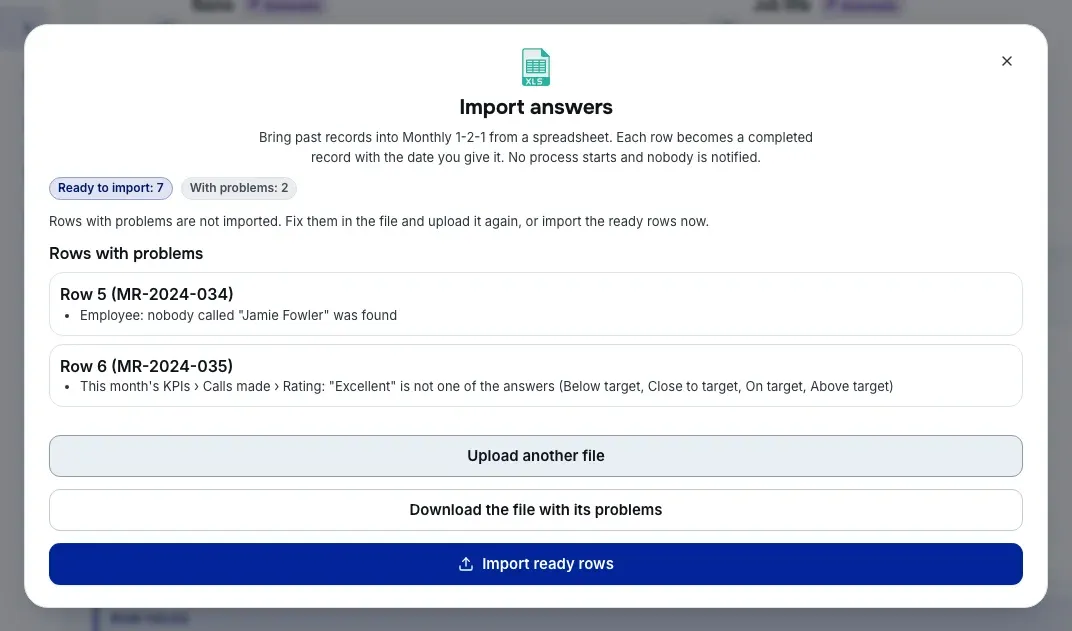
- When the check finishes, the window shows how many rows are ready and how many have problems. Choose Import ready rows to import the ready rows.
- Importing your records shows while they are saved. You can close the window; the records appear when the import finishes, and Import complete says how many were imported.
Filling in the answers template
Section titled “Filling in the answers template”The template is made from the form as it is now, in your language. It has an Instructions sheet that explains every column, and a Records sheet with one row for each past record.
| Column | What to put in it |
|---|---|
| Your reference | Optional. Any reference of your own, such as the record’s number in your old system. A reference already imported into this form is refused, so the same record is never imported twice |
| Employee | Required. The person the record is about: their email address, works ID, or full name exactly as it is in Learnient. People who have left can be named |
| Manager | Optional. The manager at the time. Leave it blank and no manager is recorded, rather than today’s. CPD forms have no Manager column |
| Date | The date of the record, such as when the 1-2-1 took place or the day a 360 round closed. Leave it blank to use the day you import it. A date in the future is refused. CPD forms have no Date column: the form’s own activity date is used |
| One column per question | Headed with the section and question, such as Details › Meeting type. A fixed list adds the row, such as Objectives › Call time › Target |
Columns ending in * must be filled in, because the form requires them. A question with a list of answers has a dropdown in the template. Where a question takes several answers, separate them with a semicolon. Yes / No questions take Yes or No, and dates can be date cells or day/month/year, such as 31/01/2022.
A name that two people in Learnient share isn’t guessed: the row is refused with “more than one person is called”, so use their email address or works ID instead.
Sections where people add their own rows
Section titled “Sections where people add their own rows”A section where people add their own rows, such as “The month ahead”, gets a sheet of its own in the template. Put one row per line, and in Record give the Records row it belongs to: its Your reference, or its row number. A line whose Record matches no row is listed under Lines not imported.
Questions that fill themselves in on an imported record
Section titled “Questions that fill themselves in on an imported record”Questions that fill themselves in show what was true at the record’s date, never today’s details, so a review from 2021 never shows the job title someone has now.
| Question that fills itself in | On an imported record |
|---|---|
| The person’s name | The person the Employee column names |
| Start date | Filled, as it doesn’t change |
| Length of service | Worked out at the record’s date, not today |
| Manager | The person in the Manager column; empty if that’s blank |
| Employee works ID, manager works ID | The works ID of the person in the Employee column, and of the person in the Manager column; empty if they have none |
| Job title, department, location, company | What you put in its (at the time) column, such as Details › Job title (at the time); empty if that’s blank |
| Learning and compliance figures, and anything else | Empty, because nobody knows what they were then |
An imported record can’t be changed, so anyone who opens it sees every answer as read-only, and a question left empty reads Not provided.
Questions that have no column
Section titled “Questions that have no column”Text on the form, pictures, videos, file uploads, the signature and the other questions that fill themselves in have no column. A file upload the form requires, such as evidence on a CPD form, isn’t required of an imported record, because the file is on paper or in your old system.
Questions that list a person's goals can't be imported either, because those are today's goals, not the goals they had then; the **Instructions** sheet names them.A column in your file that isn’t a question on the form is ignored and listed under Columns ignored. A question your file has no column for is listed under Questions with no column in your file and left empty on every record.
Importing past 360 feedback into a 360 feedback form
Section titled “Importing past 360 feedback into a 360 feedback form”A 360 feedback template has two sheets to fill in. Each row on the Records sheet is one past round: the Employee the feedback is about, the Manager at the time, the Date the round closed, and the questions the manager and employee answer themselves, such as a manager’s summary. Each row on the Responses sheet is one person’s answers in a round, with the questions respondents answer.
| Column on the Responses sheet | What to put in it |
|---|---|
| Record | Required. The round on the Records sheet this response belongs to: its Your reference, or its row number |
| Respondent | Optional. The person who gave the feedback, by email address, works ID or full name. Leave it blank if you don’t know who it was, or if they aren’t in Learnient, such as a client. Their answers are kept and shown by relationship, such as “A peer” |
| Relationship | Required. Self, Manager, Manager’s manager, Direct report, Peer or Other. Self is always the employee |
Every round needs at least one response. A round with no responses, more than one Self response, or the same person answering twice isn’t imported, and the check names the row.
The Records questions can be left blank when your old 360s never had them: a round with no manager’s summary imports without one. If a section has any answer, its required answers must be filled in too. Respondents’ required answers always apply.
People outside Learnient, such as clients or suppliers, can only be imported without a name, usually as Other. Their name and email address aren’t stored anywhere.
What an imported 360 round looks like
Section titled “What an imported 360 round looks like”An imported round is closed and its results are released on the round’s date, so the employee, their manager at the time and administrators see it as they would any finished round. No requests, reminders or emails go out. When your account has Performance, an imported round’s ratings and comments count towards the trends in Impact, but its comments are never quoted there, because the people who answered were never told they might be. Undoing an import removes them from Impact too.
Imported rounds keep the form’s anonymity rules. If the form makes respondents anonymous, the employee only sees the answers of peers, direct reports or others once that group has at least three responses, exactly as on a round you launch. Their own answers and their manager’s always show. A round from your old system with two peer responses therefore shows the manager’s answers to the employee but not the peers’. See Launching a 360 feedback round.
Imported rounds appear in the 360 feedback rounds report data source with Source set to Imported.
Importing past CPD into a CPD form
Section titled “Importing past CPD into a CPD form”Each row on a CPD template’s Records sheet is one past CPD entry: the Employee it belongs to, then the form’s questions, such as hours, activity date, category and provider. There is no Manager or Date column. The form’s activity date is the entry’s date and decides which CPD period it counts in.
Imported CPD entries are approved as they’re imported, dated on their activity date, and count towards the person’s CPD straight away: on their CPD page, in the manager’s view, in CPD statements and in the CPD report data sources. They show Imported on the person’s CPD page. Nobody is asked to approve them and nobody is notified.
Hours must be between 0.25 and 24 for each entry, as on the form. An entry of more than 24 hours, such as a week-long course, isn’t imported: split it into several entries.
Evidence can’t be imported, and an imported entry doesn’t need it even when the form does.
Correcting an imported CPD entry
Section titled “Correcting an imported CPD entry”An imported CPD entry can’t be corrected, because it never went through approval to reopen. Within 30 days, Undo import removes the whole import. After that, an administrator with Manage CPD can withdraw a wrong entry so it stops counting; the person it belongs to can’t withdraw it, and nobody is emailed. An import with a withdrawn entry can’t be undone.
CPD periods are listed on a person’s CPD page for up to 12 periods back. Older imported entries still count in reports on Logged CPD entries, but their periods can’t be chosen on the CPD page.
Fixing the rows the check found problems with
Section titled “Fixing the rows the check found problems with”A row with a problem isn’t imported, so one bad row never leaves a record half filled in. Rows with problems lists each one by its row number on the Records sheet, with every problem in it, such as an answer that isn’t one of the form’s answers, a missing required answer, or a person who can’t be found.
To fix them, choose Download the file with its problems. It’s your file with a Problems column beside each row that needs fixing. Correct those rows, then choose Upload another file and check it again. You can also import the ready rows first and import the fixed rows afterwards: give your rows a Your reference and the ones already imported are refused, not doubled.
If the whole file can’t be read, the window shows This file could not be imported with the reason, such as a file with no Employee column or more than 5,000 records. Split a large file into smaller ones.
What an imported record looks like
Section titled “What an imported record looks like”An imported 1-2-1, review or 360 round is completed, dated as the row said, and shows Imported at the top of the form, with a note that it came from a spreadsheet of past records. The employee and manager on it can view it as they would any finished record, and nobody can change it.
Imported answers appear in the form’s report data source like any other answers. Its Source field says Entered or Imported, so a report can include history or leave it out. The 360 feedback rounds and Logged CPD entries data sources have the same Source field.
Departments, locations and other organisation details on those rows are the person's as they were when you imported, because Learnient has no record of where they sat years ago.Undoing an import
Section titled “Undoing an import”For 30 days after an import, Undo import removes every record it created, with all their answers: 1-2-1s, reviews, 360 rounds with every response, or CPD entries, whose hours come off the person’s totals. Choose it under Import complete, or open Import answers on the form again and find the import under Earlier imports. Undo this import? shows how many Records, with all their answers are Removed. Choose Undo import to confirm, and the window shows Import undone; the import is then marked Undone.
If any of its records has been changed since it was imported, or one of its CPD entries has been withdrawn, the import can’t be undone. The references an undone import used can be imported again.
The file you upload is kept only until it’s imported, and a file that’s checked but never imported is deleted after four days.
Common questions about importing past answers
Section titled “Common questions about importing past answers”Why does a row with a blank required answer fail instead of importing what it has?
Section titled “Why does a row with a blank required answer fail instead of importing what it has?”The form requires that answer, and an import follows the same rules as filling the form in. Either fill the answer in, or make the question optional in the form builder before you import.
Does importing send emails or start the form’s process?
Section titled “Does importing send emails or start the form’s process?”No. Imported records are completed history. No process starts, nothing is assigned and nobody is notified, whatever the record’s date.
Can I import answers into a form that has changed since I downloaded the template?
Section titled “Can I import answers into a form that has changed since I downloaded the template?”The file is checked against the form as it is now. A question that no longer matches a column is listed, so download the template again if the form has changed a lot.
Why can’t the employee see the peers’ answers on an imported 360 round?
Section titled “Why can’t the employee see the peers’ answers on an imported 360 round?”The round follows the form’s anonymity rules, as a round you launch does. When respondents are anonymous, the employee sees a group’s answers only once at least three people in that group have responded, so a round imported with two peer responses keeps those answers from the employee. Their manager at the time and administrators can still see them.
Can I import 360 feedback given by people outside Learnient?
Section titled “Can I import 360 feedback given by people outside Learnient?”Yes, but without their names. Leave Respondent blank and choose a Relationship, usually Other. Their answers are kept and shown by relationship, and their name or email address is never stored.