

Importing a form from a Word, Excel or PDF document
If your 1-2-1s, reviews or checklists already live in Word, Excel or PDF, you don’t have to build them again by hand. Importing a document turns it into a draft form in the form builder, with its questions, tables, tick boxes, dropdown lists and instructions already in place. You then check it, change anything you need and publish it.
Importing a form from a document
Section titled “Importing a form from a document”- Choose Admin at the top of the page, then Process in the left-hand menu and Forms.
- Choose Import, then the type of form, such as One-to-ones.
- In Import a form from a document, drag your files onto the window or click it to choose them. You can choose several at once, and each becomes its own form.
- Choose Upload files (or Import for a single file).
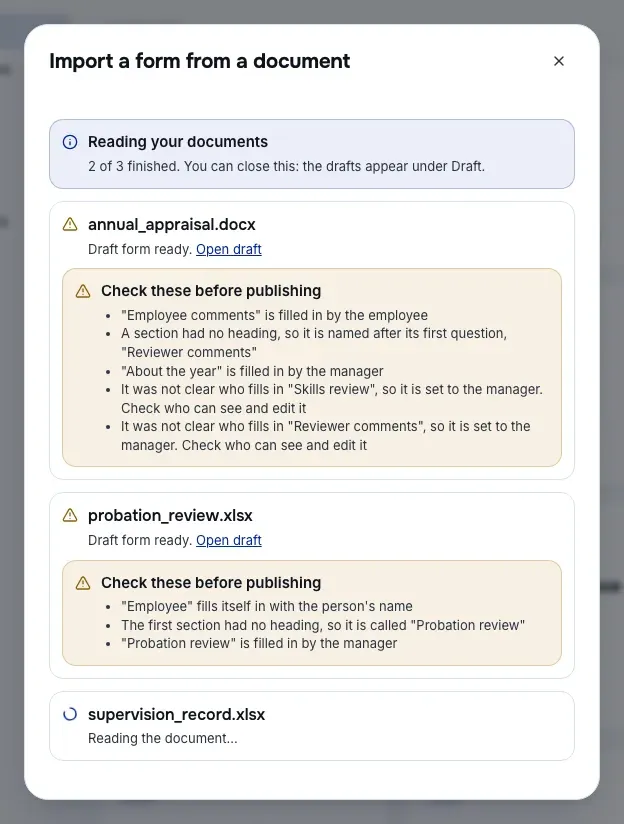
- While they are read, the window shows Reading your documents and each one shows Reading the document…. One document opens in the form builder as soon as its draft is ready. For several, each shows Draft form ready. with Open draft beside it.
You can close the window while documents are being read. The drafts appear under Draft on the Forms page when they are ready.
Which documents can be imported
Section titled “Which documents can be imported”| File | What happens |
|---|---|
| Word (.docx, .doc) | Read directly; older .doc files are converted first |
| Excel (.xlsx, .xlsm, .xls) | Each sheet with questions becomes its own form; empty sheets and copies of a sheet are skipped |
| PDF with text in it | Fillable PDF fields and printed tables are both read |
| Scanned PDF or photo | Not imported: there is no text to read. Upload the Word or Excel version instead |
A document can be up to 30MB. A file protected with a password can’t be opened, so remove the password first.
What is brought across from your document
Section titled “What is brought across from your document”Every word on the imported form is taken from your document. Nothing is made up, and the questions keep your wording.
- Questions next to a space to write become questions, with a type to suit: Short text, Paragraph, Number, Date or Yes / No.
- Bracketed prompts under a question, such as “(what went well, and how to keep it going)”, become its help text.
- Tables that list the same questions for named rows, such as KPIs or training topics, become A fixed list you set, shown as a Table. See Asking the same questions about a fixed list of rows.
- Tick boxes across a row, such as “1 = Unsatisfactory” to “4 = Above expectations”, become one List question. The numbers become the answers’ scores, and “N/A” is left without a score.
- Blank rows for people to fill in become a section where people add their own rows, shown as a Table with your column headings across the top. They’re a plain list, not goals: if each row should become a goal, switch on Each row becomes a goal in the section’s settings. If a section should not repeat at all, choose Not repeating there before anyone fills the form in. See Showing rows people add as a table.
- Dropdown lists in Word or Excel keep their answers.
- Instructions, such as “This section is to open the session”, become text on the form.
- Name, job title, department, manager and start date of the person the form is about fill themselves in, rather than being asked.
- Signatures each become an Attestation field, so a form the employee and their manager both sign keeps both signatures. Each one takes your document’s declaration, such as “By signing below you confirm…”, as its statement, or its own label when the document has no declaration. A signature labelled for the employee is signed by the employee, and any other by their manager. See Asking more than one person to sign a form.
Who fills in each section is suggested from your document, for example a section called “Employee comments” is given to the employee. Check these before you publish.
Checking an imported form before you publish
Section titled “Checking an imported form before you publish”When the importer had to make a choice, it tells you. The notes appear under the document in the import window, headed Check these before publishing, and at the top of the form in the builder, headed Imported from your file: check these before publishing.
Typical notes:
- a question’s type was chosen, such as “Goal” set to Number;
- a section had no heading, so it is named after its first question;
- two rows had the same name, so the second was numbered;
- the date beside a signature was left out, because Learnient records when the form is signed;
- a signature became an Attestation field, so check its statement, and who signs it under Permissions;
- it wasn’t clear who fills in a section, so it is set to the manager.
Choose Done, hide these notes when you’ve checked them. The notes also stop showing once the form is published.
Your document itself is not kept. It is deleted as soon as the form has been made.
If a document can’t be imported
Section titled “If a document can’t be imported”The import window shows This document could not be imported with the reason, such as a scanned PDF, a damaged or password-protected file, or a document with no questions in it. Fix the file and choose Import more documents to try again, or build the form in the form builder instead. See Building a form.